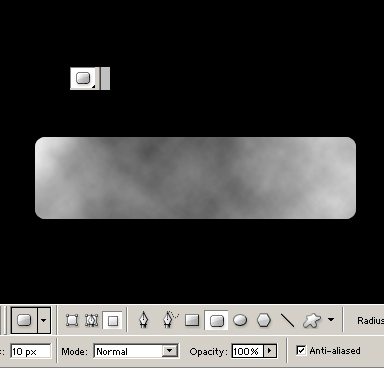
Step 1. Make a new document fill it with any color and using the round rectangular tool on a new layer with the settings below make a shape and then press ctrl+click on the layer to select the shape and then go to Filter>Render>Clouds.
Step 2. Add the following settings:
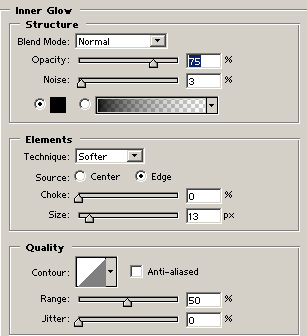
Inner glow:
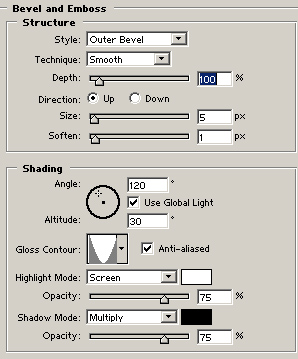
Bevel and emboss:
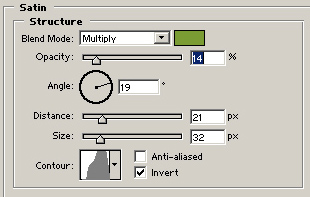
Satin:
Step 3. Make a new layer and a shape filled white and make sure its placed on top of the button.
Then go to Filter>Blur>Gaussian Blur with a 7 Px Radius and press ok

Final:

 This post was written by owner of