Step 1. Make a new document 300x300 and fill it white. Make a new layer Then pick up the elliptical tool and make a selection like mine try to make it a bit oval so when you are drawing the selection press ALT then fill it with a light gray color.
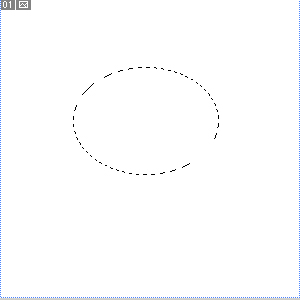

Step 2. Then make a selection on the same layer exactly like below and then on the gray portion fill it white.
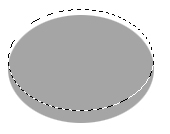
This is what you should have after you deselect. My image shape is selected for a better see.
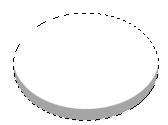
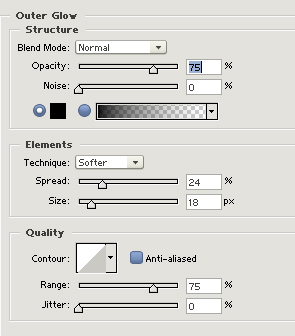
Step 3. Now add the following layer styles:
Outer glow:
Stroke:
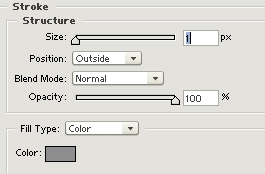
This is my result :
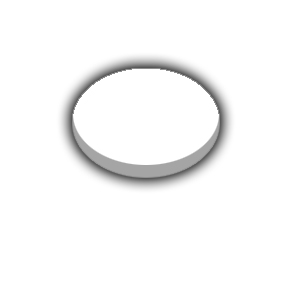
Step 4. Grab the elliptical marquee tool and make a selection like mine then make a new layer and with the selection still on fill it with any color ... but be careful any color you chose must not be the brightest because dodging will not be possible. I used a green color.
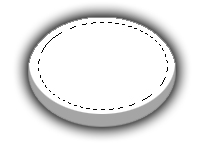
Now add the following layer styles:
Inner shadow:
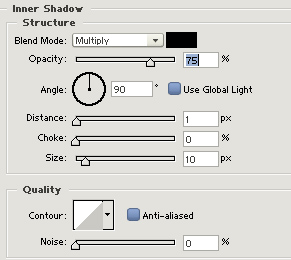
Stroke:
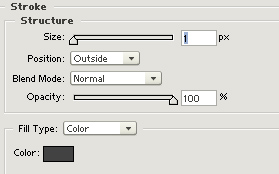
Step 5. In this step we will need to dodge the orb. So pick up the dodge tool with the following settings

and start dodging from the bottom of the orb and to the left and right. This is what I got :
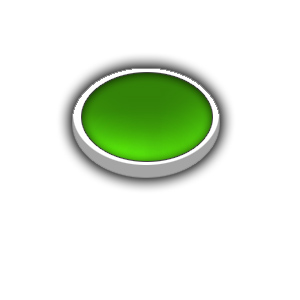
Step 6. Make a new layer and with the elliptical marquee tool make a selection like below :
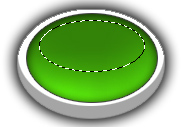
Now grab the gradient tool with the settings below:

And start from top to bottom like below:
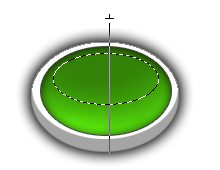
Now set layer blending to screen . This is it. You are done
If you did all the steps right you should have something like:

You can use this as a splash or like a menu. Here is another sample:

 This post was written by owner of