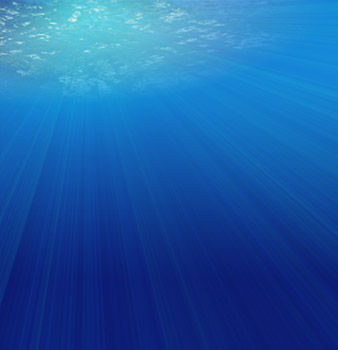
Here's a detailed look to help simulate underwater scenes.
I first began with a 500x500 size document preset, set the foreground color to a shade of blue (I used #1680D1) and the background color to a dark blue (I used#0C1B6C). Create a new empty Layer (Shift + Ctrl + N (Mac: Shift + Command + N), just above the default document background Layer.
Activate that new empty Layer by selecting it in the Layers Palette.

Next, select the 'Gradient Tool (G)'
 on the Toolbar.
Then notice up on the Options Bar for that particular tool, the new options that are available, particularly, the 'Gradient Preset Picker'.
Select the 'Gradient Preset Picker' to define the gradient to use for this effect. I will use the 'Foreground to Background' preset as I have selected below (the first one).
Note: These colors are based on the Foreground and Background colors we set earlier.

Also, on the Options Bar choose the 'Linear Gradient' style
First one in the group of 5 gradient styles
Next, still with the 'Layer 1' and the 'Gradient Tool (G)' active, start the gradient transitions roughly just above center point with a click and drag action.

To produce a similar result as below.

Create another new empty Layer (Shift + Ctrl + N (Mac: Shift + Command + N),just above the 'Layer 1'.
Activate that new empty Layer 2 by selecting it in the Layers Palette. Also, for the next step lets hide the 'Layer 1' for later use.

Next, select the 'Gradient Tool (G)'
again on the Toolbar.
Set the foreground Color to a lighter blue. (I used #B9DDF9).
As before up on the Options Bar for that particular tool, select the 'Gradient Preset Picker' to define the gradient to use for this next effect. I will use the 'Foreground to Transparent' preset as I have selected below (the first one).

Also, on the Options Bar choose the 'Radial Gradient' style

Second one in the group of 5 gradient styles

Also, Mode settings: Normal / Opacity: 100% / Transparency: ticked.
Next, still with the 'Layer 2' and the 'Gradient Tool (G)' active, start the gradient transition from the uppermost left hand corner as I have captured below.

To produce the following result.

Turn the visibility of 'Layer 1' back on.

You should now have the below result with the above steps.
So far, basically, just two gradients. A Linear gradient, dominating the background. A Radial gradient that will be used to simulate sun rays on the surface of the water.

Next on with the rippled surface effect.
With 'Layer 2' selected in the Layers Palette, right click (Mac: Control +Click) on the Layer and from the contextual menu choose 'Select Layer Transparency'.

This will create a selection only around the pixel contents of this layer, as indicated by a marquee.

Next, for this selection apply 'Filter/Render/Clouds'. (Your foreground color should still be the #B9DDF9 light blue & the background color the dark blue#0C1B6C, that was set earlier).
Then, Ctrl + D (Mac: Command + D) to deselect the selection to reveal the below result.

Next, still on 'Layer 2', go 'Filter/Artistic/Plastic Wrap' and apply the below settings.

This will produce the following result.

Starting to take effect now. Let's apply some depth to the surface area.
Still on 'Layer 2', Ctrl + T (Mac: Command + T) to activate the Free Transform Tool for this Layer.
Then with the Ctrl key pressed (Mac: Command key pressed), click and drag the top most end points and drag outward. And also, click and drag the two bottom points and inward as I have captured in the below link.
This will provide a more realistic depth since the perspective is underwater.
I then duplicated 'Layer 2' and set its Blend Mode to 'Linear Light' and dropped it’s Opacity level down to about 53%.

To produce the following result.

Next, lets apply a sunbeam affect coming from above the surface to a short distance below.
Create another new empty Layer (Shift + Ctrl + N (Mac: Shift + Command + N),just above the 'Layer 2'.
Activate that new empty Layer 3 by selecting it in the Layers Palette.

Next, select the 'Gradient Tool (G)'
again on the Toolbar.
Set the foreground Color to a variant of aqua blue. (I used #32F7E7).
As before up on the Options Bar for that particular tool, select the 'Gradient Preset Picker' to define the gradient to use for this next effect. I will use the 'Foreground to Transparent' preset as I have selected below (the first one).

Also, on the Options Bar choose the 'Radial Gradient' style
Second one in the group of 5 gradient styles
Also, Mode settings: Normal / Opacity: 100% / Transparency: ticked.
Next, still with the 'Layer 3' and the 'Gradient Tool (G)' active, start the gradient transition around the area that I have captured below.

This will produce the following result.

I then set that Layers Blending Mode to Overlay and bumped down its Opacity Level, as indicated below.

To produce this softened affect.

Finally, create another new empty Layer (Shift + Ctrl + N (Mac: Shift + Command+ N), just above the 'Layer 3'.
Activate that new empty Layer 4 by selecting it in the Layers Palette.

Next, select the 'Gradient Tool (G)'
again on the Toolbar.
This time, click on the 'Gradient Preset' that was last used. In this case,

This will bring up the 'Gradient Editor'. But within the 'Gradient Editor’, change the 'Gradient Type to 'Noise'.

Then applied the below settings. Then OK.
Note: I adjusted the R (Red) slider to the right to strip any red variants from the gradient.
Also, your results will not be exactly as shown.

Once you have those similar settings, make sure 'Layer 4' is active, as well as, the 'Gradient Tool (G)' on the Toolbar, and up on the Options Bar for this tool, choose the 'Angle Gradient' style from the five styles.

Then create a click and drag gradient transition as in the area as I have captured below.

This will produce the following result.

Finally, I set that Layers 'Blend Mode' to Screen and bumped down the Opacity Level to 19%.

To produce this resulting image.