
In this easy tutorial i will learn you how to change a normal photo in a drawing. This can be done in a lot of ways.
But personally I think this is the best one. But anyway, let's start!
Take this picture and open it in photoshop (you can use of course a picture of your own)
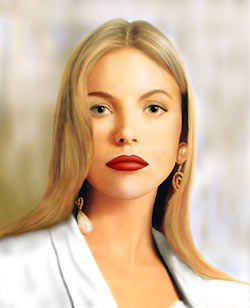
Step 1
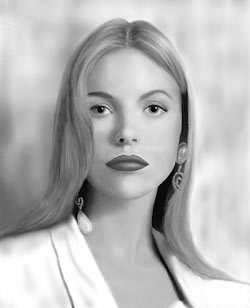
To start, we'll make to photo black/white.
This, we will do by: Image -> Adjustments -> Desaturate
Or just type: Ctrl + Shift + U like you see, our picture is now black/white.
If you did it right, this is what you have now:
Step 2
Duplicate the layer:
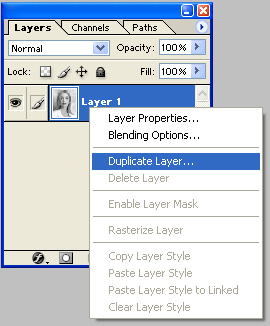
Step 3
Now, goto: Image -> Adjustments -> Invert or just type Ctrl+i
This is what you have now:
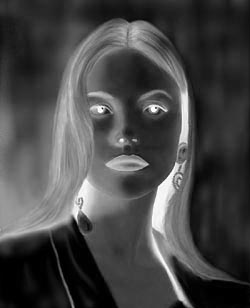
Step 4
Change the layer to Color dodge:
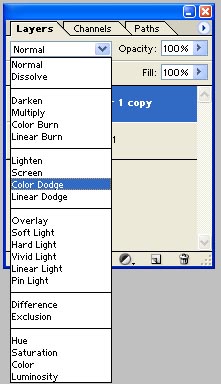
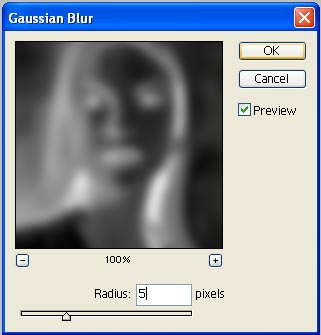
if your screen is now white, don't worry. That's perfectly normal. STEP 5 Now, goto: Filter -> Blur -> Gaussian Blur and take the following settings:
The end
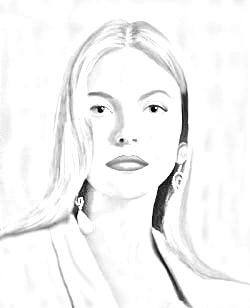
Congratulations, you just made a photo look like a drawing!!
I hope you enjoyed my first tutorial on this site.
If there are some language mistakes, i'm sorry about that but that's because i live in belgium. Our official language is Dutch, French. So all my english i learn, is from games, photoshop, tv, music. So i hope you understand that.
Have a nice day!!
