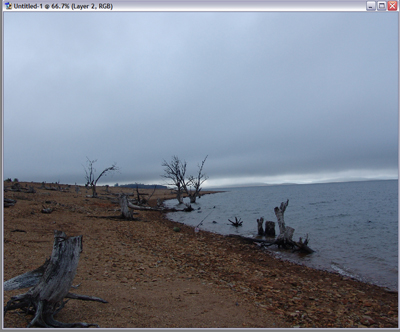
1. First, open the image you want to create an effect on.
I chose this photo i took at a lake in Australia:
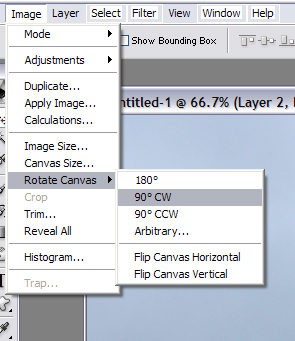
2. Now rotate the image:
3. Now select the area where you want the ice effect, or if you want it everywhere don't select anything. If you have selected a part of the image, right click the image and select "feather" set it to '10'
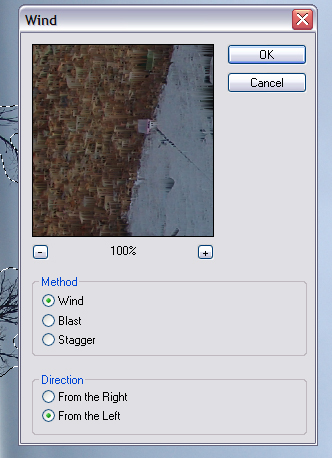
4. Now go to Filter > Stylize > Wind and do the following:
5. Now rotate it back to normal. "Rotate Canvas" 90ccw
6. Now hit Ctrl+U and do the following:
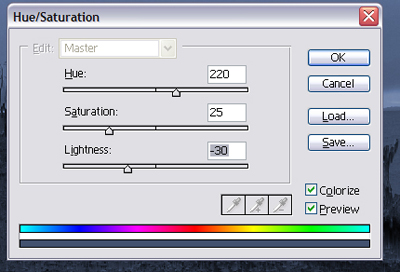
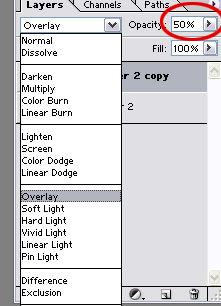
7. Duplicate the layer by hitting Ctrl+J and on the duplicated layer change these settings (settings can depend on you image) :
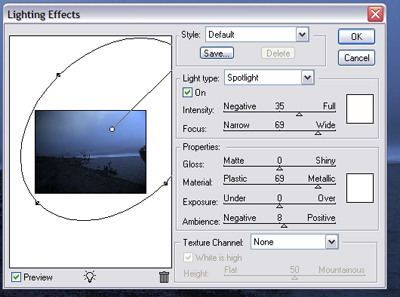
8. Now merge the layers together Ctrl+E and go to Filter>>Render>>Lighting Effect:
9. Now you basically complete, if you want to do your own thing like add text, go for it.
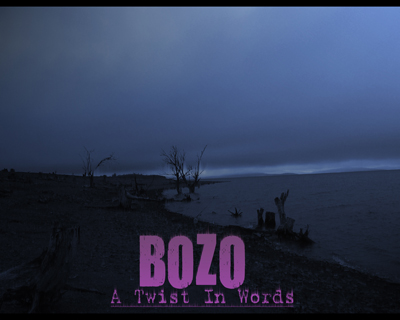
This is what I got: