Step 1. First create a new document of any size and type your text there. No matter what color you used, but I used #066CC0.
Step 2. Now click on the ICON of the text layer in the layer's window to make a selection of your text and create a new layer.

Step 3. Now go to Select > Modify > Contract and enter the value as 1. This value may vary if you have different size of text. You can experiment this step.
Now Fill your selection with the color #0682c2.

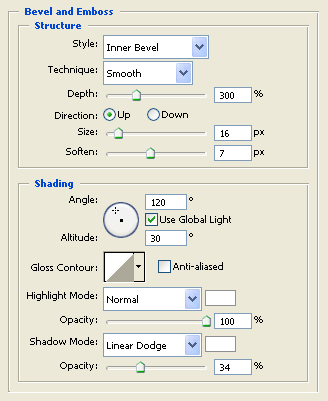
Step 4. Now keep your layer selected which you just filled, and go to blending options and enter the values as shown below.
Now Fill your selection with the color #0682c2.
And you are done, Here is my final result.
This tutorial is very simple but I hope it would be handy for you.