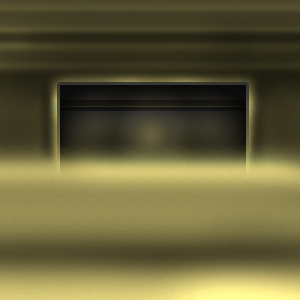
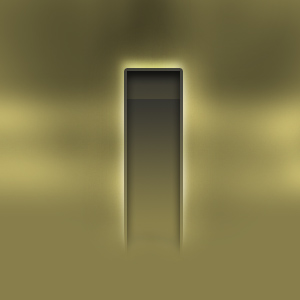
Step 1. In this tutorial we are going to learn how to make some ventilation wholes. So make a new document and a new layer. First set your background layer color to #8C824C then on the new layer with the colors set like in the image below grab the gradient marquee tool from foreground to background make a shape that you desire and go from top to bottom.


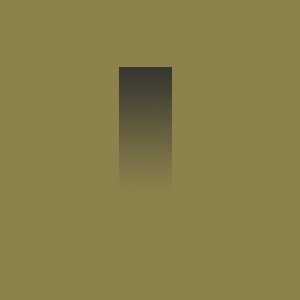
Step 2. Duplicate the layer and using the move tool or the mouse move it down as you see below and press CTRL+E to merge the two layers.:
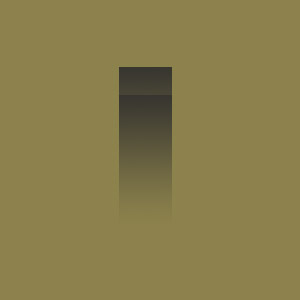
Step 3. Now add the folowing layer styles:
Inner Shadow:
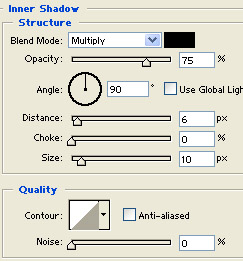
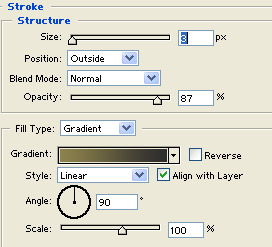
Stroke:
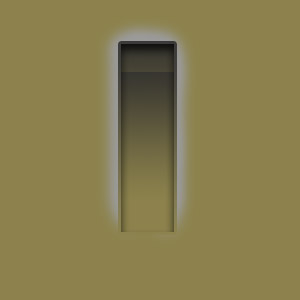
Step 4. Make a new layer behind the shape layer and grab a soft round brush using a gray color color on the edges like you see below:
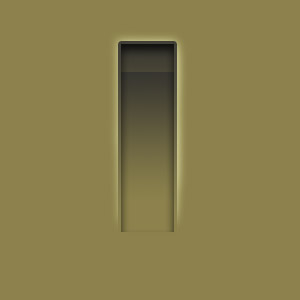
Now delete the gray at the bottom using an eraser and set blending to COLOR DODGE:
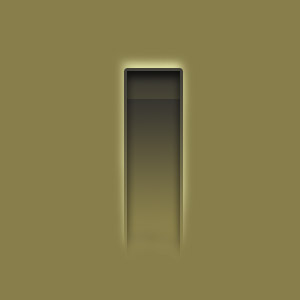
Step 5. Take the eraser and go back to the shape layer. Now with a soft eraser delete on the botom and make it look like its blending in:
Step 6. You are pretty much done. Now for more detail take the burn and dodge tool and on the base layer brush and dodge to make add more depths.

This is another example of my work: