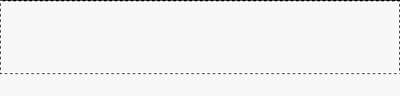
Step1. Make a new document sized 600x800 and fill it with a dark white. I chosed F8F8F8. Make a new layer and a selection like below:
Make a new layer set your foreground and background color to :

#FEFEFE(foreground) and #E3E3E3(background).
Grab the gradient tool with the settings below:

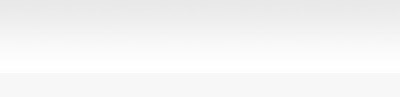
Click and drag from Bottom to Top. Your result should look similar to this:
Step 2. In this step we are going to create the simple but professional banner. Write your text using any good font. I chosed Arial Black and used two colors. You can choose yourself the color doesn't matter. I chosed Green and Black:

Set foreground color to any blue color and Grab the rounded rectangular tool with the settings below. Make a new layer and a new shape in front of the text.

I also added an arrow from shapes tool.
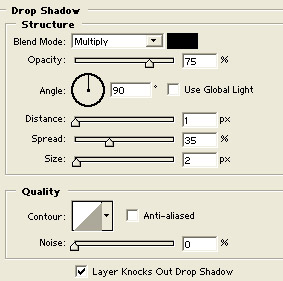
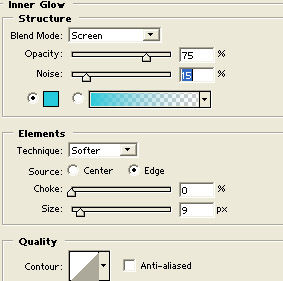
Now add the following layer style:
Drop Shadow:
Inner Glow:
Step 3. Make a new layer and a selection like below and fill it with the white color:
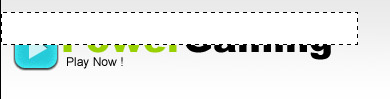
Now lower opacity to 21%
You are done with the banner.(I have also added in the right a search button to fill the empty space. Its just a image and will be replaced with a real one when the site will be coded.

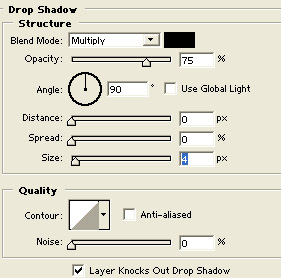
Step 4. Return to the second layer you created in the layer tab. The base banner shape and add a Drop shadow:
This is my result:
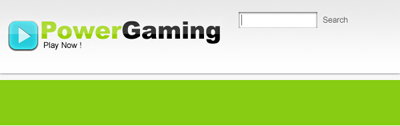
Step 5. Make a new layer pick the rectangular marquee tool make a selection like below and fill it with any color. I chosen green.
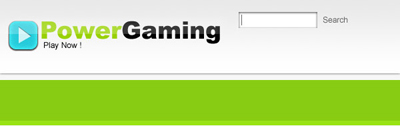
Now make another selection and on the same layer as the green rectangle on the bottom add another color lighter than the first like below:
Step 6. Grab the Single column vertical marquee tool and separate the buttons like below:
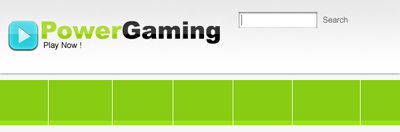
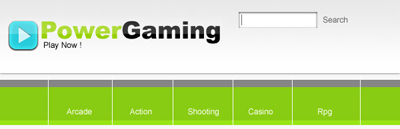
Write down your text:
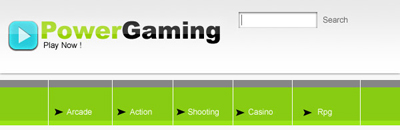
I also added black arrows in front of the text.
Step 7. Using the rectangular marquee tool make 2 selections like below:
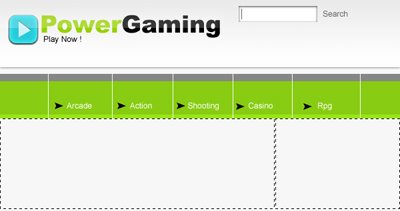
and fill them with colors. First blue and second gray.
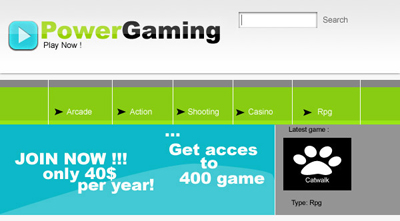
This will be ad space or website news. You are done. This is my final result :
 This post was written by owner of