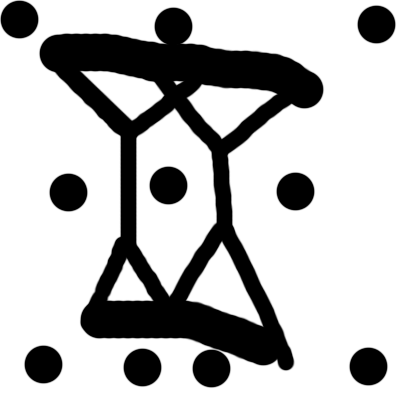
1. Create a new document ( I made it 300x300) with a white background. Press "D" to reset the colors. Now choose a Brush Tool size 24 and draw something like below. The drawing you will make will affect the final result..
This is what I came with:
2. Go to Filter > Blur > Radial Blur and use the following settings:
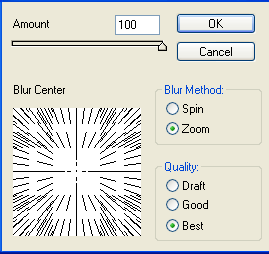
Then apply Filter > Stylize > Find Edges and Filter > Blur > Radial Blur with the previuos settings
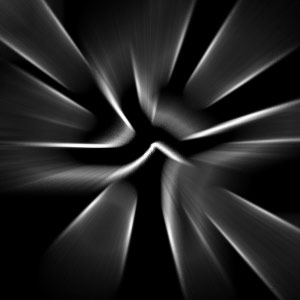
3. Press Ctrl+I to invert the image. Then apply Filter > Blur > Radial Blur with the following settings: Amount->100, Blur Method->Zoom, Quality->Best. Then apply Filter > Stylize > Find Edges. This is what I got:
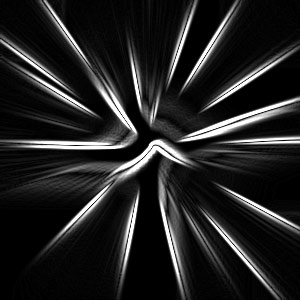
4. Press Ctrl+I to invert the image again and apply Image > Adjustments > Brightness/Contrast and play with the settings if you think you need it. My result was to dark so I added a 25 Brightness. Duplicate layer go to edit free transform rotate it set blending to overlay. This is my result:
5. You are finished. To add a color to your result go to Image > Adjustments > Hue/Saturation and use any settings you like. I chosed: Hue->0, Saturation->100, Lightness->+23.
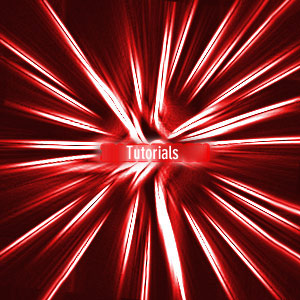
This is my final result
 This post was written by owner of