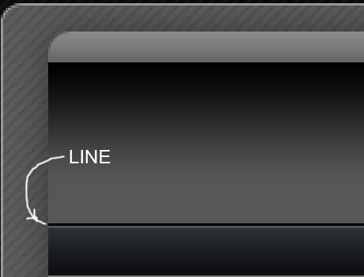
Create a new file (File>New), having 900x885px and 72 dpi. Select next the Paint Bucket Tool (G) and paint it in this presented color - #7E7E7E

Apply for the layer in case the next parameters by making a right mouse's click on the layer.
Blending Options>Gradient Overlay
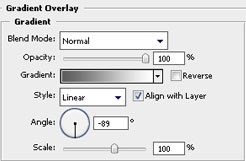
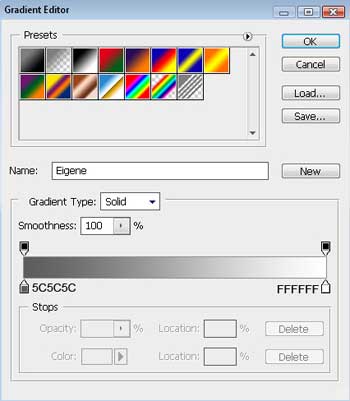
Gradient's parameters:

Create now another new layer (Create new layer) of 4x4 px for representing the next texture's pattern:
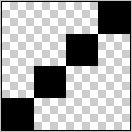
And save it: Edit>Define Pattern
Continue by creating the next layer:

Apply for this layer the next shown parameters:
Blending Options>Gradient Overlay
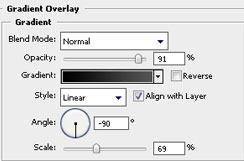
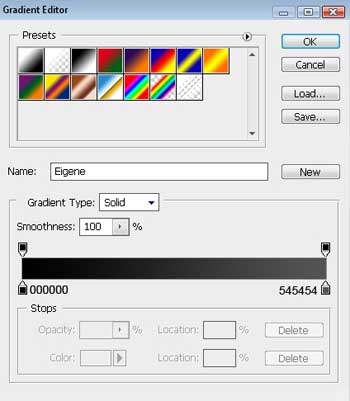
Gradient's parameters:
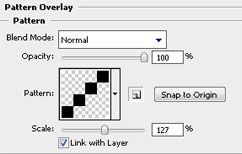
Blending Options>Pattern Overlay

The next stage includes representing the primary layer of the site's page of white color, selecting previously the Rounded Rectangle Tool (U)

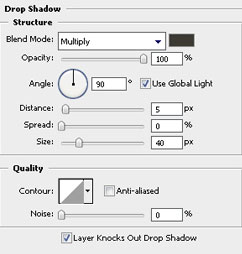
We should apply for this layer the next parameters too. Fill 30% on the layer.
Blending Options>Drop Shadow
Blending Options>Stroke
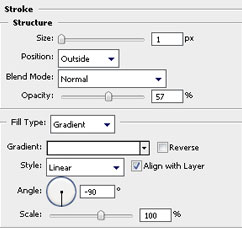
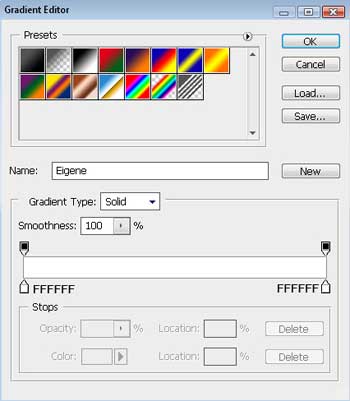
Gradient's parameters:

Insert one more layer for the central site's panel, using the Rounded Rectangle Tool (U) of white color:

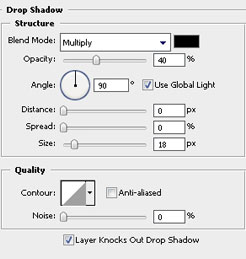
Select for this layer the next demonstrated parameters:
Blending Options>Drop Shadow
Blending Options>Gradient Overlay
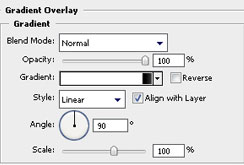
Gradient's parameters:
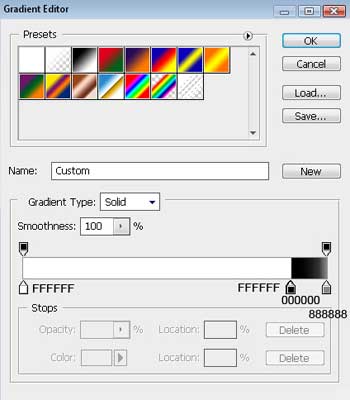

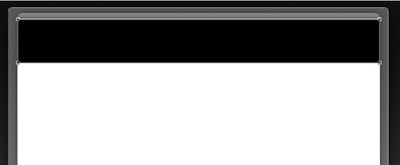
Create the next layer on the site's header, choosing firstly the Rectangle Tool (U)
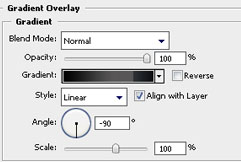
The layer's parameters: Blending Options>Gradient Overlay
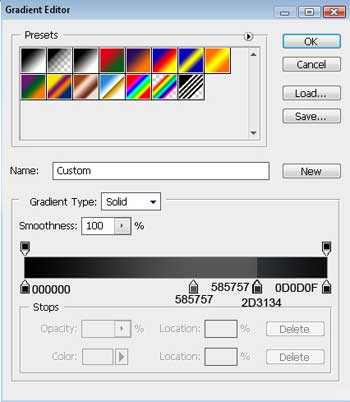
Gradient's parameters:

Next we should represent a stripe of black color on the site's header zone, applying the Rectangle Tool (U).