Open a new file that must have 1024x768 px and 72 dpi. Then take the next tool
 and represent the background for the picture to be.

Blending Options-Gradient Overlay
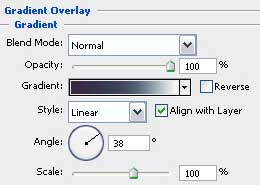
Gradient's parameters:
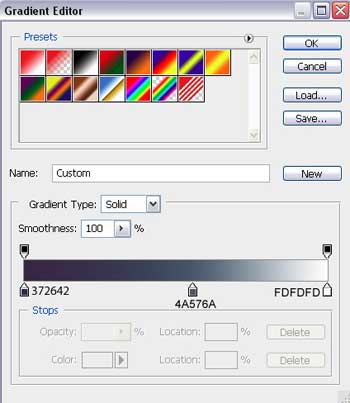
Choose the following tool now
 and select the next cliché marked with red color.
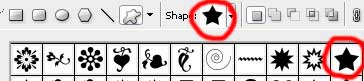
Turn around the small cliché star, using the Free Transform selection.

Fill 0% on the layers.
Blending Options-Drop Shadow
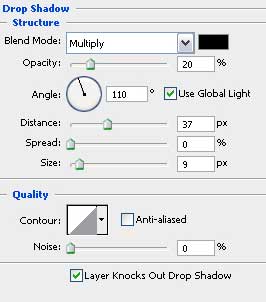
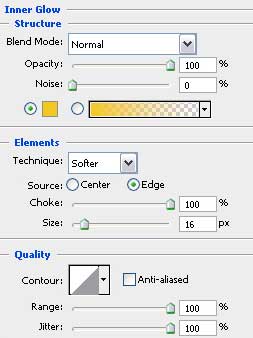
lending Options-Inner Glow
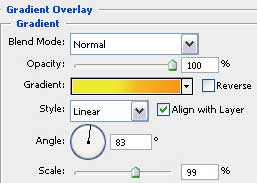
Blending Options-Gradient Overlay
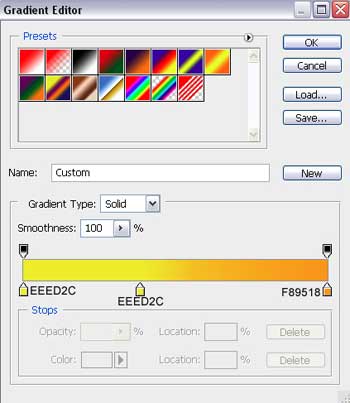
radient's parameters:
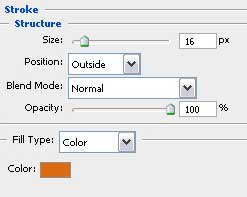
Blending Options-Stroke
Applying the next instrument now
 , try to represent a kind of gleam on the pictured star already.


Fill 0% on the layers.
Blending Options-Gradient Overlay
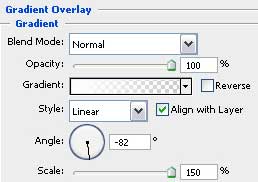
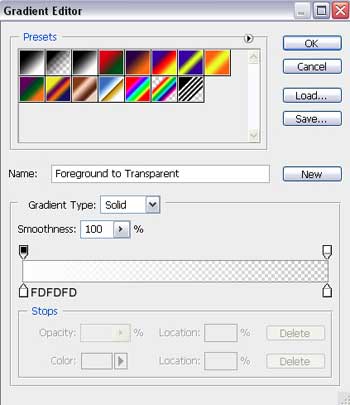
Gradient's parameters:
Selecting the previous instrument, it's possible to draw also a train on the star, like the dress has, the way it is demonstrated below.