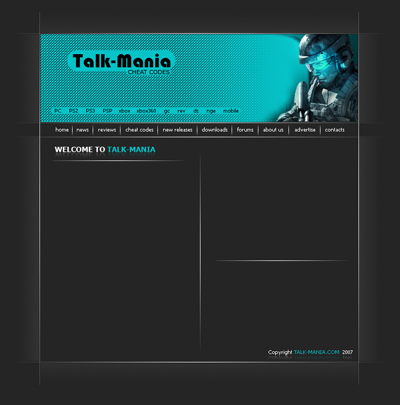
Start with a new document
Size 760 X 770 pixels
Background color :#252525
Then grab Line Tool ( set the weight to 1 pixel ) and make 2 lines, one horizontal and one vertical
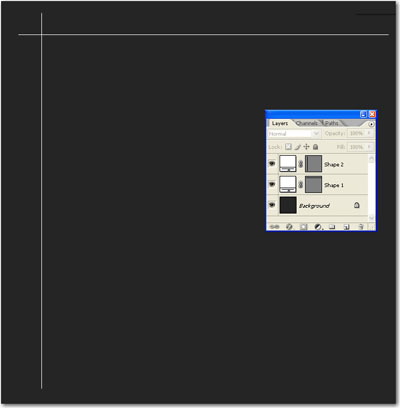
Select Horizontal Line layer
Then press on " Add layer mask " button
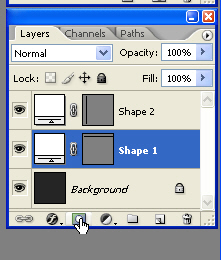
Then select Gradient Tool. Use the following settings

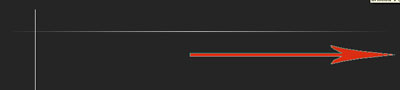
Then draw a line from the middle of the line to the end, the size should be exactly as my red arrow
You can see also the result in the next image
Then select the vertical line layer, and press one more time on the "Add layer mask button "
Then select Gradient Tool. Use the same settings
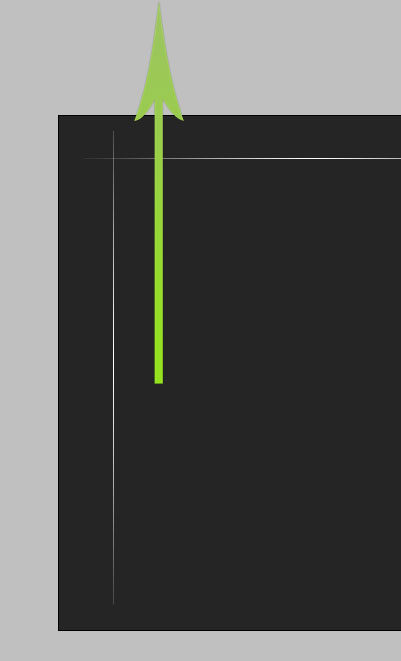
Then draw a vertical line ( the line should follow exactly my green arrow )
You can see also the result in my following image
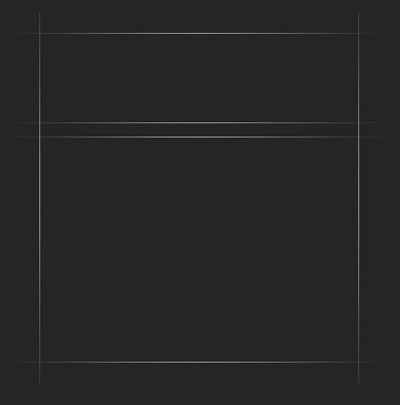
Duplicate this lines a few times , and place the lines like me
To duplicate one layer , first you must select the layer then press Ctrl+J
Now Create another document: ( we will create a pattern )
Zoom this document to 1600% and with the Pencil Tool Draw 3 points:

After that go to Edit > Define Pattern...
Choose a name for your pattern and press OK
Now we will come back to our layout.
Select Rectangular Marquee Tool , and make the following selection

Create a new layer ( press Ctrl+Alt+Shift+N )
Grab paint Bucket Tool , use the following settings
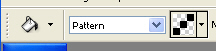
Then fill the selection with this pattern
Press Ctrl+D to deselect
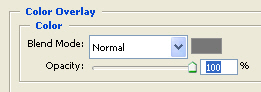
Then add the following layer style
This is the result
Now with this layer selected press one more time on " Add layer mask " button
Select Gradient Tool
Use the following settings

Then draw a small line , like the green arrow.
In the same time you can see also the result
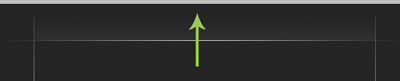
Now with the same techniques , create for the other parts of the layout
This is my result
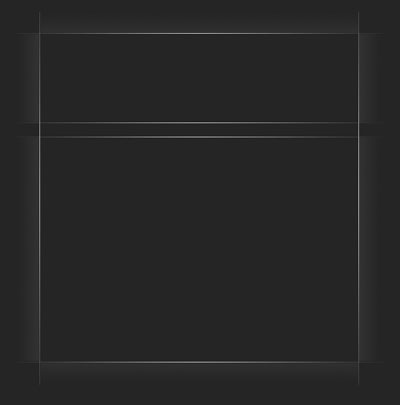
Now add a image and place it like me
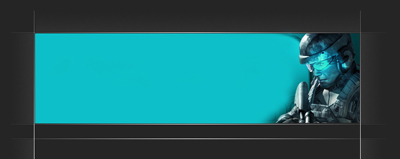
Then type some text on this header

Now create another document
The size should be 5 x 5 pixels with a transparent background
Zoom the document to 1600 % , then with the pencil tool, create some points like in the following image
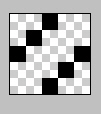
Then go to Edit > define pattern . Choose a name for this pattern and click ok
Now let's come back to our layout
Make a selection like me
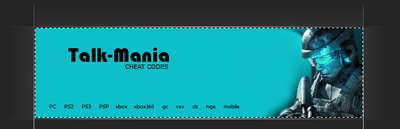
Create a new layer ( press Ctrl+Alt+Shift+N ) then with Paint bucket tool fill the selection with the pattern from above
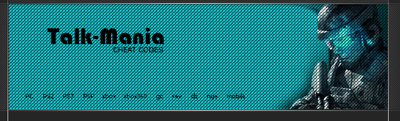
Now select Eraser tool, ( choose a hard rounded brush ) and delete some parts of the layer ( where the text is placed )
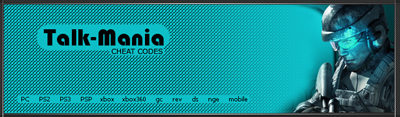
Now i will add more text , and in the same time i will add also some lines

Now i will create another lines, and i will use the same techniques i have used at the beginning of this tutorial