

Please open a new document in Photoshop
Size 760 x 770 pixels
Background color: 2f2f2f
Select Rounded rectangle Tool ( set the radius to 10 pixels ) and create a rectangle.

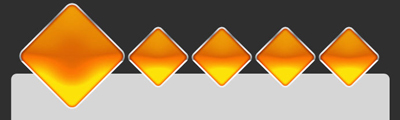
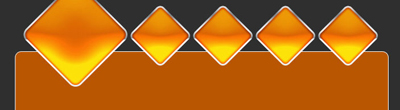
Then with the same tool create another 5 rectangles. Rotate this rectangles to 45 degrees and place them like me

For all this rectangles add the same layer styles
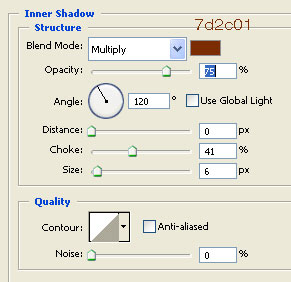
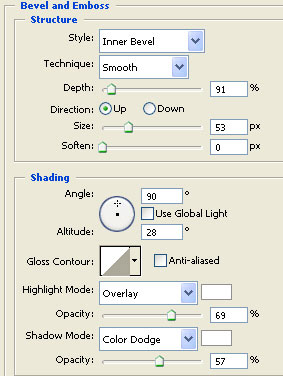
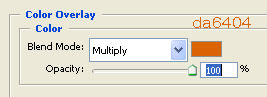
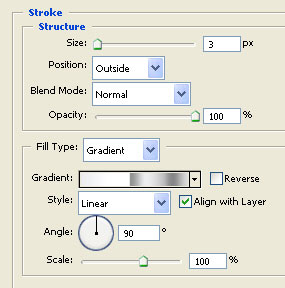
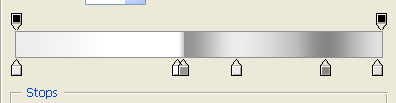
This is my result
Now Add a layer style also for the big shape
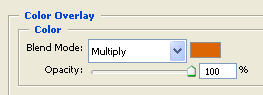
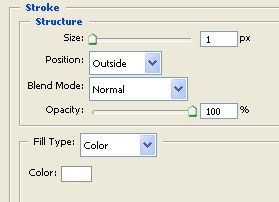
This is my result
Rasterize the big shape
Layer > Rasterize > Shape
Then hold down the Ctrl key from your keyboard and with your left mouse click press on the layer thumbnail
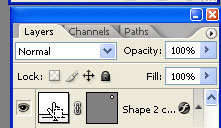
Now you can see a selection around your shape
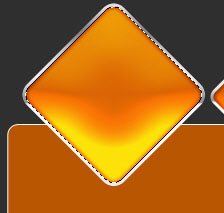
Go to Select > Modify > Expand
Use the following settings
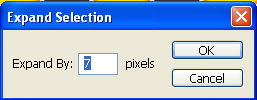
My result
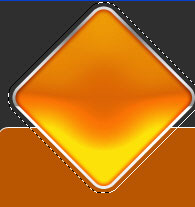
Select The big shape layer ( we have rasterized this layer a few steps ago)
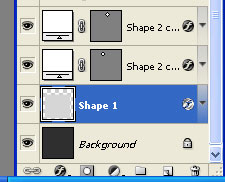
Then press " Delete " key on your keyboard.
Then Press Ctrl+D to deselect
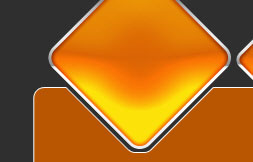
Now with the same technique you can create the same effect also for buttons
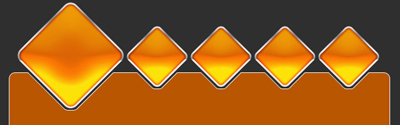
Select Rounded rectangle Tool, and create another 4 shapes
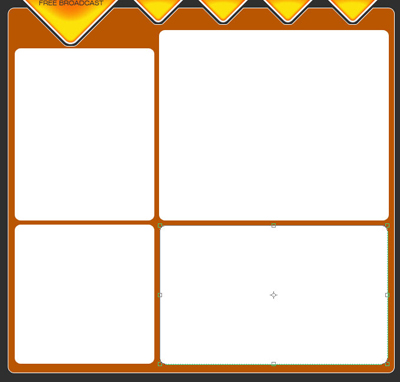
Then add the following layer style for all this 4 shapes
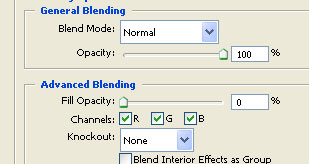
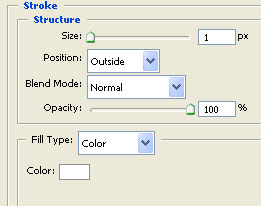
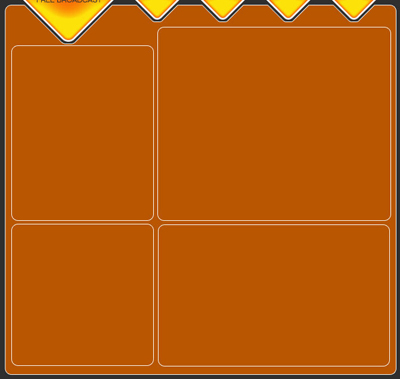
This is my result
Then load selection for the following shape ( to load selection you need to hold down the Ctrl key and press with your left mouse click on layer thumbnail )
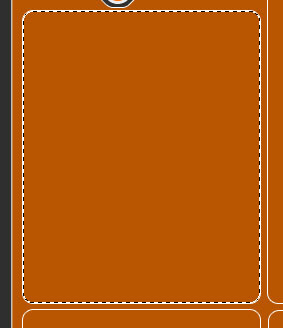
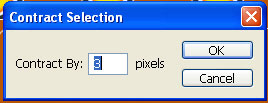
Go to Select > modify > contract
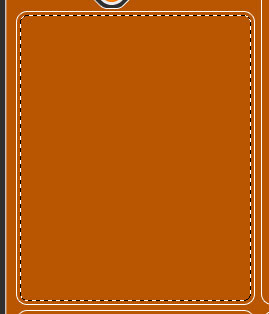
Result
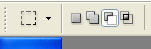
Select rectangular Marquee Tool
Use the following settings
Then create the following selection
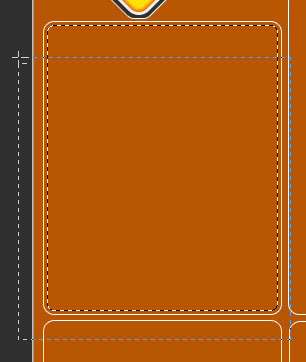
When you release the mouse button you will have the following result
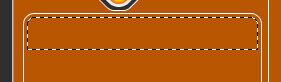
Create a new layer ( press Ctrl+Shift+Alt+N )
Select Paint Bucket Tool and fill your selection with white
Press Ctrl+D to deselect
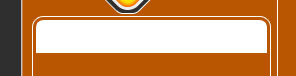
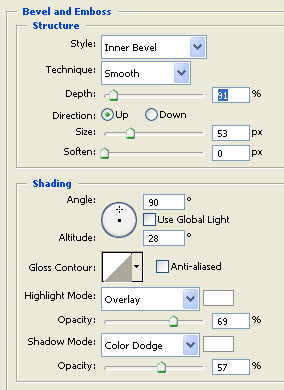
Then add the following layer styles
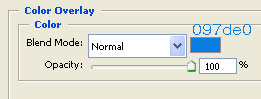
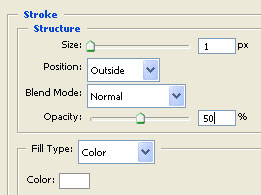
This is my result
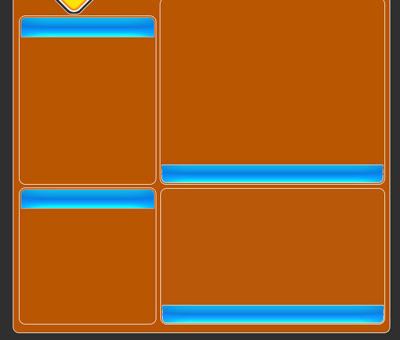
Now Load selection one more time
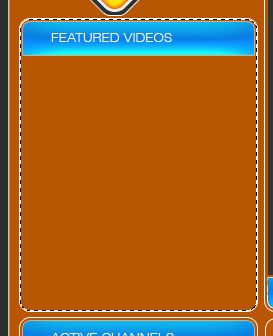
Go to Select > modify > contract ( contract by 3 pixels )
Select rectangular marquee Tool
Use the following settings
Then make the following selection,
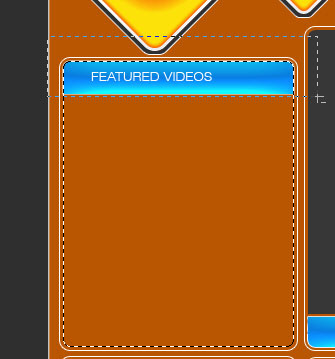
Create a new layer , and fill the selection with a dark gray #373737
Press Ctrl+D to deselect
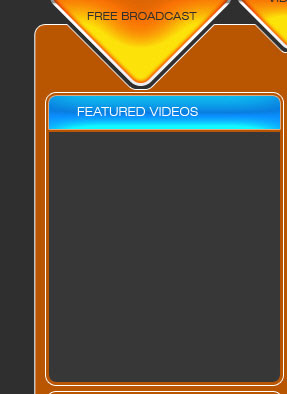
This is my result
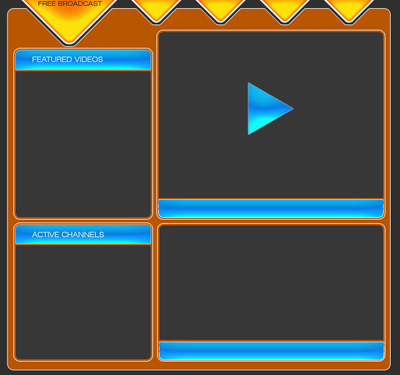
Now add some text and some images. This is my final result
