Let's start with a new document
Size 760x770 Pixels
Background color : 012c3e
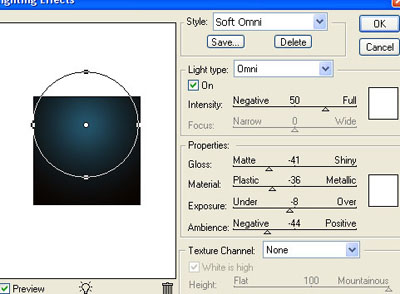
Now go to Filter > Render > Lightning Effects and use the following settings
Then Select Rounded rectangle Tool and create a simple shape ( the next image is resized )

For this shape add the following layer styles
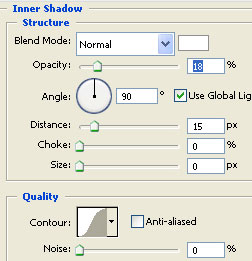
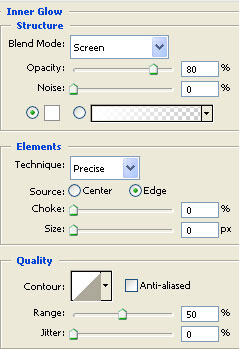
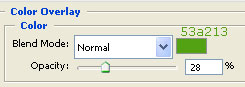
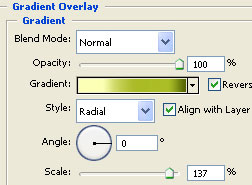
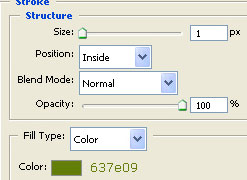
This is the result

Now please go to www.free-photoshop.com and download the Custom Shape #1 - Banners set.
Load the custom shapes in photoshop and add a shape like in the following image

Then add the following layer styles for this custom shape
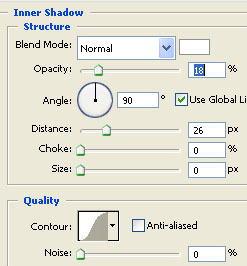
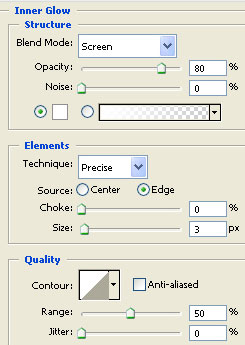
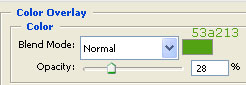
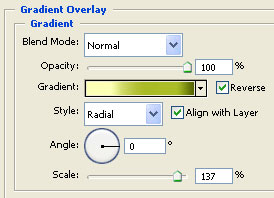
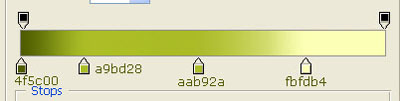
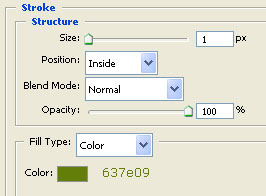
This is my result

Select Rectangle Tool and create a shape

Go to Edit > Transform > Warp ( if you don't have warp tool you can use Pen tool to create something similar )

This is my result

Then add the following layer styles
This is my result after i have applied the layer styles. You can notice that i have placed this layer under the custom shape layer

Then add some text

Be sure you have the type tool selected. now press On "Create Warped Text" button
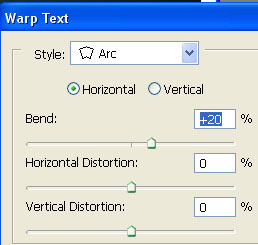
And use the following settings
This is my result

Create a new shape with the Rectangle Tool ( i have used the following color : #012c3e )

Now it is time to load another set of brushes in Photoshop
For this you need to download the Brush #6 -Flowers set from www.free-photoshop.com
Then create a new layer on top of all layers ( press Ctrl+Shift+Alt+N )
And with brush tool press one time on the logo

Then add the following layer style
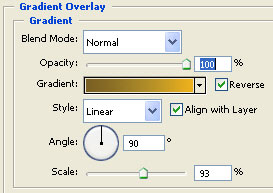
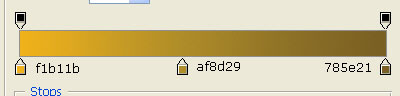
This is the result

Duplicate this layer ( press Ctrl+J )
Then select Both Layers and press Ctrl+E ( this will merge both layers )
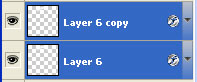
Load the selection now ( Go to Select > Load selection )

Now select Brush tool and with different colors try to add as many details on this selection
This is my result

Now please add some text on your layout
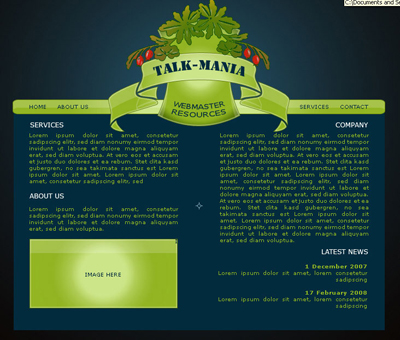
Then select Line Tool. ( set the weigh to 3 pixels ) and make a horizontal line on the bottom of your layout
Then with the same tool set the line weight to 1 pixels and add the second line above the first one

Now load Brush #1 set from www.free-photoshop.com and add on your layout some details
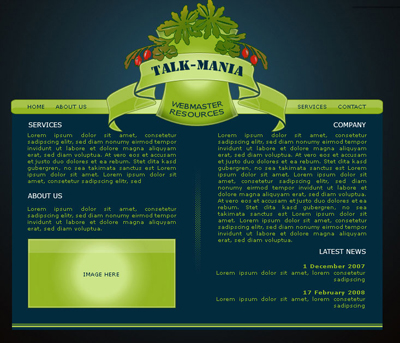
This is my final result
I hope you like it.
