

Open a new document in photoshop
Size 760 x 770
Background color: 3b3b3b
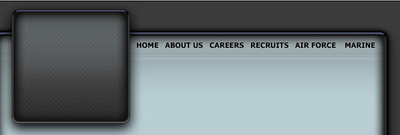
Then with Rounded Rectangle Tool ( set the radius to 10 pixels ) create 2 different shape like in the next image
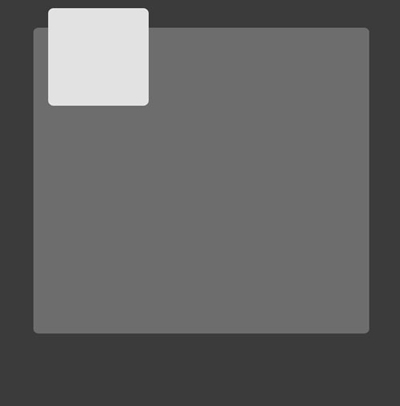
Now we will create a new pattern
Open a new document 8 x 8 pixels with a transparent background
Zoom the document to 1600 % and with Pencil tool ( brush size = 1 pixel ) make the following drawing
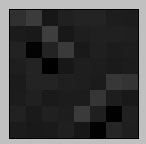
I will include the PSD file with the pattern for you in the attachment area so you can download it
After you make the pixel art drawing go to Edit > define pattern
Choose a name for you pattern and click OK
Now you can close your 8 by 8 pixel document
And we will continue to work on our layout
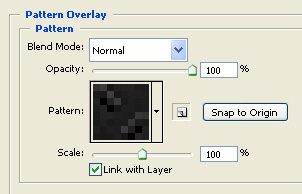
Select the small shape layer ( with the light gray color ) and add the following layer styles
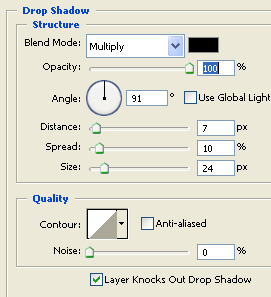
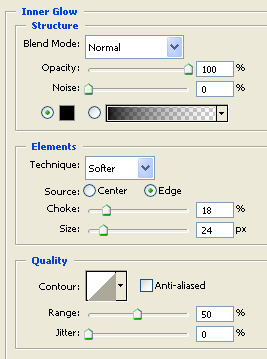
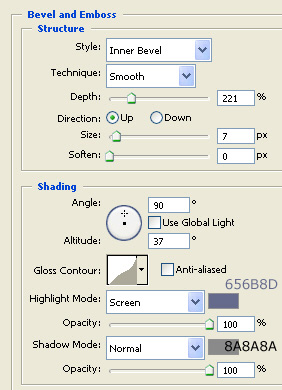
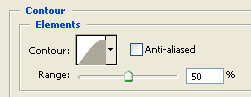
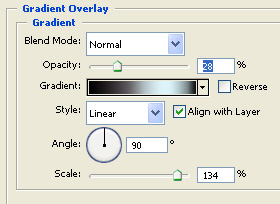
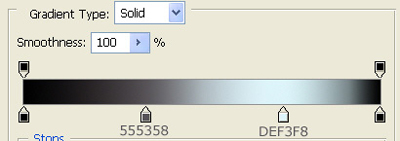
Now use the pattern from above
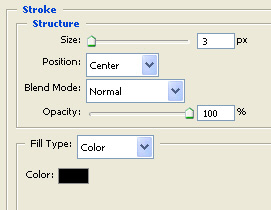
This is my result
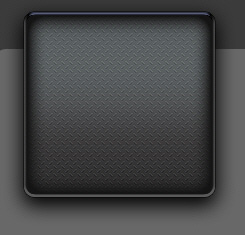
Now select the big shape and add the following layer styles
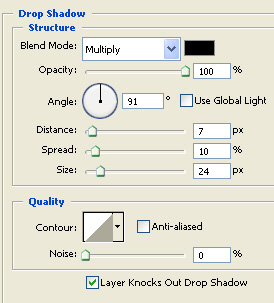
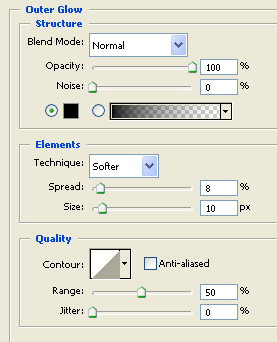
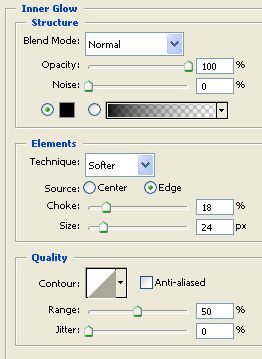
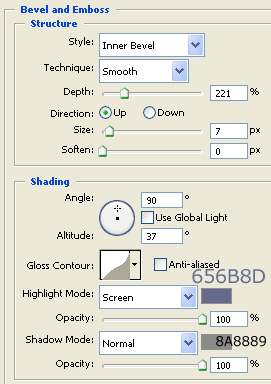
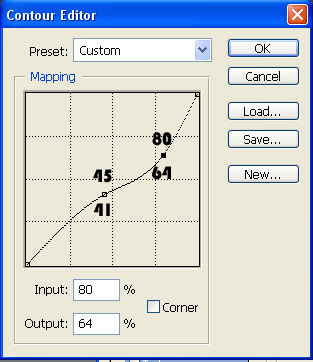
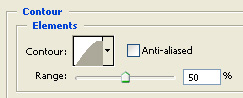
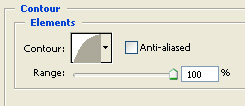
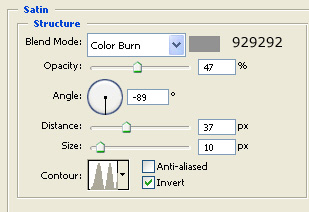
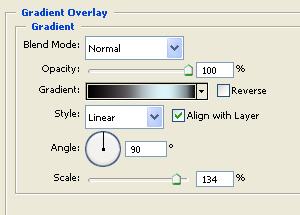
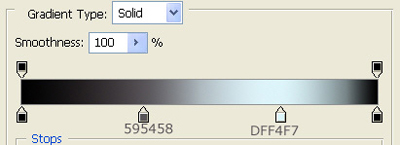
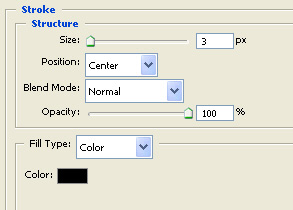
This is my result
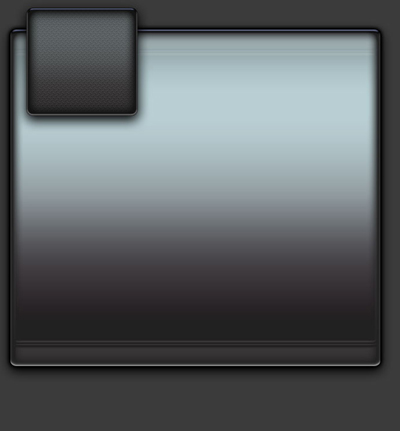
Now it is time to add some images. I will add a gun and some bullets
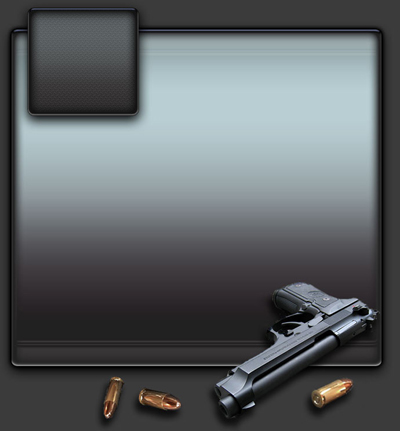
Then i will add some text buttons on the top of the layout
Select Custom Shape Tool. choose the following shape
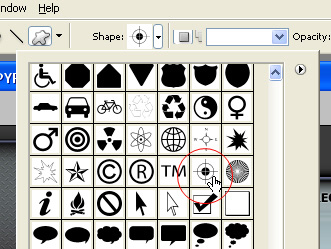
Then add this shape on your layout. you can add also some text

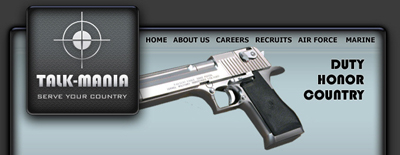
Now add another images on the header. i will add another gun
You can add any image you have. right now this is what i have
I will add also some text on the header
Now select Line Tool ( set the weight to 1 pixel , and star creating some lines )
Then you can add alone some text, or what image you need
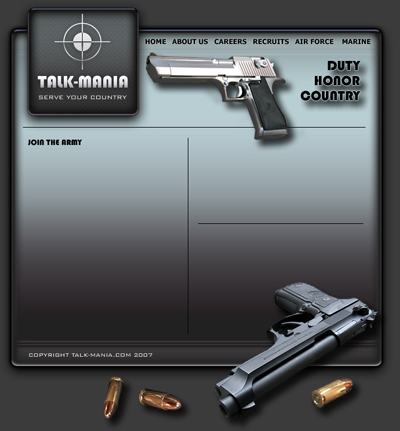
I hope you like this layout.
