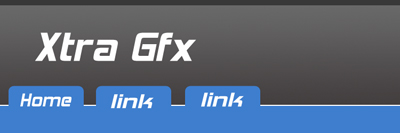
Step 1.
Create a new document 750x250 with white background
Now create a new layer and using the rectangular marquee tool make a rectangle approximately 4 pixel at the top of the document and fill it with #383838 .
Step 2.
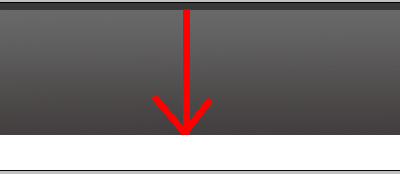
Create a new layer , now grab the rectangular marquee once again and make a rectangle starting just below the previous layer to the end leaving 50-60 pixels. Now hit the gradient tool and with #686868 as the foreground and #433f3f as the background stretch it as the following picture
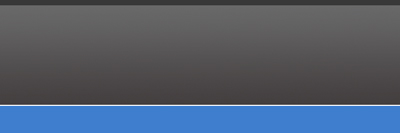
Now you should have this

Step 3.
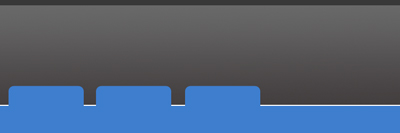
Create a new layer and name it buttons. Hit the Rectangular marquee tool and select the remaining white portion leaving just 1 pixel white ,now fill it with #3e7ece .Now grab the rounded rectangle tool and make a small rectangle a size of a button. Now duplicate it three to four times depending on how many buttons you require with #3e7ece as the color.
Step 4.
Add whatever text you want to
This should be the final result