

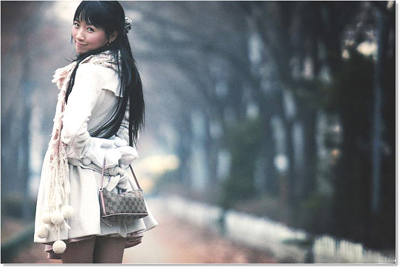
here is my stock photo .. look boring :)
Let's retouch this.
Stock
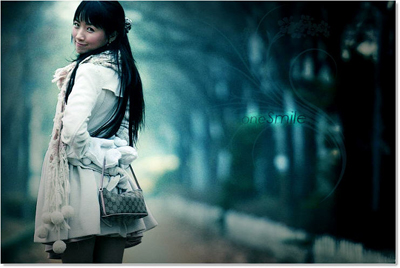
Final
First step.
Go to Image >> Adjustment >> Brightness/Contract
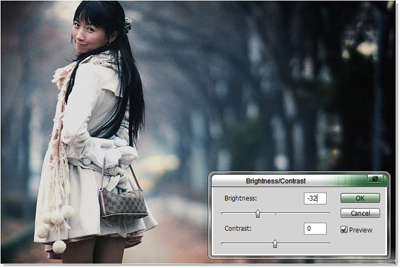
Have this ( now my picture had depth )
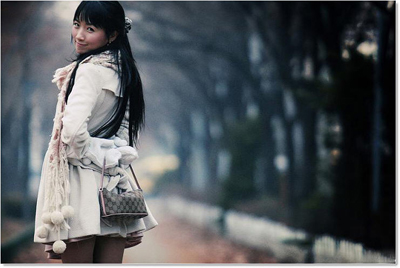
Pick Lasso, Magic wand or any selection Tool to create the selection around the girl
Bring her to new layer ( Ctrl + J ), called "model" layer
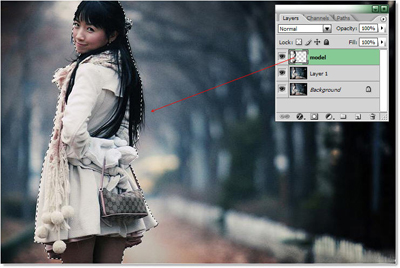
Applied Layer Style in "model" layer
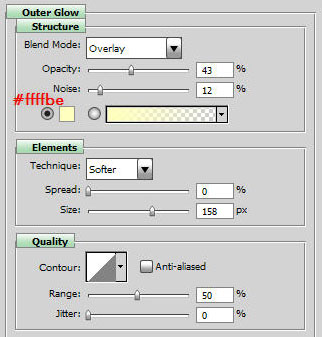
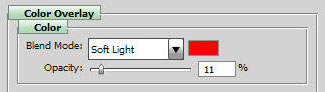
We have this :)
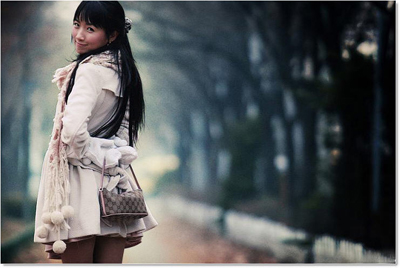
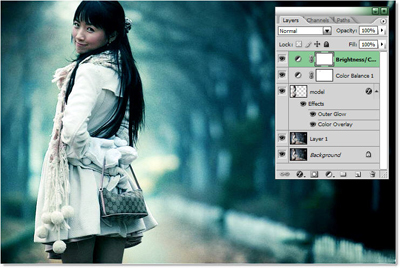
Some new adjustment layers
-First, Color balance ( Layers >> New Adjustment Layer >> Color Balance )
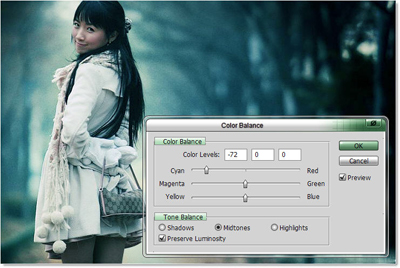
-Next, Brightness/Contract layer
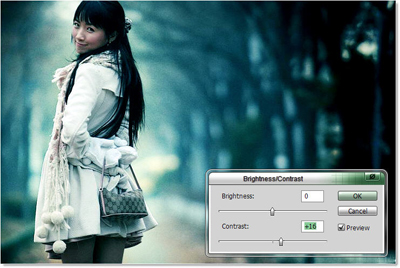
Pick Rectangle Marquee Tool, draw one selection at center of this pic
Set Feather ( Alt + Ctrl + D ) = 50 px
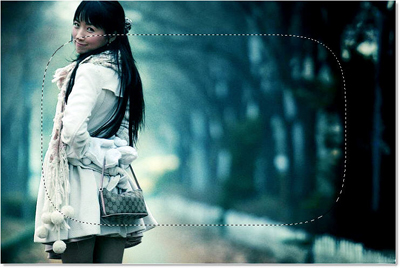
Fill Black color, mode = Multiply, Opacity = 50%
Create some mask or Pick Eraser Tool, clear red-marked area
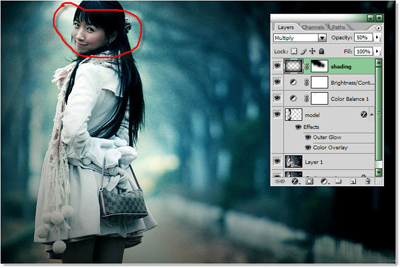
We done Coloring step,
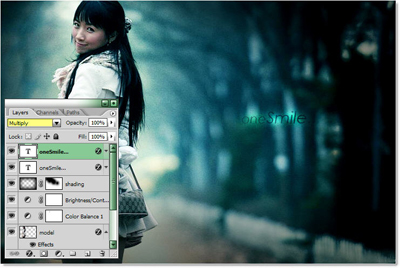
Type some text
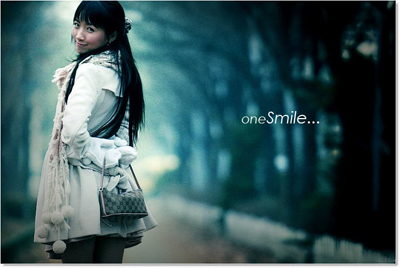
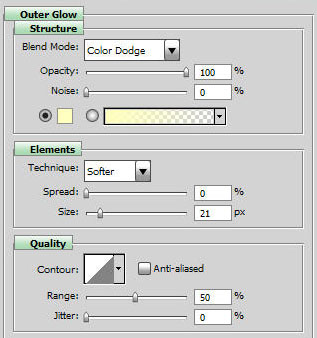
Add layer style
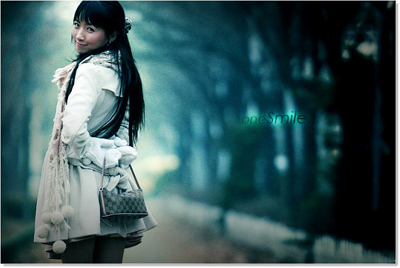
In Multiply mode
(Duplicate text layer if the effect doesn't hard enough )
Find and use some Floral Brush
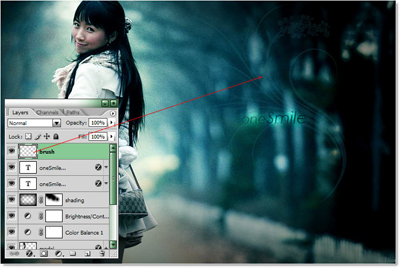
and here is Final Result !
