For our 3D layout we need a nice 3D render. I have found this image on a wallpaper website.
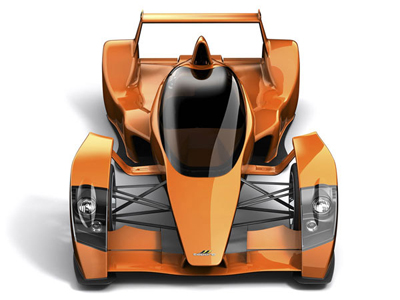
If you want to download the full resolution image please register, create 20 posts, or new threads ( please do not spam our forum - you will be banned very fast )
Now open the image in photoshop. In the same time please create a new document with a black background.
The size of the document should be 760 x 770 pixels
Then drag the car layer on your layout.
Please resize a little your car and place it like me. to resize the image please press Ctrl+T
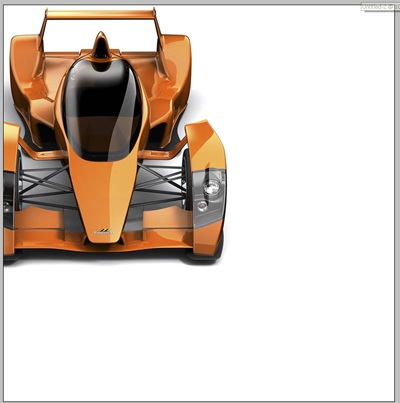
Now please delete some parts of this car. So you need to delete the right side of the car. For this you need to select Rectangular Marquee Tool , and you need to make a selection like mine.
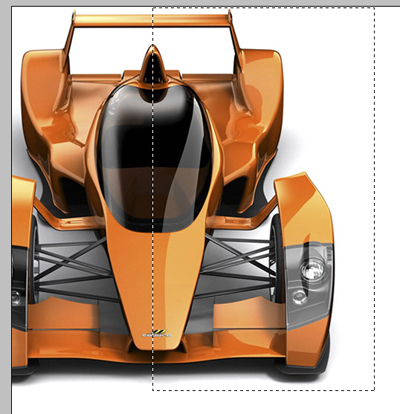
After you have created this selection press on time on your " delete key " from your keyboard, then press Ctrl+D to deselect
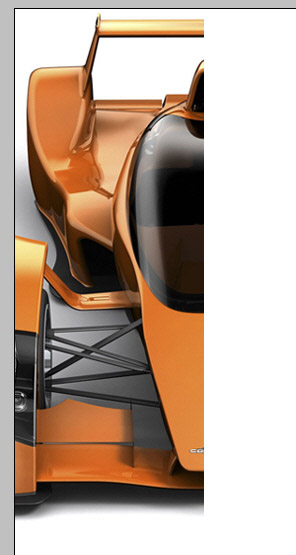
Now select Eraser Tool, and start to delete another parts from your car. you should have something like this.
You can notice that my car doesn't have a background right now
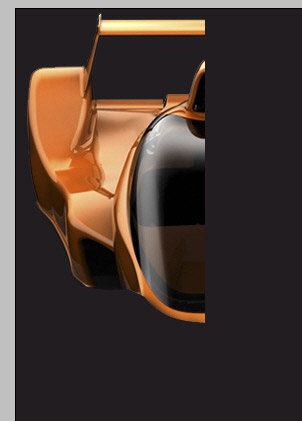
Select " Single Column Marquee Tool " and place the selection on the right side of the car.
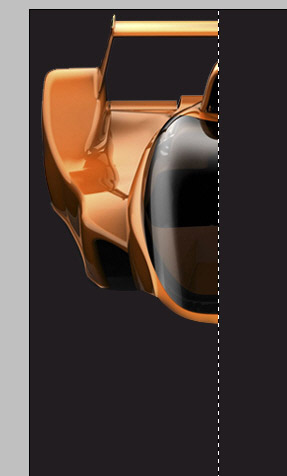
Press Ctrl+J ( this will create a new layer via copy )
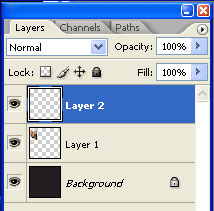
Press Ctrl+T , then you can change the transform settings, from the top of your screen or you can use the mouse
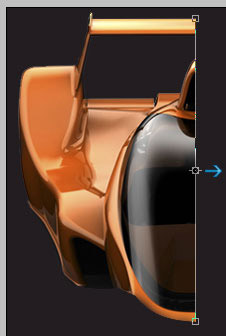
This is my result
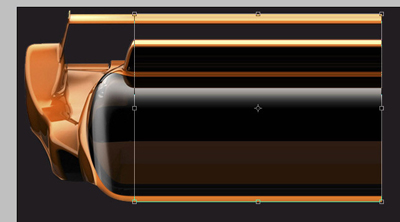
Now select first layer, and duplicate this layer . To duplicate the layer first the layer must be selected, then press Ctrl+J
The next step is to Flip the image Horizontal ( Edit > transform > Flip Horizontal )
With arrow keys place this new layer on the right side
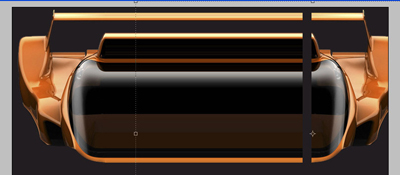
Be sure you place the layer one near the other ( without gaps )
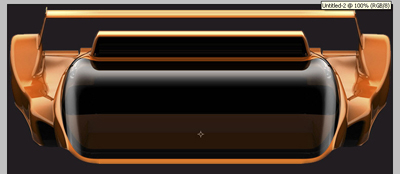
Now select All the layers except the background layer
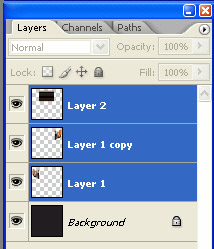
And press Ctrl+E ( you will merge all the layers into a single one )
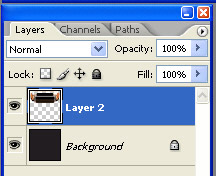
Duplicate this layer , ( press Ctrl+J ) and then go to Edit > Transform > Flip Vertically.
With arrow keys please place the duplicated layer as above
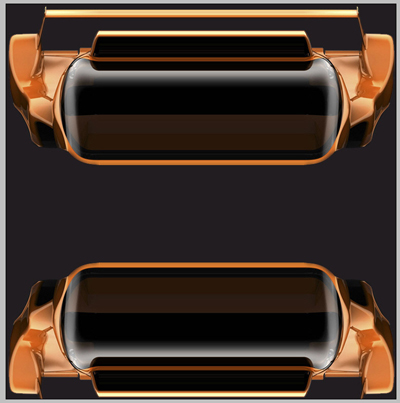
Please merge this 2 layers one more time ( to merge the layers , first you need to select them , then you need to press Ctrl+E )
Select rectangular marquee tool , and make a selection like mine
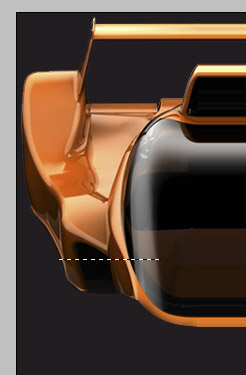
Now be sure you have the layer selected, and press Ctrl+J - this will make a new layer via copy.
Press on Ctrl+T , then modify the size of this small layer as above
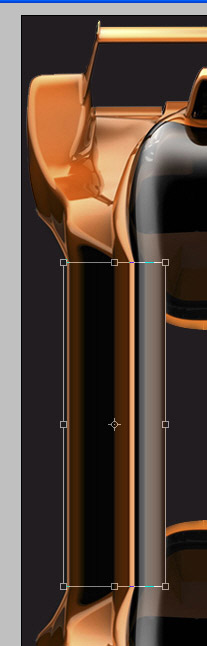
Do not forget to hit Enter. Then duplicate this small layer . Be sure you have the layer selected, then press Ctrl+J
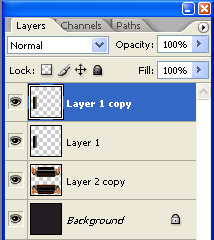
With this layer selected , go to Edit > Transform > Flip Horizontal
With your arrow keys place the duplicated layer on the right side like in the following image
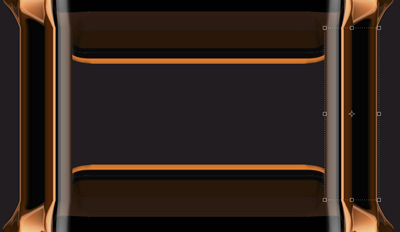
Select all the layers one more time, without background layer, and merge the layers one more time ( to merge the files press Ctrl+E )
Select Rectangular Marquee tool , Set the radius to 8 pixels then make a selection like mine
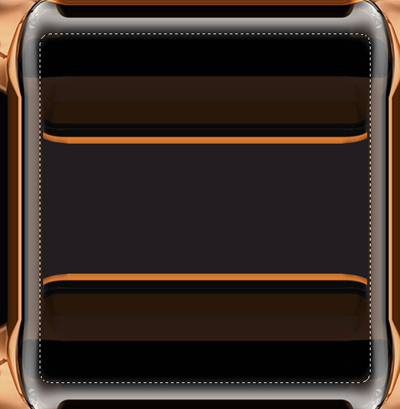
Create a new layer ( press Ctrl+Shift+Alt+N ) , then with Paint Bucket tool fill the selection with black
Then Press Ctrl+D to deselect
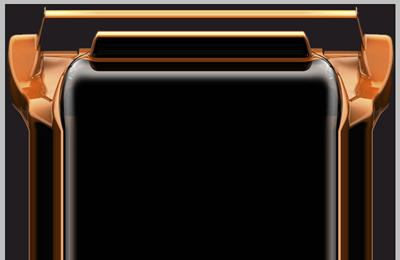
Now merge one more time the layers.
Select Rounded Rectangle Tool < set the radius to 10 pixels ) and create a simple shape
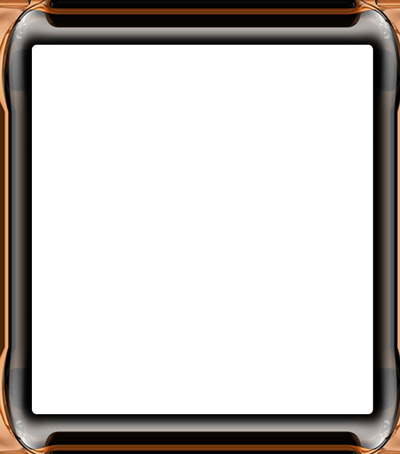
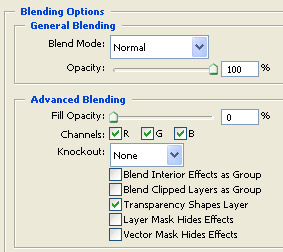
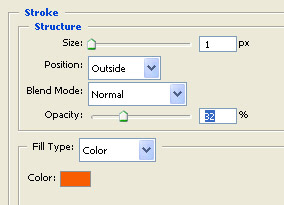
For this white shape please add the following layer styles
This is my result
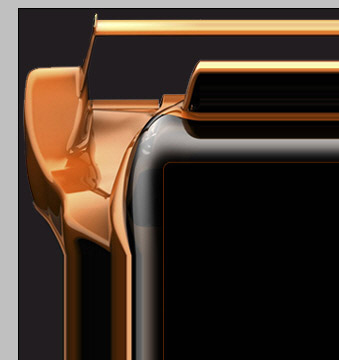
One more time select all the layers without the background layer and press Ctrl+E ( merge the layers )
Then press on Ctrl+U ( this will bring the Hue / Saturation window - where you need to make the following settings
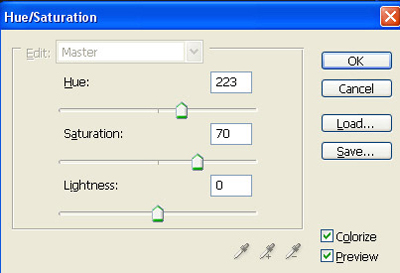
Now with Type toll write some text on your layout
This is my final result. I hope you like it.