Open a new document in photoshop
Size 760 x 770
Background color: #343434
Select Rounded Rectangle Tool ( set the radius to 5 pixels ) and create a simple rectangle

Then Go to Edit > Transform Path > Warp
And use the following settings:

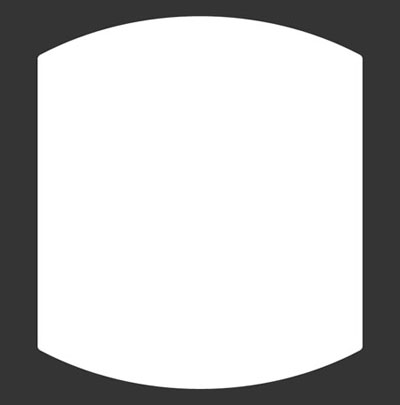
This is the result
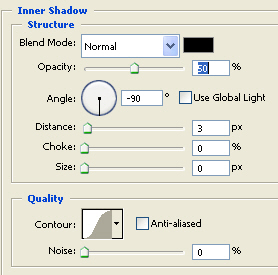
Then add the following layer styles
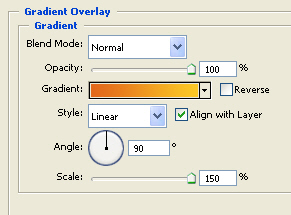
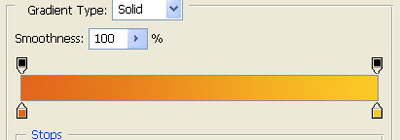
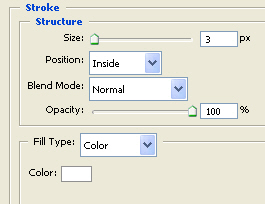
This is the result

Now i will show you how to create a nice vector brush
Create a new document . size 500 X 500 with a transparent background
Then with ellipse tool, create some circles ( when you create this circles, be sure you use the following buttons : Subtract from shape area (-) and Add to Shape area (+)

Create something randomly.
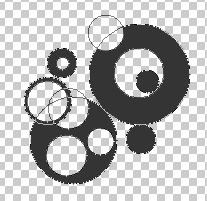
This is what i have

Now go to Edit > Define Brush preset...
Choose a name for your brush and press OK
Now let's come back to our layout. Create a new Layer ( press Ctrl+Alt+Shift+N )
Select brush Tool. Select the brush you have made
And start Drawing on the corner of the layout. be sure you have the same foreground color as our background. In my case #343434
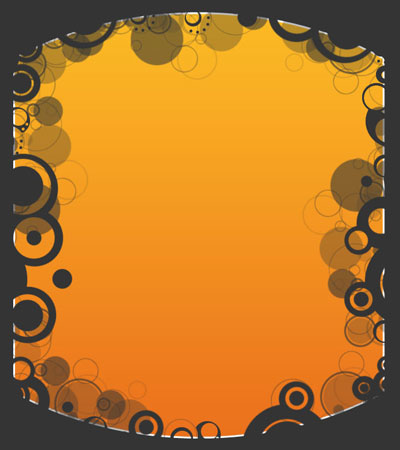
I will use different brushes. if you want you can find another brushes with google.
Create a new layer above the background layer
Then please create another document with the following settings:
Zoom this document to 1600% and with the Pencil Tool Draw 3 points:
After that go to Edit > Define Pattern...
Choose a name for your pattern and press OK
Then you can close this document.
Grab Paint Bucket tool, Use the following settings

And fill the document with this pattern
this is my result
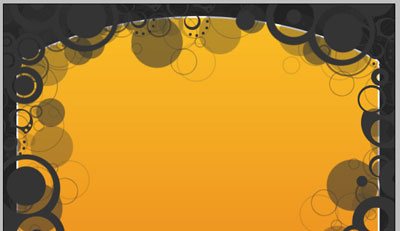
Now add some images and text on your layout
Add the following layer styles for the buttons
result :

Now add half circles under your buttons

Then you can add another small circles ( with brush tool )
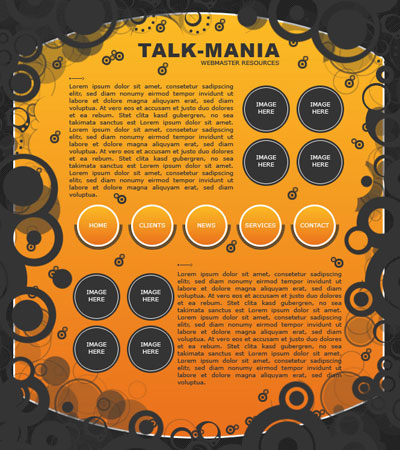
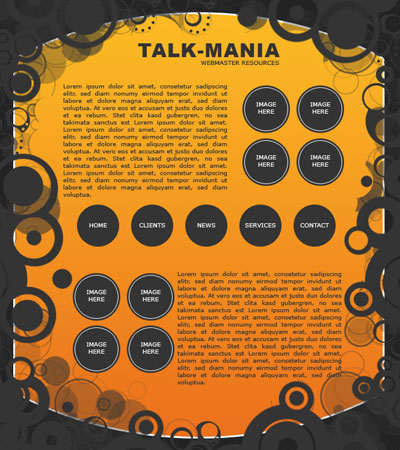
This is my final result