Create a new file with 450x368 px and 300 dpi. Paint it in 1D2E61

Use the instrument
 to draw a figure with the color 124246, like it is shown next:
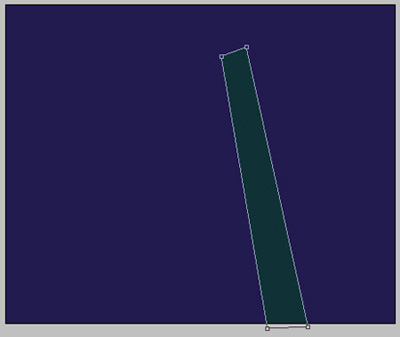
One more figure needs to be drawn with the same instrument. The color is 124246 also.
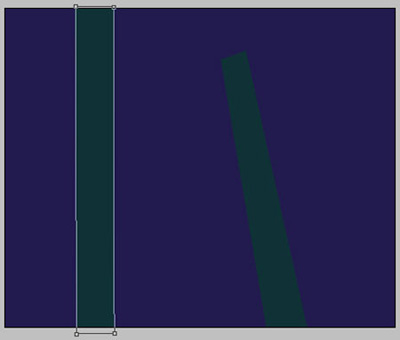
Take the previous instrument and represent another figure – 49B1B0
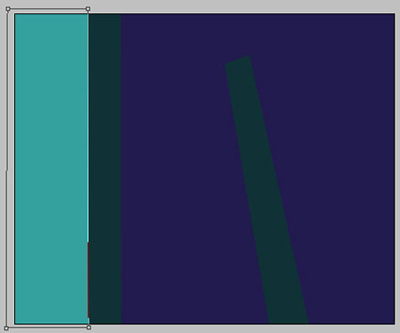
The same instrument and one more figure, having the color 009B9D
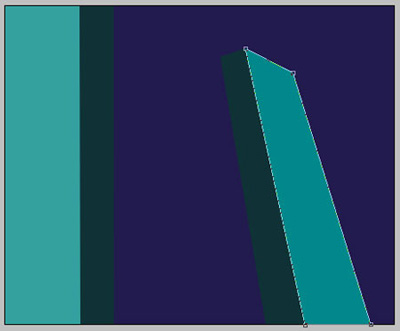
Take the same instrument and picture another figure with the color 66B9B1
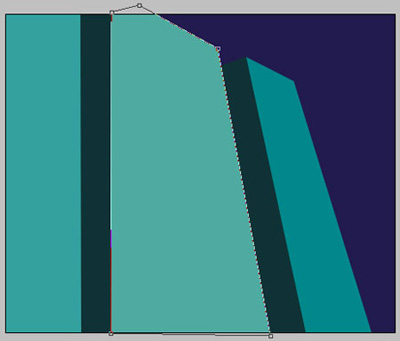
Take the already known instrument and represent a triangle that would have the color C8FF00
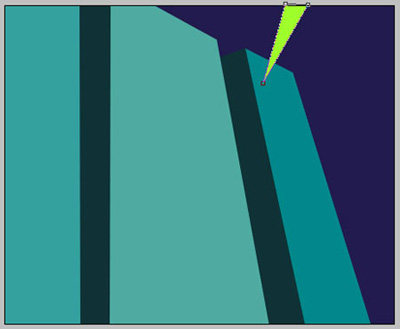
The same instrument we'll need to picture one more triangle colored in FFF835
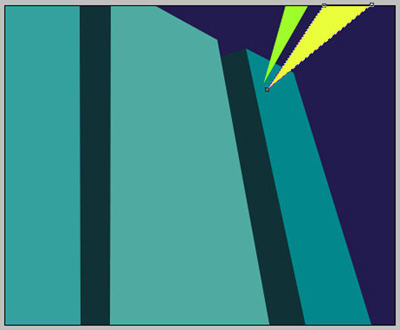
One more triangle and the old instrument. The color is 2AD100
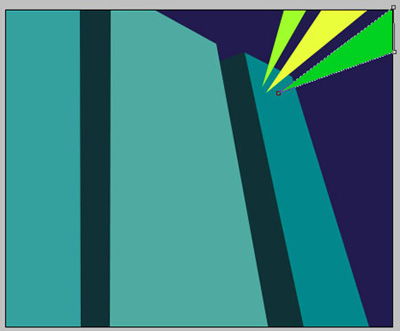
Take now another instrument
 and represent several ellipses, like in the picture below, with the same parameters.
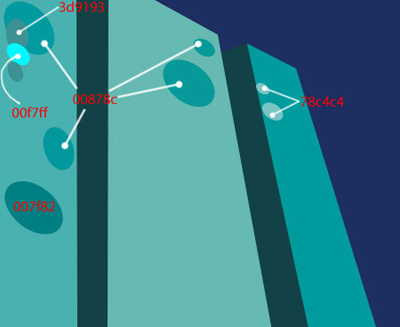

The next instrument
will be used to picture several small stars of white color. Place them the way it is shown below.
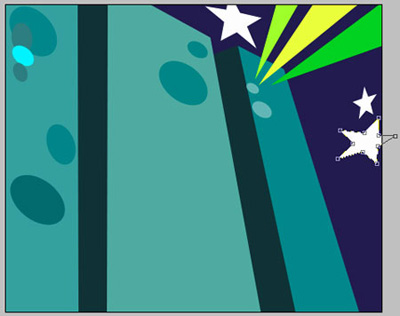
One more with the indicated color – 3C9194
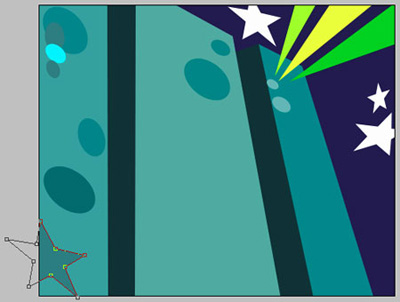
Another one with the color 2D696B
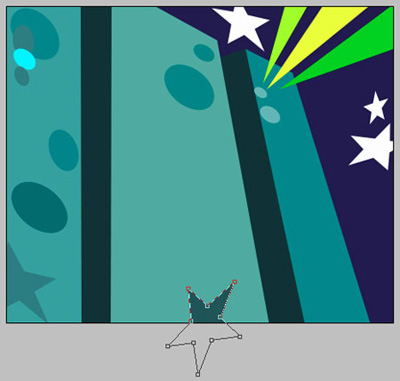
The instrument
will be useful in representing a figure of black color that needs to be placed the same way like below.

Copy the recently made layer and place it like in the next picture. Change the color on another one – FFCACA.

Copy the new layer.
On the marked layer now use the following instrument
 , correct the layer's splines , like in the next picture and apply the recommended color – B62C2C.

Make another small star, using the same instrument. The color must be FFFBCD.

For your convenience, merge all the layers, composing the figure's design, with the shadow and yellow star in a group.
Copy the recently grouped layers and using Free Transform turn to 180 degree, increasing proportional (hold Shift) and place it like in the next picture, change color (outline - D8E7CA, interior area - 006E6F, star - F5D75B ).

Don't forget to place correctly the layers.
Use the instrument
to make a triangle with the indicated color FFF835

One more figure with the next color – FF6800

And the last one with the same instrument. The color must be B74427, like in the image from below.

The final result!