

Open a new file with the 300x 300px and 72 dpi. The background should be of the white color.

Use the instrument
 to draw a circle with the shown parameters
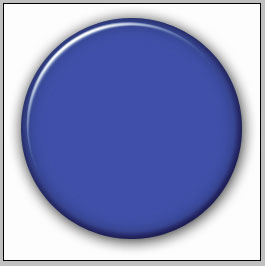
The basic color is 366FBB
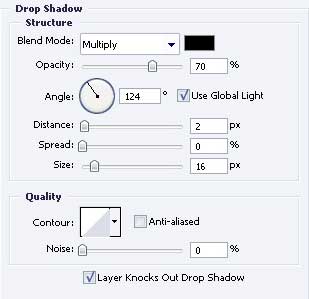
Blending Options-Drop Shadow
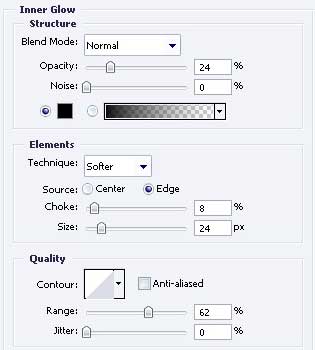
Blending Options-Inner Glow
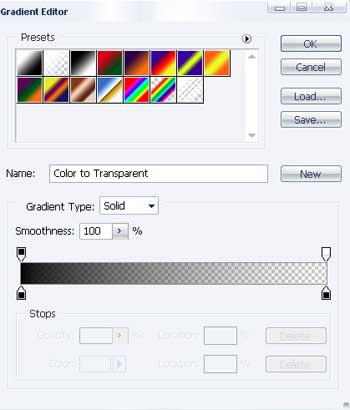
Gradient's parameters
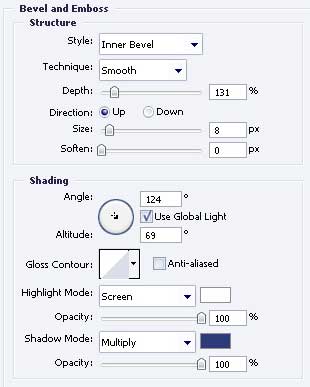
Blending Options-Bevel and Emboss
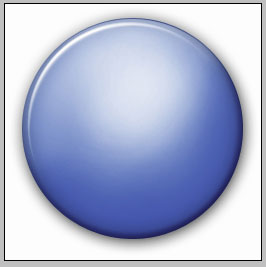
Take the brush of middle size and represent a highlight on a new layer, like in the picture.
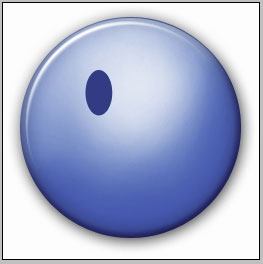
Using the instrument
is possible to create an ellipse with the color 2A5897, like it is shown below.
Copy the layer, containing the recently created ellipse and place it out, like it is done next picture.

Take another instrument
 to represent the area
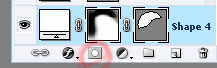
Which bounds should be less intensive, like in the picture.
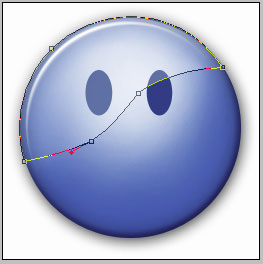
Fill 30% on the layers
Take the indicated instrument
to represent a figure with the color 2A5897 with the shown parameters.

Blending Options-Bevel and Emboss
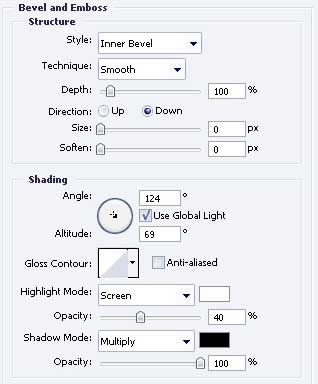
Use the previous instrument to represent a figure with the demonstrated sizes below.

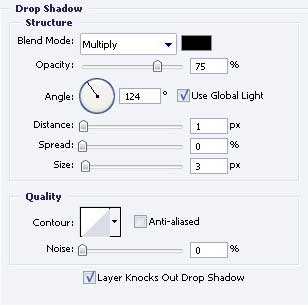
Blending Options-Drop Shadow
Blending Options-Inner Glow
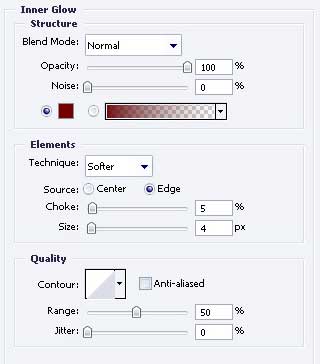
Gradient's parameters
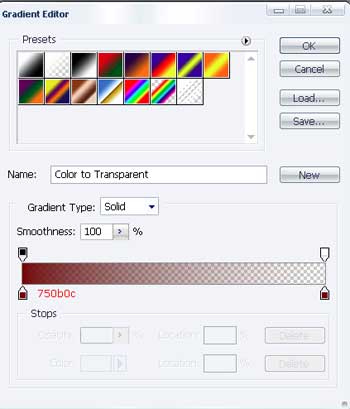
Blending Options-Gradient Overlay
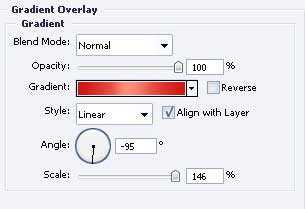
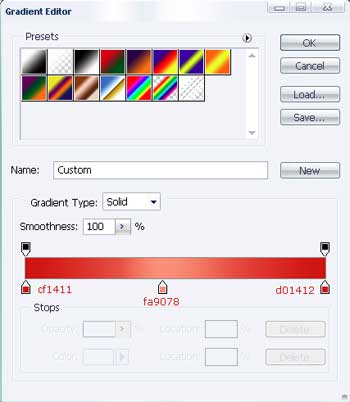
Gradient's parameters
Use the same instrument to draw a figure, like the next one. The color should be 7F0000.

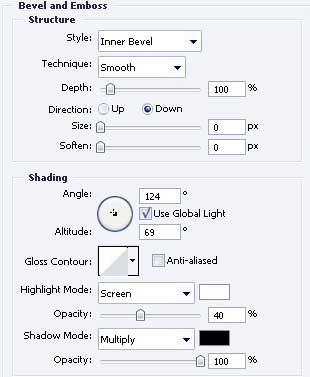
Blending Options-Bevel and Emboss
As a result we'll get the next one
The final result!
