

Let's Start
Open your image i have choosing this image

Now press Ctrl+J to duplicate.
Then Select Ellipse Tool and create 2 small circles. I have used the color : #7b0a02
Now set the layer to overlay.
The rest you'll delete using eraser !
Then Create a new Layer and Choose a Soft Round 150 pixels brush
Change your Foreground color to #0f0176 ( Dark Blue ) and on the new layer make 2 small points like in the next image:

And now change the layer to overlay..
This he will look :
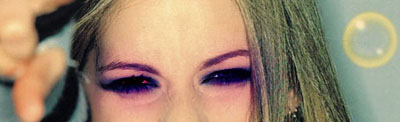
Using the same method create more dots !
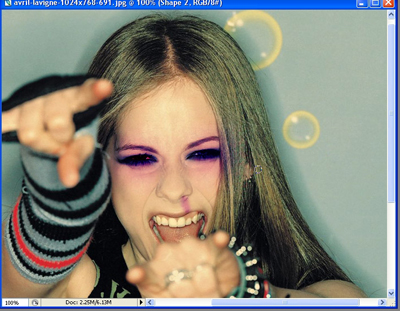
Now Create a new Layer ( press Ctrl+Shift+Alt+N )
With the paint Bucket tool fill this layer with #7d5c39
then change the Blending mode to Overlay and the Opacity to 70 %
You can add more details. You can play a little with the liquify tool. this gives also good result when you are trying to change someone's face
Have a nice day !
