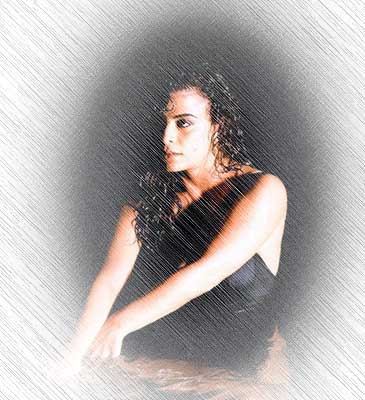
Step 1.
Open your photo and duplicate background layer (apply Layer > Duplicate Layer). Now choose "Background copy" layer. Choose Elliptical Marquee Tool and make an elliptical selection. Go to channels palette and crete a new channel (Alpha 1).
Step 2.
Apply Select > Feather with the following settings: Feather Radius->45px. And apply Edit > Fill...(White) or press ALT+Del. Now add some noise, apply Filter > Noise > Add Noise with the following settings: Amount->25, Distribution->Uniform, Monochromatic->ON. Apply Filter > Brush Strokes > Angled Strokes with the following settings: Direction balance-> 10, Stroke length->44, Sharpness->10.
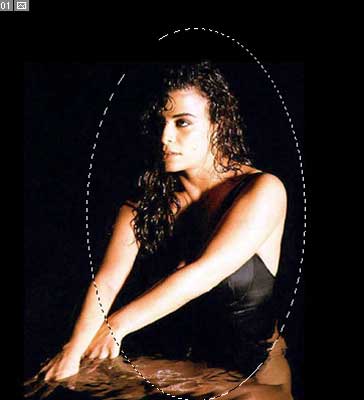
Step 3.
Go to layers palette and choose "Background copy" layer. Now apply Select > Load Selection with the following settings: Operation->New selection, Channel->Alpha1. Apply Select > Inverse and press Del.
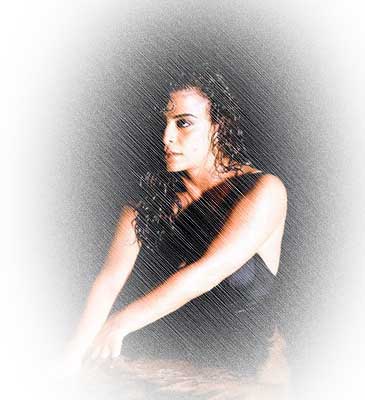
Step 4.
Choose "Background" layer. Choose Elliptical Marquee Tool and make an elliptical selection. Go to channels palette and crete a new channel (Alpha 2). Apply Select > Feather with the following settings: Feather Radius->20px. Apply Select > Inverse and then apply Edit > Fill..(White). Now add some noise, apply Filter > Noise > Add Noise with the following settings: Amount->8, Distribution->Uniform, Monochromatic->ON. Apply Filter > Brush Strokes > Angled Strokes with the following settings: Direction balance-> 83, Stroke length->44, Sharpness->10.
Step 4.
Go to layers palette and choose "Background" layer. Now apply Select > Load Selection with the following settings: Operation->New selection, Channel->Alpha 2. Apply Select > Inverse and fill it (apply Edit > Fill..(White)). Now apply Select > Inverse again and Edit > Fill..(White). You will get a pencil shading photo like mine. And that's it.