Step 1.
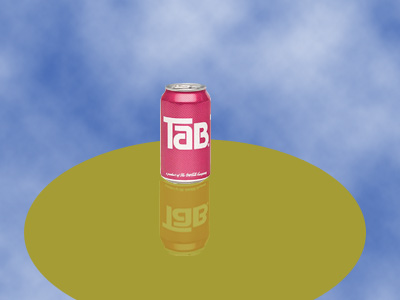
Open a photo where you want to place a reflection object (background layer) and copy this object in it ("tin" layer). Duplicate "tin" layer (press the right mouse button and apply Duplicate Layer).
Step 2.
Apply Edit > Transform > Flip Vertical to this copy and drag it down like shown in the pic.1.

Step 3.
Apply Image > Rotate Canvas > 90 CW.
Step 4.
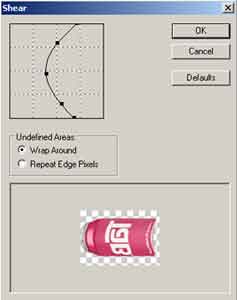
Choose the Rectangular Marquee Tool and draw out a flipped tin. Apply Filter > Distort > Shear with the following settings:
Step 5.
Apply Edit > Free Transform (Ctrl+T) and make this image smaller. Set the blending mode for the layer as "Soft Light" and set the Opacity-50%. Drag the "tin" copy layer under the "tin" layer.
Step 6.
Now, apply Image > Rotate Canvas > 90 CCW. And that's it.