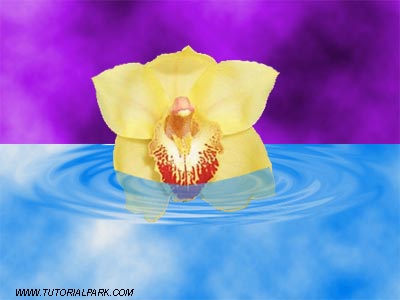
Step 1.
Open a photo with a flower. Choose the Polygonal Lasso Tool and draw the flower out.
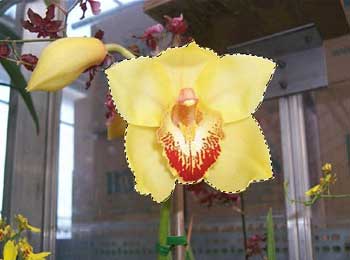
Step 2.
Create a new document without background and drag the flower in it holding Ctrl (call this layer "Flower").
Step 3.
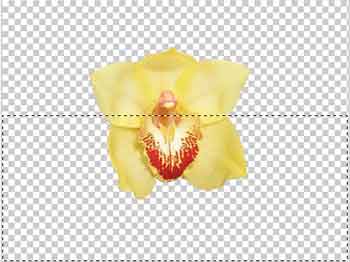
Create a new layer (call it "Water"). Choose the Rectangular Marquee Tool and create a rectangle like shown in the pic.2. Apply Filter > Render > Clouds (use Hue/Saturation to your liking). Press Ctrl+D and drag the "Water" layer under the "Flower" layer.
Step 4.
Choose the Polygonal Lasso Tool and draw the lower part of the flower out. Apply Layer > New > Layer via Cut (Shift+Ctrl+J) and set the opacity -> 50%.
Step 5.
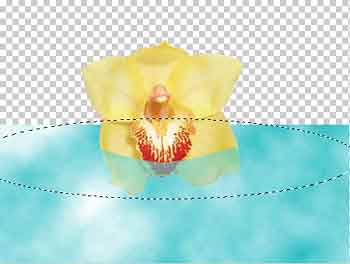
Choose the "Water" layer. Choose the Elliptical Marquee Tool and create an ellipse like shown in the pic.3. Apply Filter > Distort > ZigZag with the following settings: Amount->60%; Ridges->6; Style-> Around center.
Step 6.
Now add a dark sky. And that's it.