

Step 1.
Open the photo. Go to channels palette and create a new channel (Alfa 1).
Step 2.
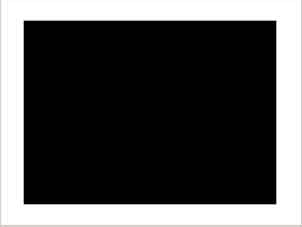
Choose Rectangular Marquee Tool and create a rectangle. Then apply Select > Inverse; and Edit > Fill...(use: White).
Step 3.
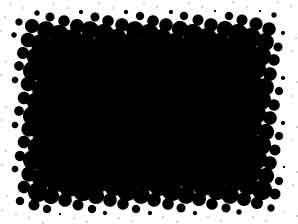
Apply Select > Deselect and then apply Filter > Pixelate > Color Halftone (choose parameters yourself).
Step 4.
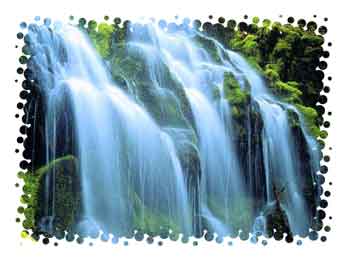
Go to RGB channel and apply Select > Load Selection... (use: Alfa 1). Then apply Edit > Fill... (use background).
There are several examples using different filters:
Filter > Brush Strokes > Sprayed Strokes
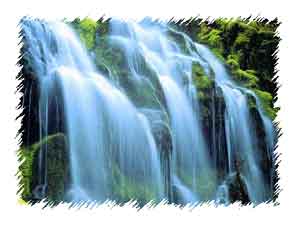
Filter > Distort > Ripple
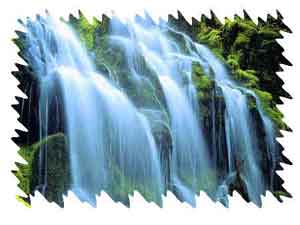
Filter > Sketch > Water Paper
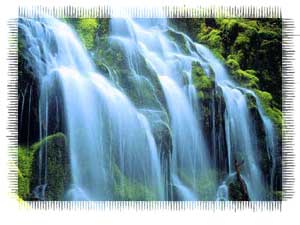
Filter > Texture > Stained Glass.
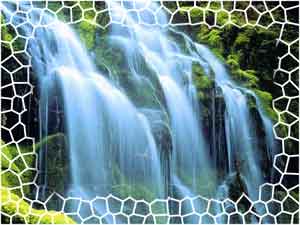
And that's it.
