Step 1.
Open the photo where you want to change a background color.

Step 2.
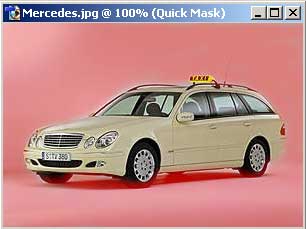
Press Quick Mask Mode (Q) and choose the Brush Tool (B).
Step 3.
Fill the background by the Brush Tool like in the picture one.
Step 4.
Press Standard Mode (Q) and apply Select > Inverse (Shift+Ctrl+I).
Step 5.
Apply Image > Adjustments > Hue/Saturation (Ctrl+U) and choose the colour you want. And that's it. See how you changed the background color of the photo using Photoshop 7.