Step 1.
Create a new 500X150 pixels document with the black background. Print the text.
Step 2.
Apply Layer > Rasterize > Layer and then Image > Rotate Canvas > 90CCW.
Step 3.
Apply Filter > Stylize > Wind and use the following settings:
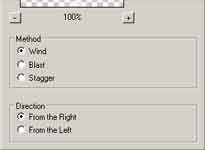
and then press Ctrl+F to reapply a second time.
Step 4.
Apply Filter > Stylize > Wind and change the settings: Direction->From the Left and then press Ctrl+F to reapply a second time.
Step 5.
Apply Image > Rotate Canvas > 90CW and then Filter > Distort > Ripple with the following settings: Amount->65%, Size->median.
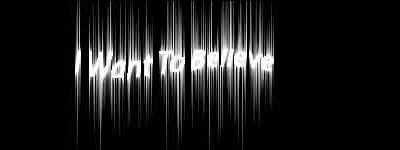
Step 6.
Now drag the text into your picture.
Step 7.
Create a new 500X150 pixels document with the black background. Print the same text but with another colour and drag the text into our actual picture behind the white text. And that's it.