Step 1.
Create a new 400X400 pixels document with the white background. Choose the Elliptical Marquee Tool and make a round selection (holding Shift). Create a new layer (Layer 1) and fill it by the white colour (apply Edit > Fill... White). Then apply Select > Deselect.
Step 2.
Apply Layer > Layer Style > Drop Shadow and use the following settings:
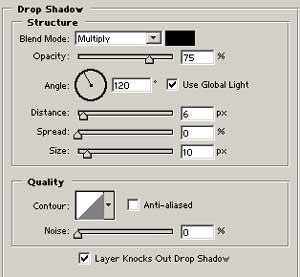
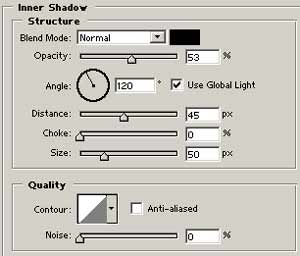
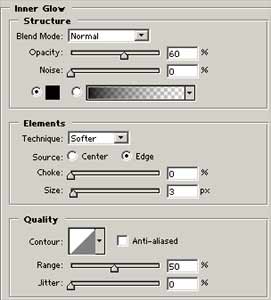
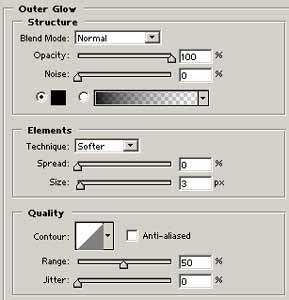
Step 3.
Create a new layer (Layer 2). Choose the Elliptical Marquee Tool and make a round selection (holding Shift) in the "eye" center. Press "D" to reset colours and then press "X". Choose the Radial Gradient Tool and fill the selection from the center to the border.

Step 4.
Create a new layer (Layer 3) and fill it by the white colour. Apply Filter > Noise > Add Noise with the following settings: Amount->400%, Distribution>Uniform, Monochromatic->OFF.
Step 5.
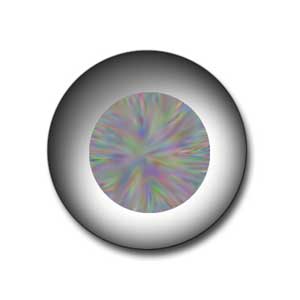
Choose the Smudge Tool (Diameter->21px) and spread the noise from the center to the border. Apply Image > Adjustments > Hue/Saturation with the following settings: Hue->31, Saturation->93, Lightness->-35 and set the Blending Mode to "Overlay".
Step 6.
Create a new layer (Layer 4). Choose the Elliptical Marquee Tool and make a round selection (holding Shift) in the center. Then choose the Pencil Tool and draw 2 different points. And that's it.