Step 1.
Create a new 1024X1024 (or other size visible by 64) pixels document. Press "D" and apply Filter > Render > Clouds.
Step 2.
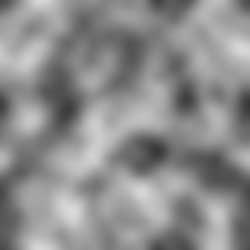
Apply Filter > Blur > Gaussian Blur with Radius->20 pixels (or less for a smaller size).
Step 3.
Apply Image > Adjustments > Brightness/Contrast with the following settings: Brightness->+5; Contrast->+100. And then apply Filter > Blur > Blur More.
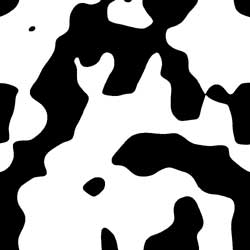
Step 4.
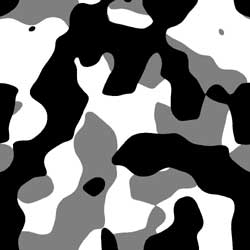
Duplicate this layer (press the right mouse button and apply Duplicate Layer). Apply Edit > Transform > Rotate 90 CW. Set the blending mode for the layer as "Multiply" and set the Opacity->50%. Press Ctrl+E.
Step 5.
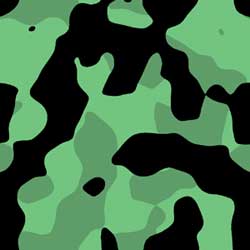
Now, it is the time for painting our texture into different green colours. Use the Magic Wand Tool for drawing out an area and then press SHIFT+F5 to fill it in different green colours.
Step 6.
You can use this texture as background on your Web page. You can also make it as the pattern (press CTRL+A and apply Edit > Define Pattern) and fill any objects of this texture (Edit > Fill > Pattern). And that's it.