
Description
"Tests pixel values in an image against a given threshold and set pixels that pass the test to new color values. Using the threshold() method you can isolate and replace color ranges in an image and perform other logical operations on image pixels"
Threshold has been introduced in Flash Player 8
1. Basic Example
As first let's take a simple example in order to better understand the way threshold work
and this is the code used:
| import flash.display.BitmapData
import flash.geom.Point import flash.geom.Rectangle var img1:BitmapData = BitmapData.loadBitmap("img2") var img2:BitmapData = new BitmapData(img1.width, img1.height, false) var mc:MovieClip = this.createEmptyMovieClip("holder", 1) mc.attachBitmap(img1, 1) mc.attachBitmap(img2, 2) var myList:Object = new Object(); myList.change = function(target:MovieClip){ img2.threshold(img1, new Rectangle(0, 0, img1.width, img1.height), new Point(0, 0), ">=", (target.value/100)*0xFFFFFF, 0xFFFF00, 0xffffff, true); } slider.addEventListener("change", myList) myList.change(slider) |
this is the way the threshold method work:
| public threshold(sourceBitmap:BitmapData, sourceRect:Rectangle, destPoint:Point, operation:String, threshold:Number, color:Number, mask:Number, copySource:Boolean) : Number |
We have to focus on the threshold argument:
The value that each pixel will be tested against to see if it meets or exceeds the threshhold.
2. Advanced Example
Now, let's create an image viewer making transitions use the threshold method.
Set up the folders in this way:
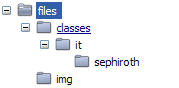
- the "files" folder will contain your .fla file and your "index.xml" files.
- "img" folder will contain all the images described in the xml file
- "classes/it/sephiroth" contains the "Fader.as" class file
First thing let's create an xml file like this, which contains all the path of the images we want to load in the image viewer (just remember to put all these images in a "img" folder):
| <?xml version='1.0' encoding='UTF-8'?>
<images> <image path='img/img10.jpg'/> <image path='img/img1.jpg'/> <image path='img/img4.jpg'/> <image path='img/img3.jpg'/> <image path='img/img2.jpg'/> <image path='img/img5.jpg'/> <image path='img/img6.jpg'/> <image path='img/img7.jpg'/> <image path='img/img8.jpg'/> <image path='img/img9.jpg'/> </images> |
Create a new Flash document with a movieclip inside called "image".
Add this code to the first frame of the main timeline:
| import it.sephiroth.Fader
var xmlFile:String = "index.xml" var ifader:Fader = new Fader(xmlFile, image) |
Under the publish settings remember to add the "classes" folder to the actionscript classes related to this file.
At this point we just need to setup the "Fader" class actionscript file.
3. Fader.as file
| // import necessary classes
import flash.geom.Point import flash.geom.Rectangle import flash.display.BitmapData class it.sephiroth.Fader extends MovieClip { var _image:MovieClip // main container var _xmlFile:String // xml file with images path var xmlLoader:XML var k:Number // image counter var mloader:MovieClipLoader // movieclip loader var oImage:MovieClip var images:Array var defaultImage:MovieClip var dummy:MovieClip var emptyMc:MovieClip var mainListener:Object var mainImage:BitmapData var tempImage:BitmapData function Fader(x:String, m:MovieClip){ k = 0 _image = m _xmlFile = x images = new Array() _image.target = this defaultImage = _image.createEmptyMovieClip("image", 10) defaultImage._x = 10 defaultImage._y = 10 dummy = _image.createEmptyMovieClip("dummy", 99) emptyMc = dummy.createEmptyMovieClip("foo", 1) dummy._visible = false xmlLoader = new XML(); xmlLoader.ignoreWhite = true; xmlLoader['target'] = this xmlLoader.onLoad = xmlLoaded; xmlLoader.load(_xmlFile); mainListener = new Object(); mainListener.target = this; mainListener.onLoadProgress = this.onLoadProgress mainListener.onLoadInit = this.onLoadInit mloader = new MovieClipLoader(); mloader.addListener( mainListener ) // set this as the moviecliploader listener } /** * xml file has been loaded */ function xmlLoaded(success:Boolean){ if(success){ var node:XMLNode for(var a = 0; a < this['target'].xmlLoader.firstChild.childNodes.length; a++){ node = this['target'].xmlLoader.firstChild.childNodes[a] // push into the main array the path of each image this['target'].images.push({path:node.attributes.path}) } this['target'].startFader() } } /** * start the fader animation */ function startFader(){ showImage(images[k]) k++ if(k >= images.length){ // let's restart the animation k = 0 } } /** * load the single image into the empty movieclip */ function showImage(img:Object){ var path:String = img.path mloader.loadClip(path, emptyMc) } public function onLoadProgress(mc:MovieClip, loaded:Number, total:Number){ var perc = Math.round((loaded/total)*100) } public function onLoadInit(mc:MovieClip){ // create a new BitmapData for storing the next image stream this['target'].mainImage = new BitmapData(400, 300, true) // draw the loaded image into the bitmapdata instance this['target'].mainImage.draw(mc, mc.transform.matrix, mc.transform.colorTransform, "normal", new Rectangle(mc._x, mc._y, mc._width, mc._height)) // temporary bitmapdata used for the image effect this['target'].tempImage = new BitmapData(400, 300, true) // attach the 2 bitmapdata to the main movieclip holder this['target'].defaultImage.attachBitmap(this['target'].mainImage, 1) this['target'].defaultImage.attachBitmap(this['target'].tempImage, 2) var percent:Number = 100 mc._parent.target = this['target'] mc._parent.onEnterFrame = function(){ // let's create a threshold effect if this is not the // first loaded image. // threshold effect between the oldImage (oImage) and the loaded one (mainImage) if(this['target'].oImage != undefined){ // area of the threshold effect var tRect:Rectangle = new Rectangle(0, 0, this['target'].mainImage.width, this['target'].mainImage.height) // starting point var tPoint:Point = new Point(0, 0) // effect mode var tMode:String = ">="; this['target'].tempImage.threshold(this['target'].oImage, tRect, tPoint, tMode, (percent/100)*0xFFFFFF, 0x000000, 0xFFFFFF, true); } else { // if it's the first transition, then create a pixel effect var xpercent:Number = 100-percent this['target'].tempImage.pixelDissolve(this['target'].mainImage, new Rectangle(0, 0, 420, 320), new Point(0, 0), 1, 550*400*xpercent/100); } percent -= 3 if(percent < -3){ delete this.onEnterFrame this['target'].startTimer(getTimer()) this['target'].oImage = this['target'].mainImage this['target'].tempImage.dispose() // purge bitmapdata } } mc._parent.onEnterFrame() } /** * wait for the next transition */ function startTimer(t1){ _image.onEnterFrame = function(){ if(getTimer() - t1 > 5000){ delete this.onEnterFrame this.target.startFader() } } } } |
First of all let's import all the necessary flash classes we need: flash.geom.Point, flash.geom.Rectangle, flash.display.BitmapData.
Then create all the instance we will use later:
- an "holder" movieclip defaultImage where we will attach all the loaded images
- an xml instance, xmlLoader, for parsing the index.xml file
- a MovieclipLoader, mLoader, for loading the external jpgs files
- a listener, mainListener, which controls the moviecliploader instance
Once the XML has been succesfully loaded ( xmlLoaded method ), all the image paths are stored into a class array (images).
Then startFader is invoked. startFader method simply tells to the class itself which image should be loaded as next and calls showImage method everytime.
Once the image is loaded using the moviecliploader.loadclip method the class core function is executed: onLoadInit.
This method will create a pixelDissolve effect if the loaded image is the first one loaded, otherwise it will create a threshold effect between the previous loaded image and the last loaded:
| var tRect:Rectangle = new Rectangle(0, 0, this['target'].mainImage.width, this['target'].mainImage.height)
var tPoint:Point = new Point(0, 0) var tMode:String = ">="; this['target'].tempImage.threshold(this['target'].oImage, tRect, tPoint, tMode, (percent/100)*0xFFFFFF, 0x000000, 0xFFFFFF, true); |
- The tRect Rectangle defines the area where the threshold effect will be applied (We use the whole image area).
- tPoint Point is the point within the destination image.
- tMode ">=" is the operation parameter which specify the comparison operator to use for the threshold test.
Once the threshold operation is finished we call tempImage.dispose in order to free memory that is used to store the BitmapData object.
6. Download file source
Download files used in this tutorial
