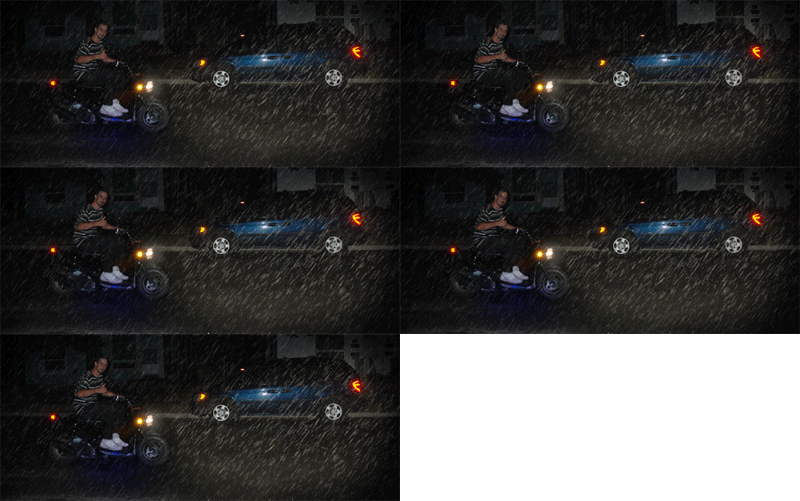
In this tutorial we will be lighting up a night scene to give it some added style, These are a few simple tricks that we have covered in the last tutorial "Day to Night. But we will be adding rain as well as animating it. However this is a using less steps for this type of effect... Lets get to it, this is my bud Trevor riding my Honda Ruckus. w00t w00t...
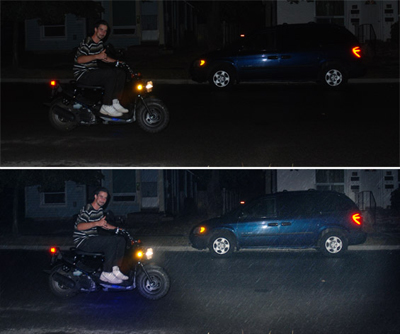
Creating the lighting effect: Day to Night (Go to Step 4)
Creating the Rain
Step 1 : Add a new layer and fill with Black
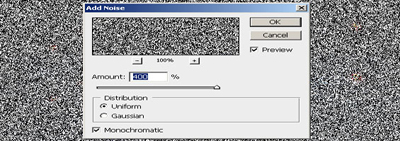
Step 2 : Select black layer and go to Filter/Noise/Add Noise
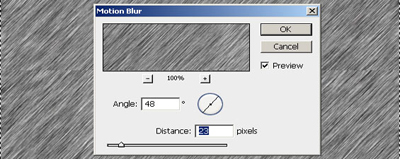
Step 3 : Go to Filter/Blur/Motion Blur
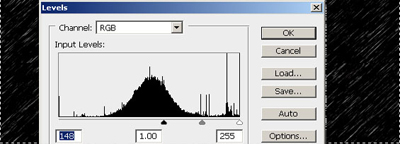
Step 4 : Go to Image/Adjustments/Levels
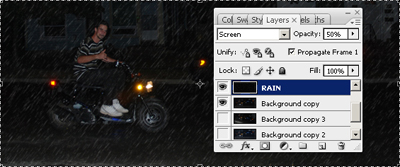
Step 5 : Set the rain layer to Screen and set Opacity to 50%
Now we will animate the rain with little effort.
Step 6 : Enlarge your rain layer slightly and place into position
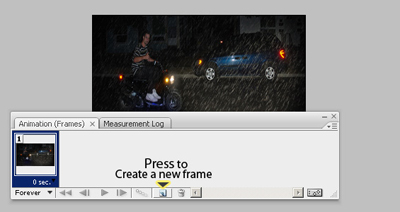
Step 7 : Go to Window/Animation to open that panel
Step 8 : See Image:..
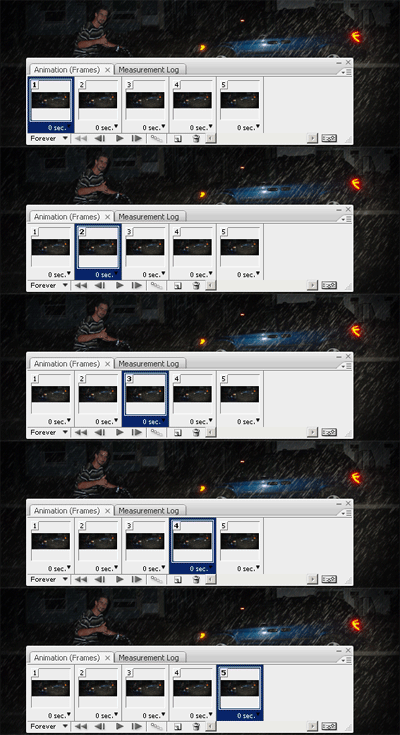
Step 9 : Move the rain layer to a new position and do it so you have six unique frames
Step 10 : Creating the lighting effect: Day to Night (Go to Step 4)
Step 11 : Go to file>save for web>and save as gif.
Final Result