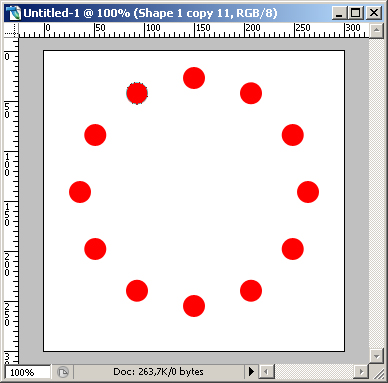
Sometimes you want to copy a certain selection multiple times. For example you want to make a clock and having a hard time to copy the dashes every 30 degrees. It's anoying to keep repeating the same action over and over again, hoping the dashes align. There is a trick for this.
Step 1
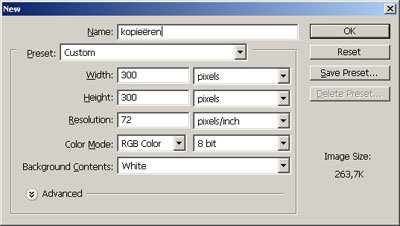
Make a new file of 300 x 300 pixels (this is just for this tutorial, the actual dimensions doesn't mater).
Step 2
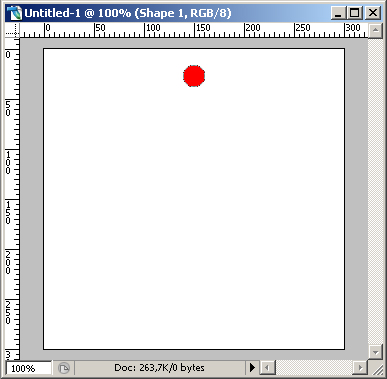
Make a crikle with the "elipse tool" and place this somewhere in the middle, on the top of your page.
Step 3
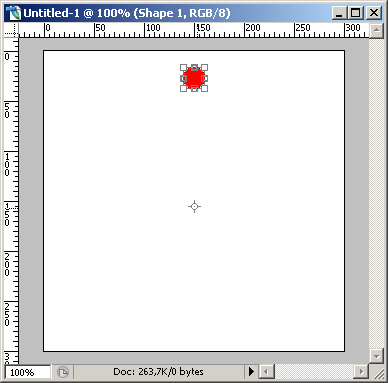
Press Ctrl+Alt+T te start the transform and copy action. After this, you move the pivot point of the little cirkle to the middle of the page. Sometimes this is very difficult to click the pivot point (mostely if your shape is very small), so you can press Alt and click&drag the pivot point to the center of the page. To assure the movement is exactly right, you can press Shift after you started dragging to drag along an axis (X or Y).
Step 4
Release the buttons on your keyboard and return your mousecursor to the cirkle. If you move the cursor over the shape, you'll see the cursor change. At the corners of the shape's bounding box you'll see the cursor change in a "rotate" cursor. This means that if you click, you can rotate the shape. And since you've moved the pivotpoint, the shape will rotate around this moved pivotpoint.
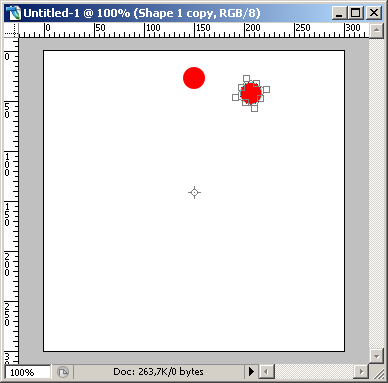
To assure you're rotating 30 degrees (a circkle is 360 degrees, devided by 12 hours is 30 degrees) you can enter the rotating value in the toolbar:

Step 5
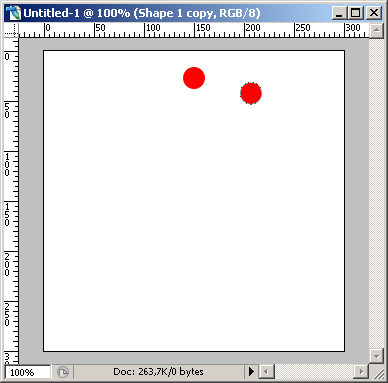
Click in the toolbar on the "commit transform" button or press enter (the right one! the left won't work!) to commit the transformation. If everything is ok, you'll get this result:
Step 6
After this, you'll press Ctrl+Alt+Shift+T as many as you want, to apply the transformation multiple times. By doing this your shape is copied and rotated multple times. When you're finished, you should get something like this: