Step 1
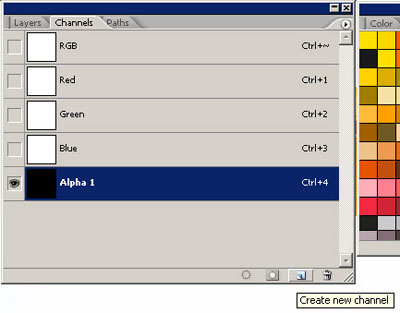
After making a new document (in this example 350x350 pixels) you find "Channels" view by clicking the tab "channels" at the top of your layers-view (press F7 if you don't see the layers overview). Add a new channel to the channel overview by clicking the "create new channel" button at the bottom of the overview.
Step 2
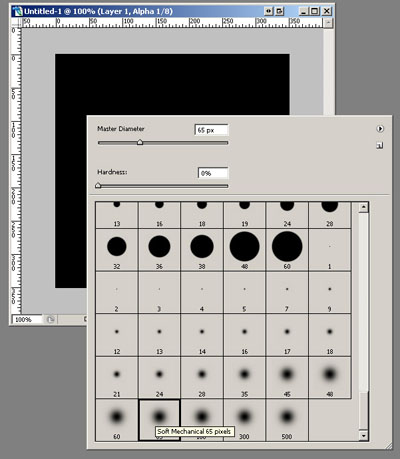
Select a big brush and make a nice smooth shape in this channel. I made a simple stroke, but this could be any shape you want.
Step 3
This is my shape:

Step 4
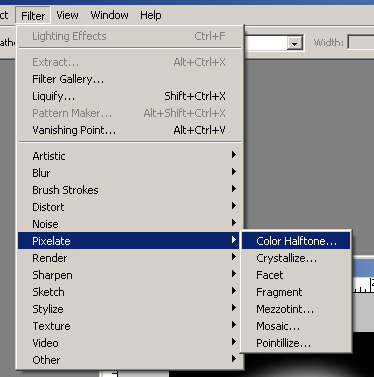
Make sure you have selected the channel with your shape and select the "Color Halftone" effect in the effectoverview.
Step 5
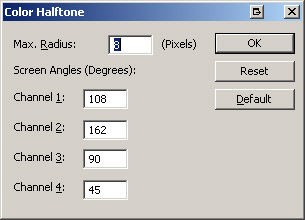
The default settings are ok. Make sure they match these settings:
Step 6
If everything is ok you'll get something like this:

Step 7
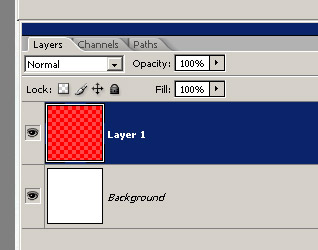
Get back to the layer overview and create a new layer.
Step 8
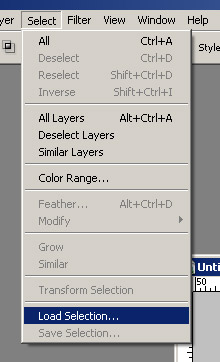
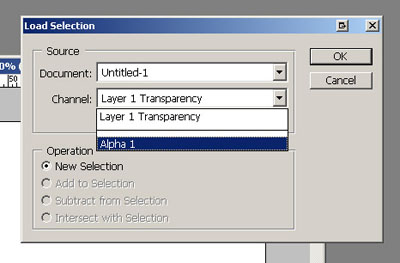
Load your selection in the new layer like this:
Step 9
Select the channel in which you drew your shape and click OK.
Step 10
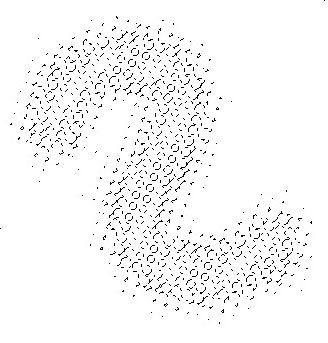
You'll get the following selection:
Step 11
Choose a color and fill the selection with this color (i choose light blue). This is easily done by pressing Ctrl-BACKSPACE on your keyboard.

Step 12
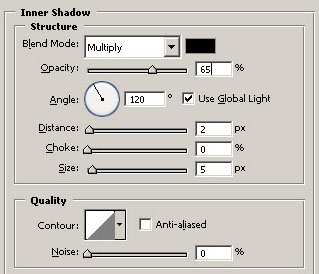
To make thing even cooler, you can add an "inner shadow" layer effect. Add a layer effect by right-clicking on the layer and choosing "Blending Options...". Use these settings:
Step 13
This will be your result: