Easy :)
First, draw a circle (using Shift tab) and fill it with radial gradient like this:
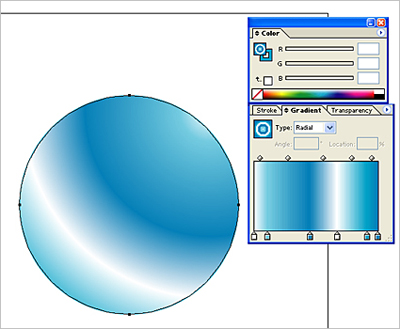
Now, copy that circle, paste it on the top of the first one and make it smaller. Rotate the gradient fill in that smaller circle for 180 degree. This will create a "shining" effect.
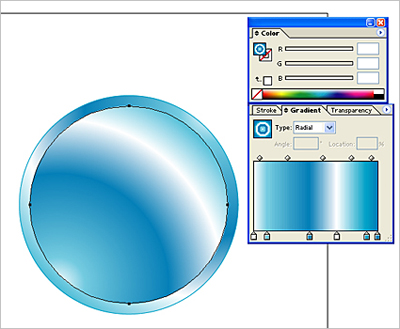
Make another circle resize it to make it smaller than the one we did just now. Fill it in using simple radial gradient fill.
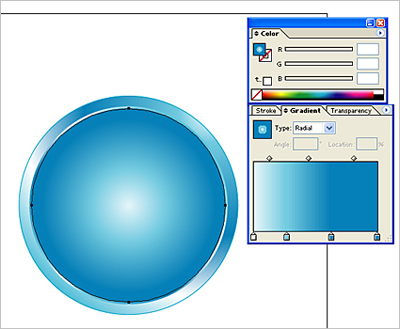
Now make the fourth (this is the last one) circle that's smaller than third one and use Pen tool to create a shape that will look like this: (select the bottom anchor point and simply delete it).
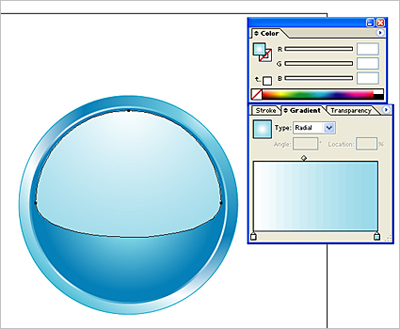
Done. Now, that wasn't difficult, was it?

Here are some sample images derived from this button (© Photographer: | Agency: Dreamstime.com):