Create a new file having 400x400 px and 72 dpi.
Using the next tool  , try to draw a wing's silhouette.
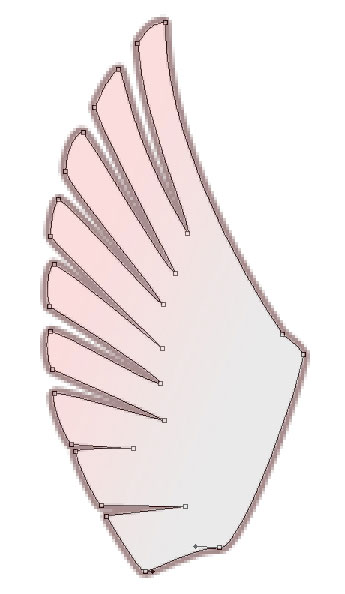
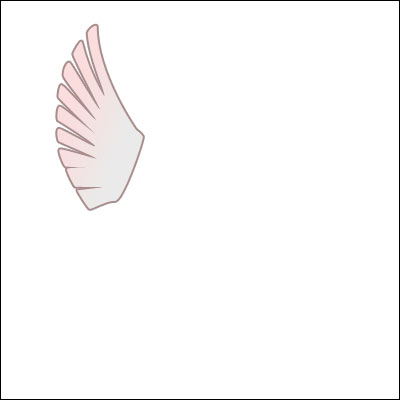
Fill 0% on the layers:
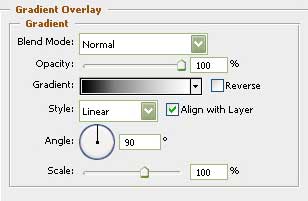
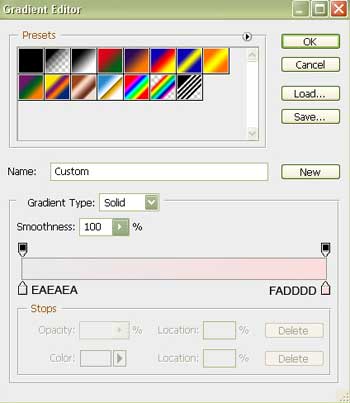
Blending Options-Gradient Overlay
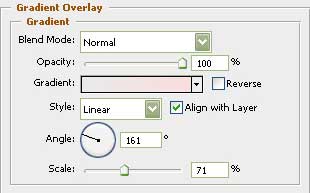
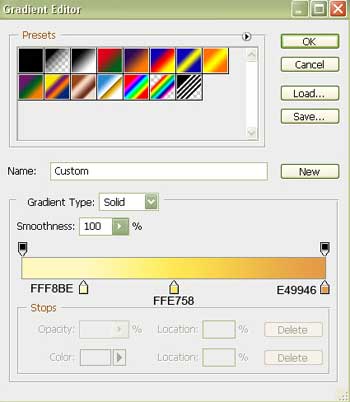
Gradient's parameters:
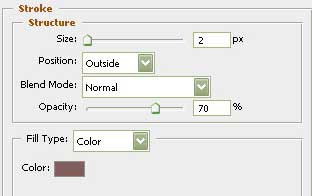
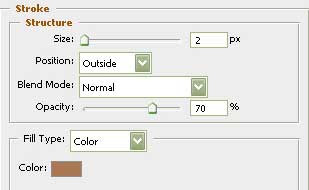
Blending Options-Stroke
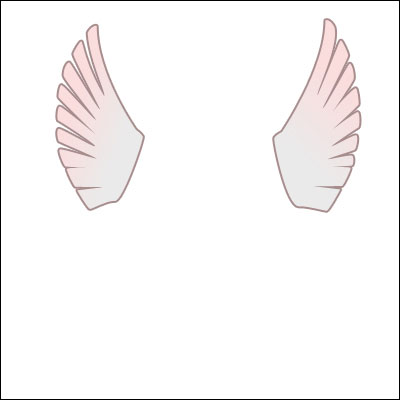
Make a copy of the new made layer and then apply the Free Transform option to turn it around on 180 degrees. Select after that another tool shown here  and make the shown changes below in the picture. Place everything the same way it is demonstrated below.
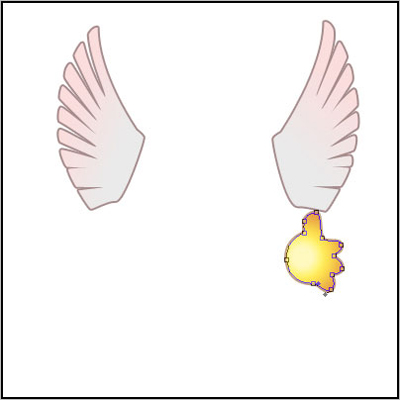
Select the previous instrument to draw a silhouette of a hand now.
Blending Options-Gradient Overlay
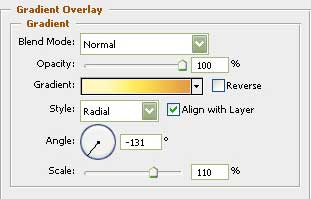
Gradient's parameters:
Blending Options-Stroke
Take another tool  and represent an ellipse:

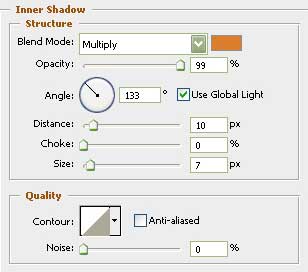
Blending Options-Inner Shadow
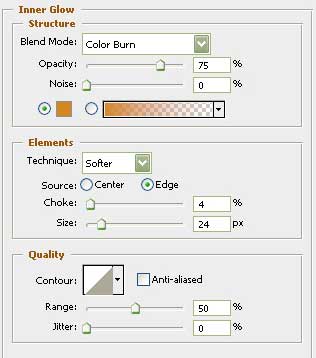
Blending Options-Inner Glow
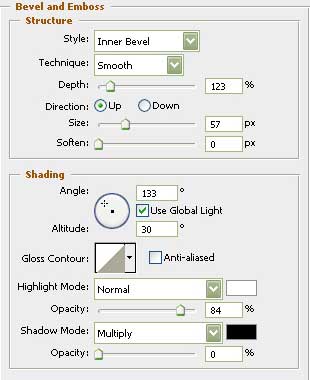
Blending Options-Bevel and Emboss
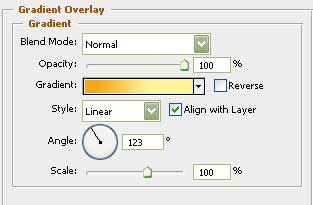
Blending Options-Gradient Overlay
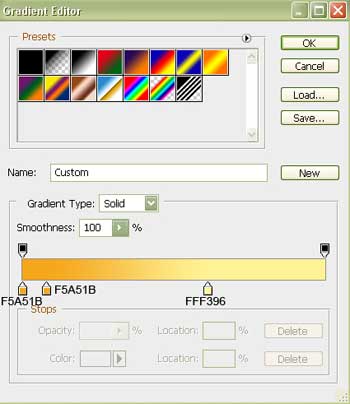
Gradient's parameters:
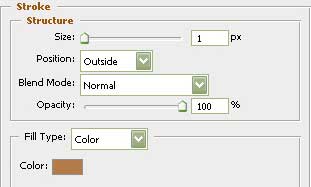
Blending Options-Stroke
Selecting the same instrument, try to represent the lowest layer of the eye to be. Paint it in white color.

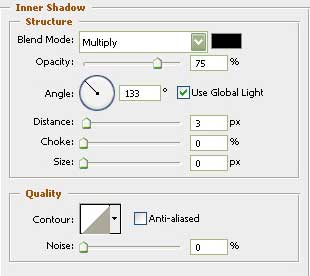
Blending Options-Inner Shadow
Take the next instrument and represent the eye's pupil.

When taking the following tool , it's possible to draw a flare inside the eye.


Blending Options-Gradient Overlay