

Whether you've made a selection by Photoshop tools or used a plug-in you'd want your selection to look nice and smooth on a new background. If the edges of the selected image were not softened or feathered during the process of selection you may shade them in Photoshop.
To do that open Select menu and choose Feather
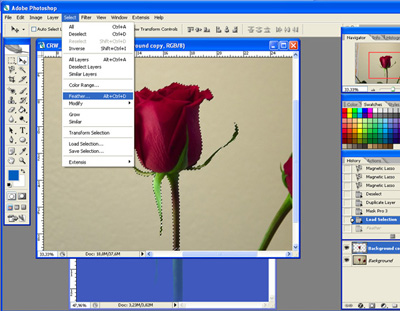
Click to enlarge
In the opening dialogue window type in a number of pixels to be feathered (2-5 are usually enough)
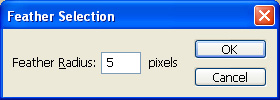
Now you can copy your selection, paste it into a new environment and evaluate the result

No feathering

Feather 5px

Feather 15px

Feather 50px

