Today we learn how to create animations in Photoshop! My example is with text because i don't have photos for this kind of tutorial! Let's start!
- Adobe Photoshop CS6 Classroom in a Book
- Photoshop CS6: Visual QuickStart Guide
- Photoshop CS6 For Dummies
- Adobe Photoshop CS6 Digital Classroom
- Photoshop CS6: The Missing Manual
- The Adobe Photoshop CS6 Book for Digital Photographers
- Adobe Master Class: Photoshop Inspiring artwork and tutorials by established and emerging artists
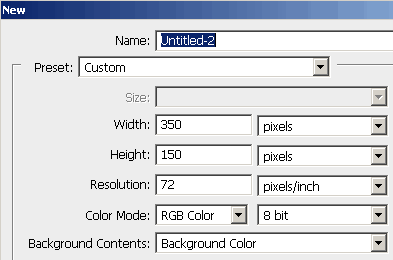
1. Open Adobe Photoshop and create a new page with the size 350px x 150px!
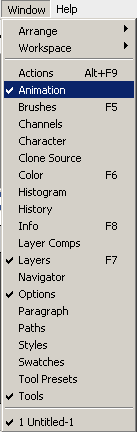
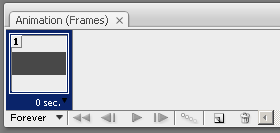
2. Now you need to open the Animation Panel
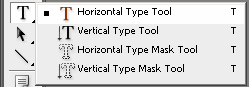
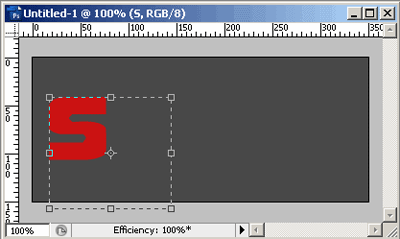
3. Select Type Tool and type the first letter ( every letter have a different color )
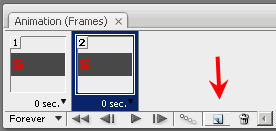
4. Now in Animation Panel press on duplicate selected frame
5. On this step you need to be attention. Type the second letter…
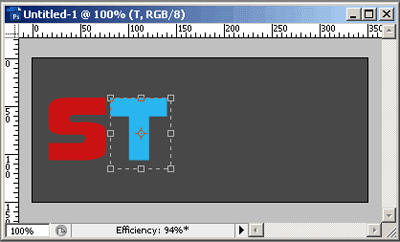
and a new layer was created
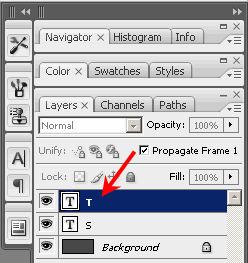
6. Click on the first frame to hide the new layer ( T word )
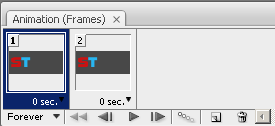
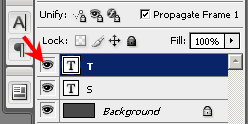
7. Click on the second frame to unhide it and to hide the first layer
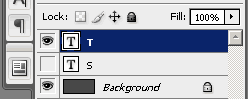
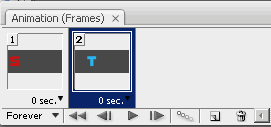
8. Do this to all frames, look at the next picture to see how is it at the final
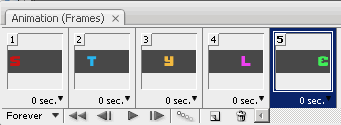
on the last frame the layers will need to be like in the next picture
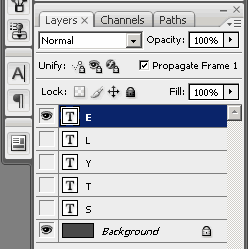
9. Now we need to set the seconds between frames, select All - right click and select 0.5 seconds
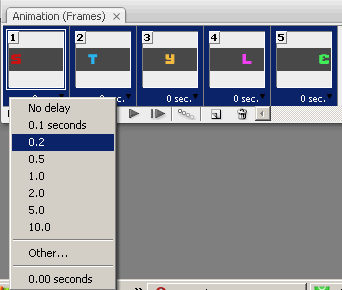
10. This is the last step where I show you how to save your work! Go to File and select Save for Web & Devices
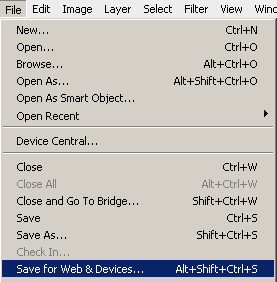
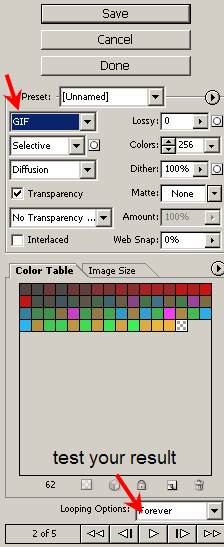
Select GIF like file type and before to save you can see the result by pressing the play button
That's it!