

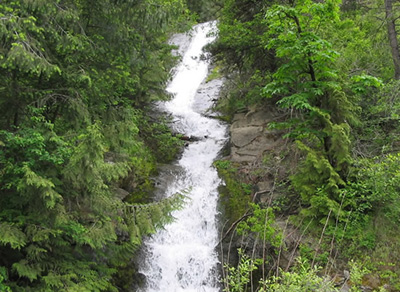
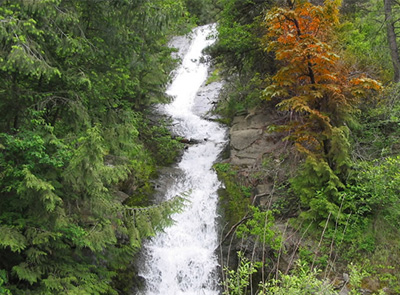
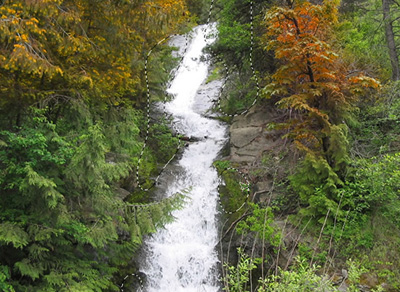
Before
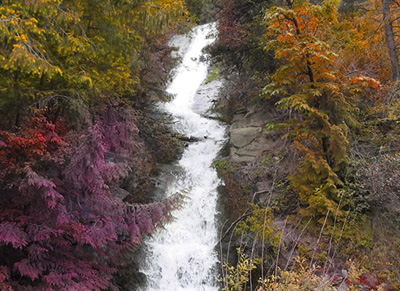
After
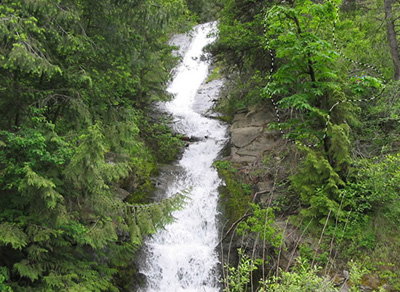
Open 1 image file that you like to make an effect
Press Ctrl+J to duplicate the layer
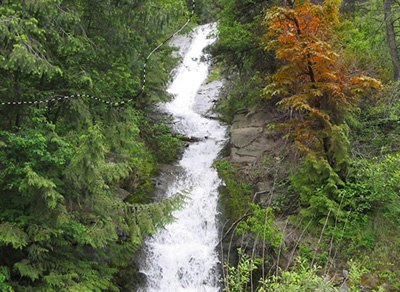
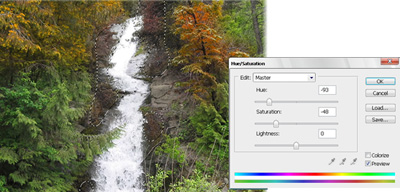
Use Polygonal Lasso Tool to select an area that you want to change the color.
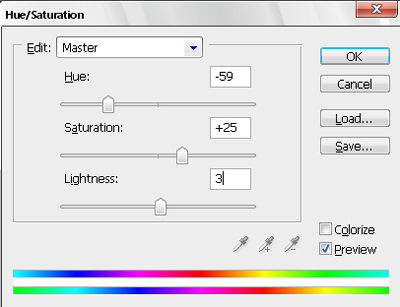
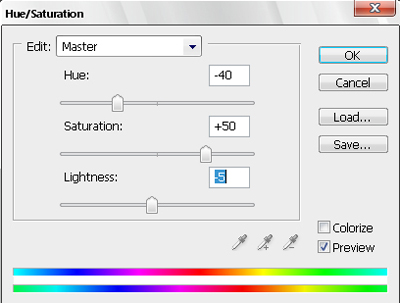
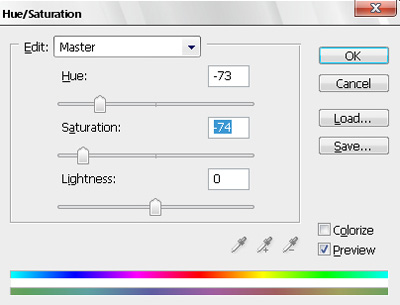
Press Ctrl + U (or select Image -> Adjustment -> Hue/Saturation) and do as the picture below
Press Ctrl + D you will get the picture as the one below
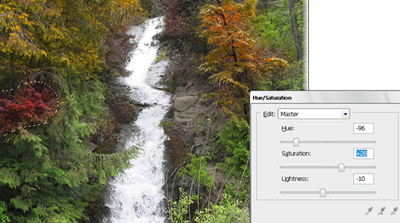
Next, Continue select another area
Press Ctrl + U and you do as the picture below
you will get the picture as the one below
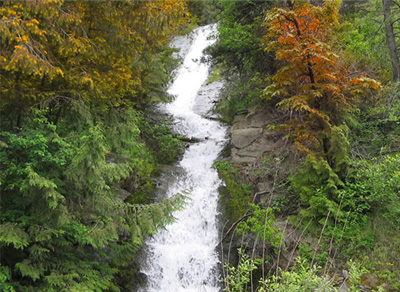
You see, with different parameters ,we have different colors
And one more, You can use Add to Selection to select more area that you want to change same color.

Like this:
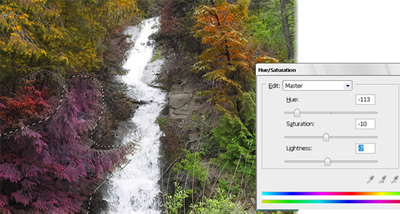
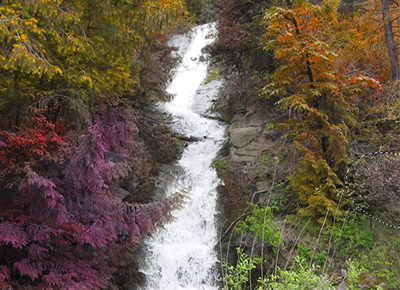
Continue with Ctrl + U and this is final result
