Create a new file (600x500). Fill the layer with White BackGround.
Then, use Fiter->Render->Cloud.
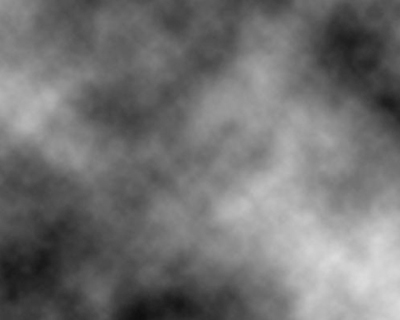
Then,use Filter -> render-> different cloud.
Press Ctrl+F several times until It look as real Fire.
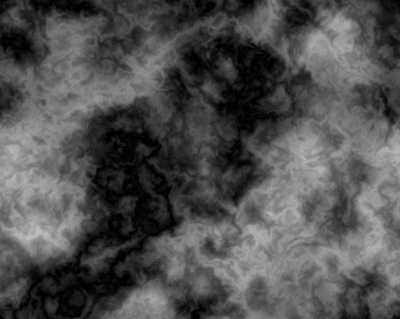
Use Brush Tool to change half above color to Black.
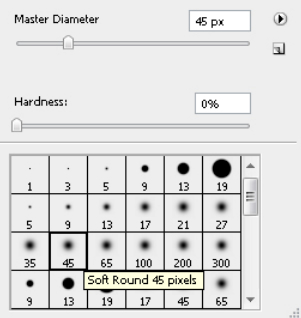
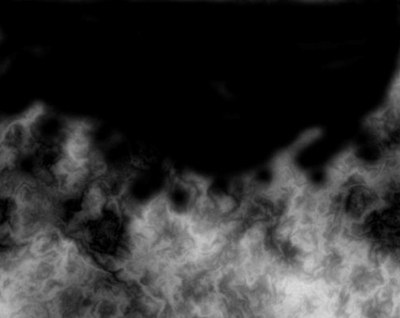
Use Filter -> Liquify to make the Fire more likely
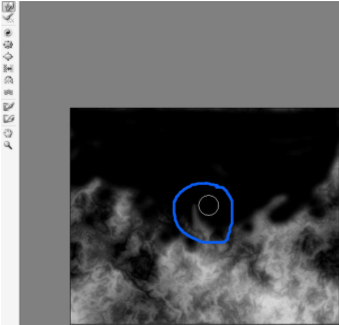
Image -> adjustment ->Gradient map, set as follows:
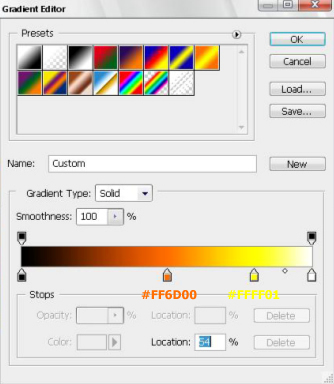
You can select other Stop color to change color of fire.
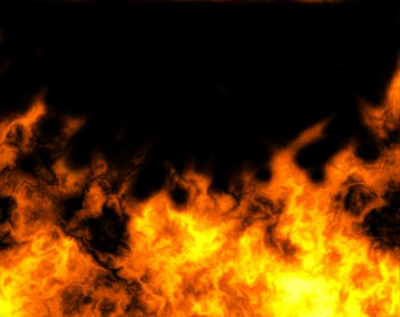
Result: