

I used these stocks for this tutorial
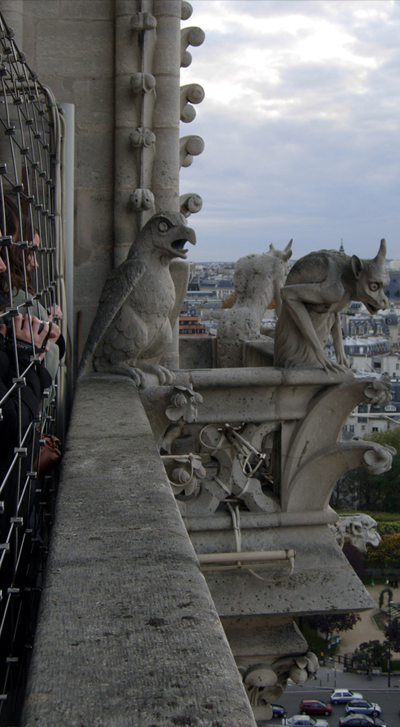
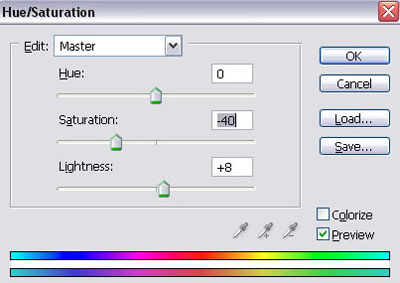
1. Castle layer: Use cutting tool (lasso or eraser) to remove the background then you press Ctrl + U to open Hue/Saturation and do as the picture below:
We will get the result:
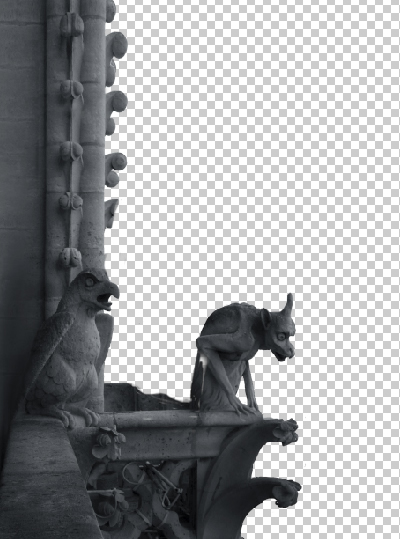
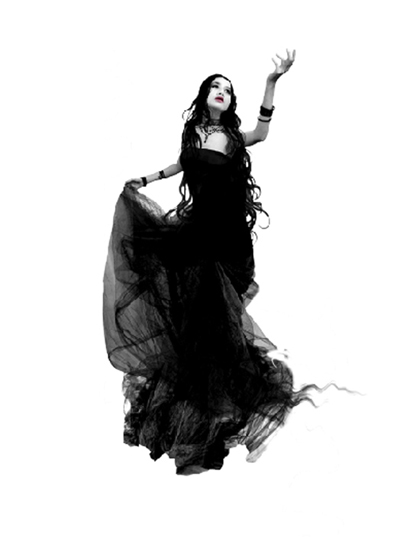
2. Use lasso tool or eraser to cut the girl out of background
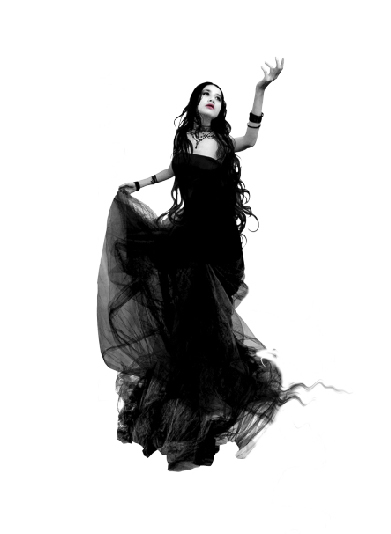
And put the Girl layer under Castle layer.
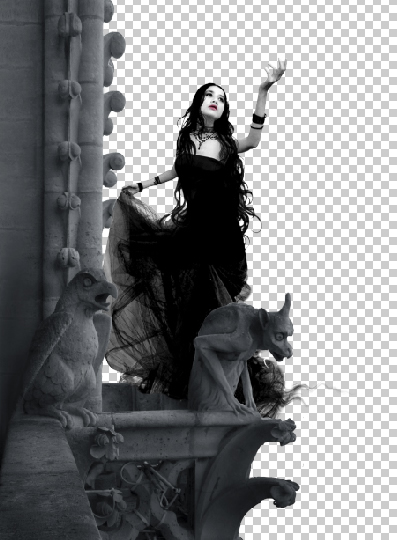
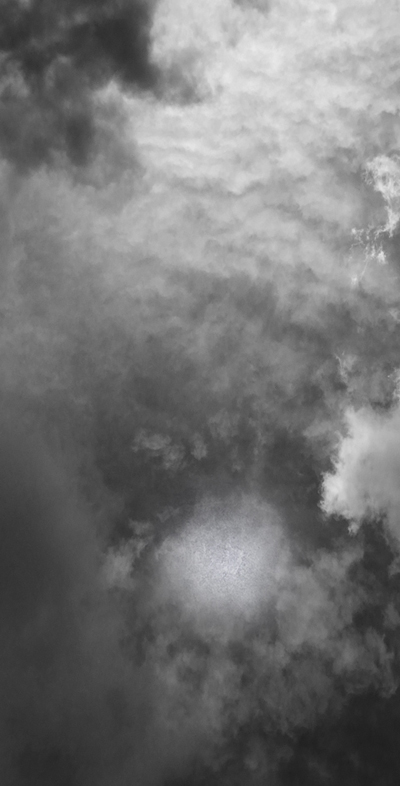
3. Put the sky layer under the girl layer.
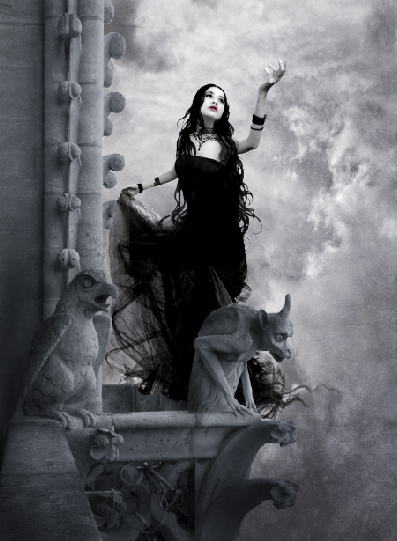
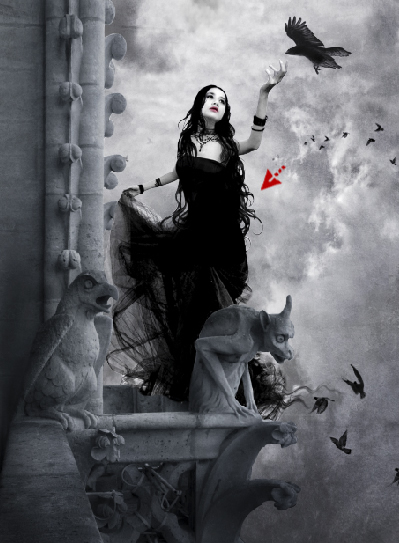
4. Put some crows onto the picture, (you can download the crows brush at the bottom of this tutorial)
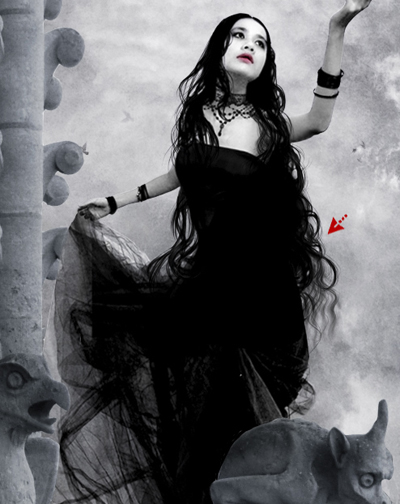
5. Now you will use hair brush to make her hair longer
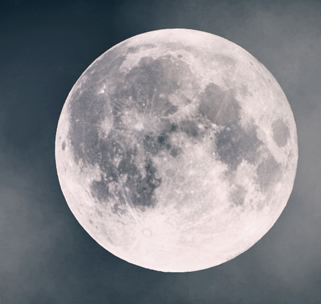
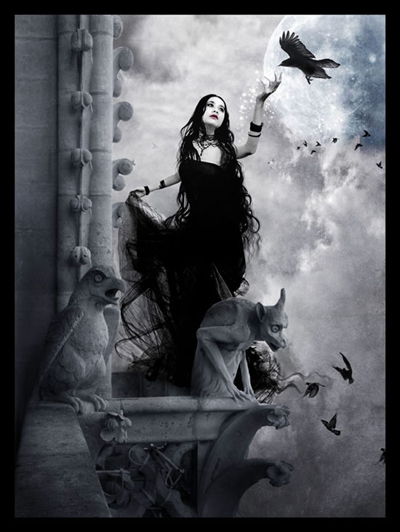
6. Final step, use elliptical marquee tool to cut the moon and place it like the picture below. Use eraser (soft brush) , opacity 20%, to clear a few inside the moon, to make it blend in the sky.
Finally, we have this result:
Click here to download all brushes used for this tutorial.
