1. Create a new document and fill black background
2. Type a short text you like (you should use fat font)

3. Go to Blending mode
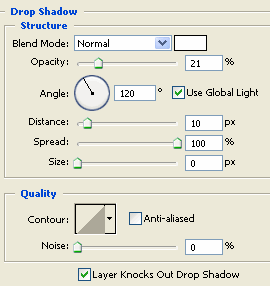
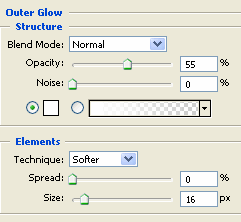
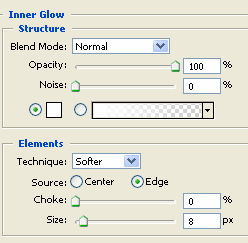
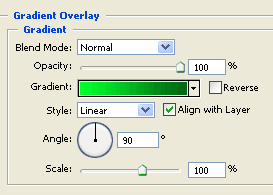
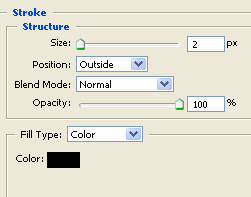
you will get the result as the one below

4. I made the letter B and L more shiny before, and you will make remain latters
Create a new layer and use Ellipse tool to draw a white circle like this

Ctrl + Click on the Text layer then press Ctrl + Shift + I to reverse selection and press Delete key, we will have:


Adjust Opacity = 30%

5. Create a new layer, Ctrl + Click on the Text layer and fill it with white color

Use Move tool to pull down the layer like this:

Ctrl + Click on the Text layer , Ctrl + Shift + I to reverse selection, press Delete key, adjust Opacity = 20% , you will get the final result: