


1. Create a new layer with gray background, create a new layer, use Rectangular Marquee Tool to make a rectangle like this:
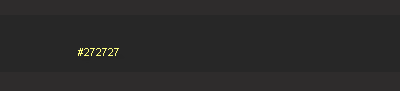
2. Go to Blending Options
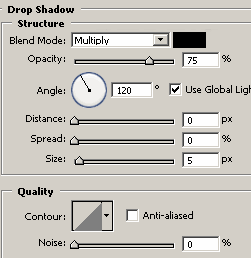
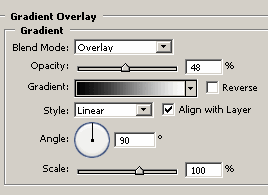
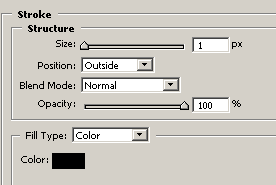
3. Create a new layer, use Line Tool to make 2 white lines like this:
+ Adjust Opacity=10%
4. Create a new layer and make 2 black lines below it
5. Create a new layer and use Rounded Rectangular Tool (Radius = 5px ) to draw a shape like this:
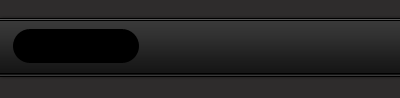
6. Go to Blending Options:
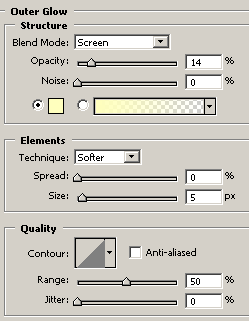
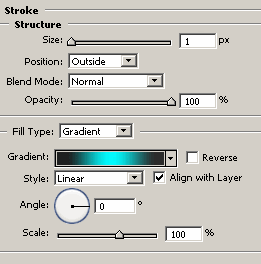
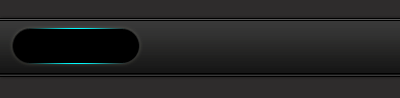
+ You will get the result:
7. Create a new layer and make a new shape inside the last shape
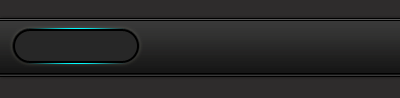
8. Go to Blending Options:
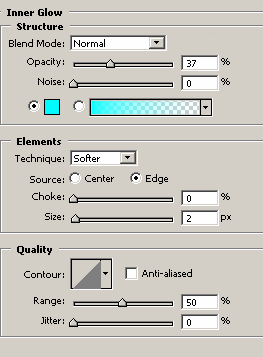
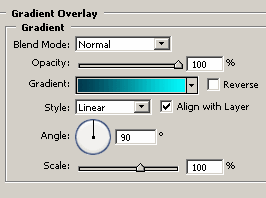
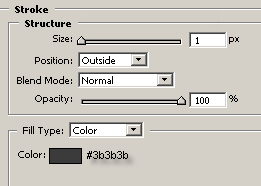
+ You will get the result:
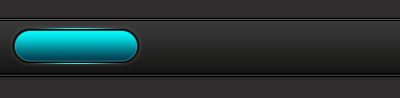
9. Create a new layer and make a white shape inside the button like this:
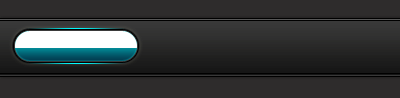
+ Adjust Opacity=10%
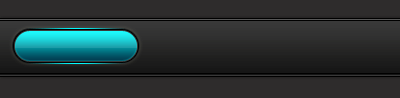
10. Duplicate the button and add some text to each button
+ This is my final result:

