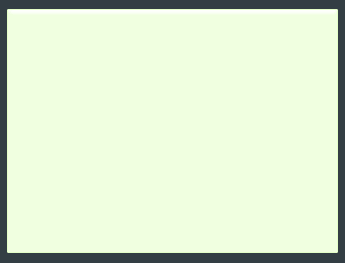
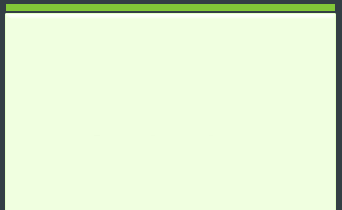
1. Create a new document, use Rectangular tool to make a selection and fill the color like this:
Go to Blending Options:
2. Use Rectangular tool to make a selection and fill color:
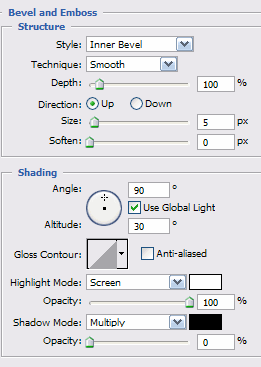
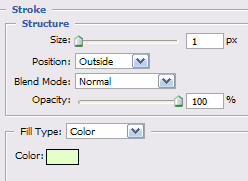
Blending Options:
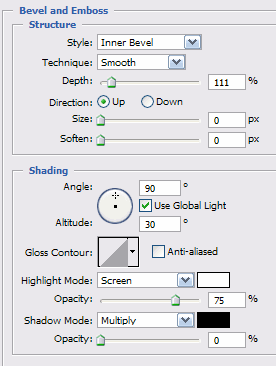
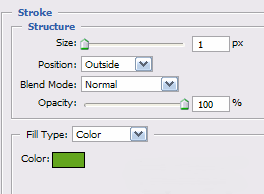
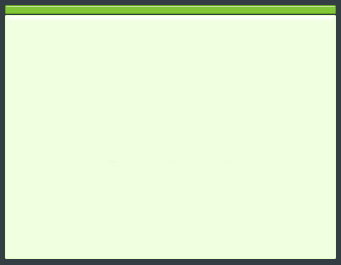
We have:
3. Create a new layer then create a green rectangle like this:
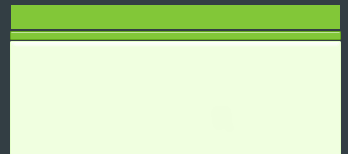
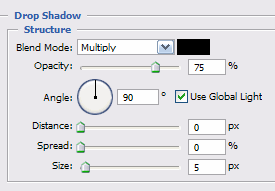
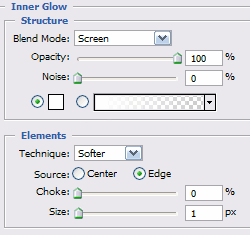
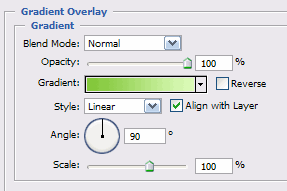
Go to Blending Options:
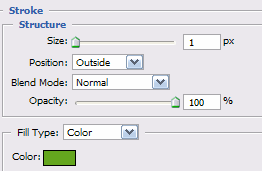
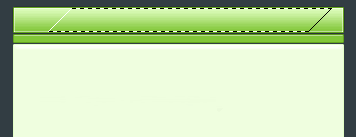
4. Create a new layer, use Polygonal Lasso Tool to make a selection, fill the color like this:
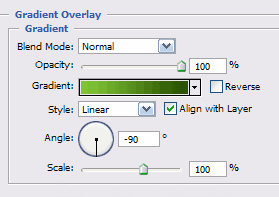
Go to Blending Options:
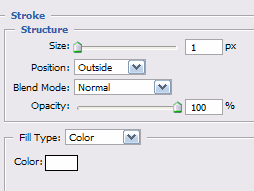
We have:
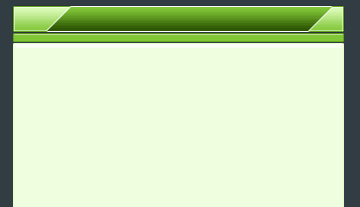
5. Create a new layer, use Polygonal to make selection, fill the color like this:

Go to Blending Options:
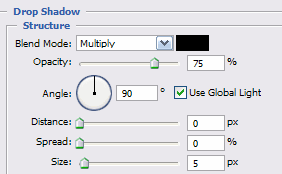
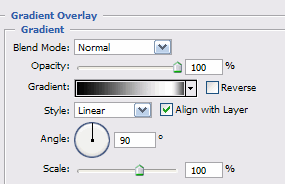
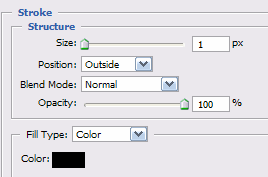
We have:
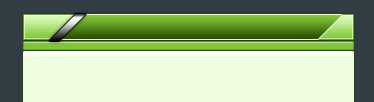
Duplicate this layer then move it to right side
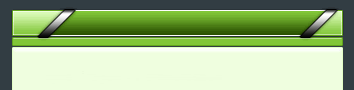
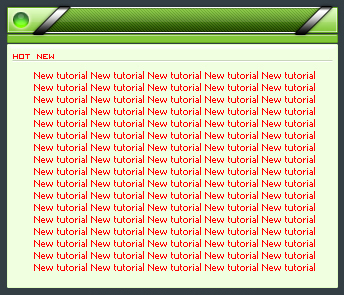
Final step, you can add more parts to your content box to make it looks better, and this is my final result: