Open the picture below, then press Ctrl+J to duplicate layer
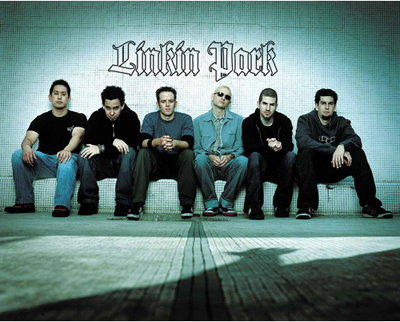
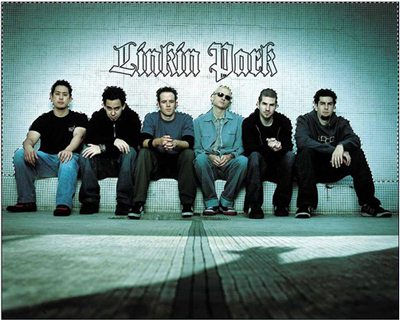
Use Pen tool to make a selection like this:
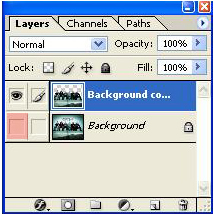
Click on the eye of layer background to hide that layer
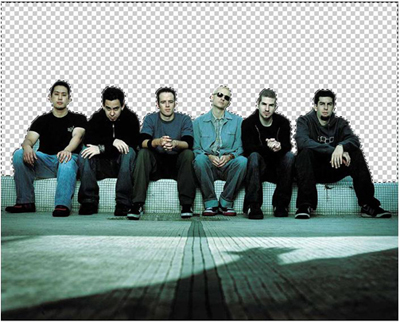
Hit Delete key, you will have:
Click on the eye of layer background to show it again, pick Gradient tool and set properties like this:
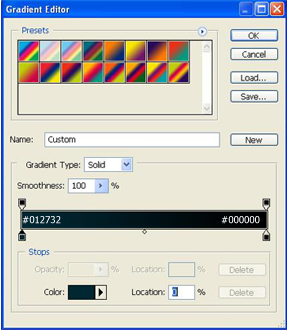
Apply gradient color to layer background, you will get the result:
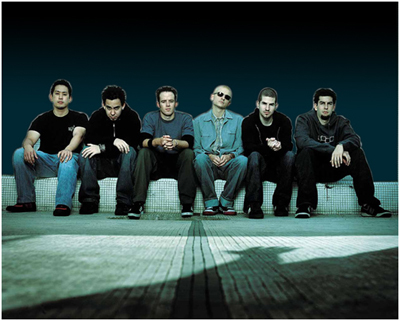
You can put some text on layer background
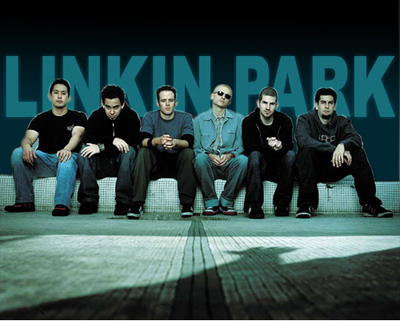
Pick Brush tool and select these brush
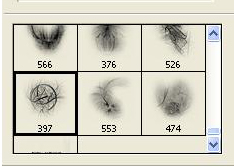
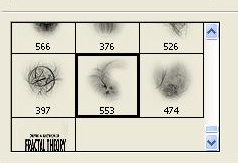
Apply brush to background layer, you will get the result:
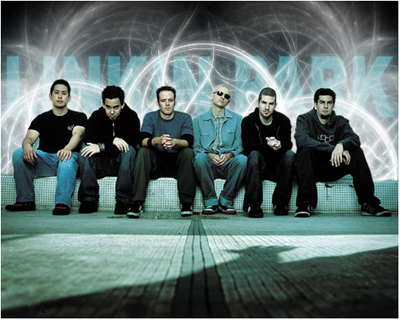
Add a text to the picture, in this tutorial I used font Transylvania
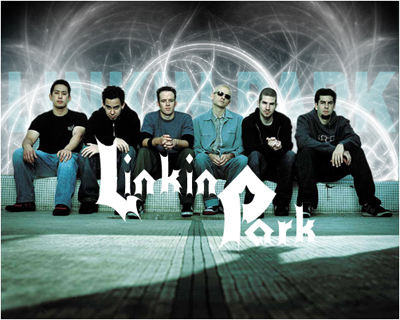
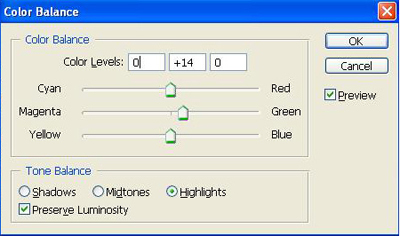
Select layer "Background copy" then press Ctrl+B to open Color Balance, set properties like this:
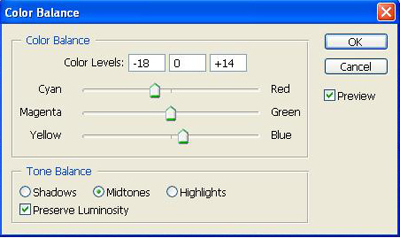
You will get:
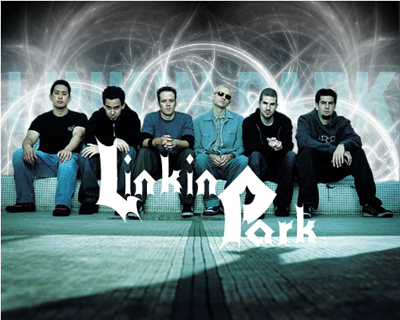
Open Brush tool and pick this brush:
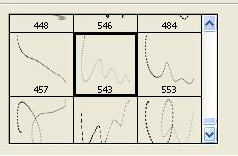
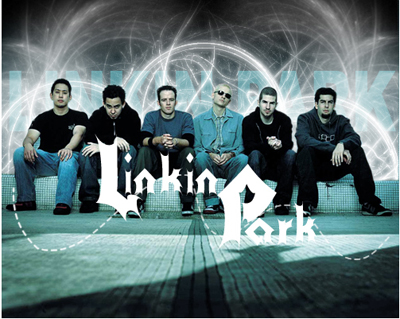
Apply it to the picture:
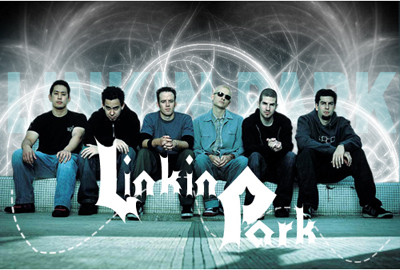
Merge Visible all layers then use Crop tool to crop the picture like this:
Go to Image -> Adjustment -> Brightness/Contrast to adjust the contrast of picture
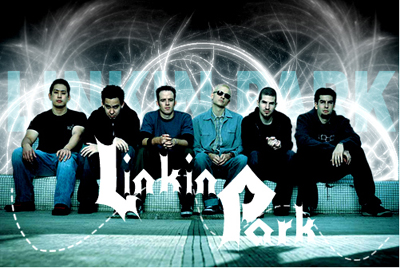
Press Ctrl+B to open Color Balance
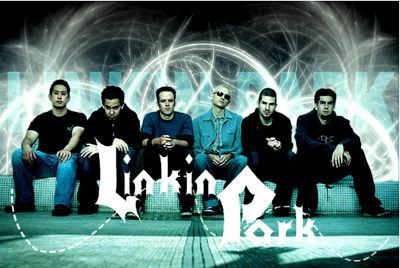
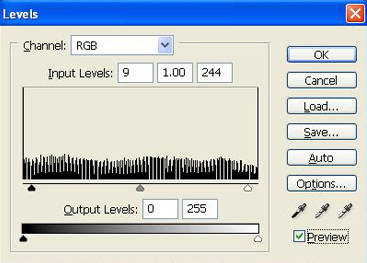
Press Ctrl+L to open Levels, set properties like this:
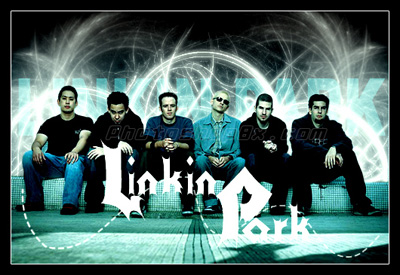
Finally, you will get the result:
Click here to download all brushes used in this tutorial.
