

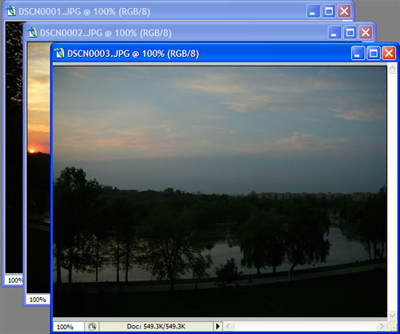
First off all you have to take 3 pictures using your digital camera and having selected the panoramic photo function.Open the using photoshop.
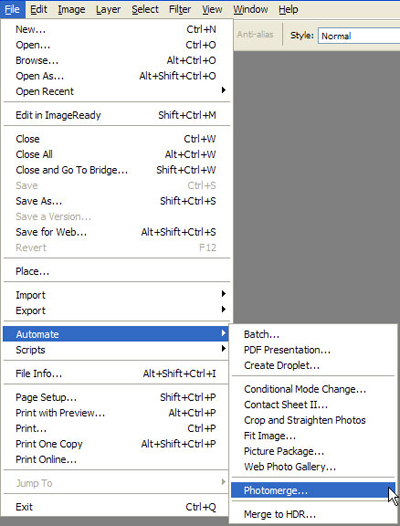
Go to File>Automate>Photomerge.
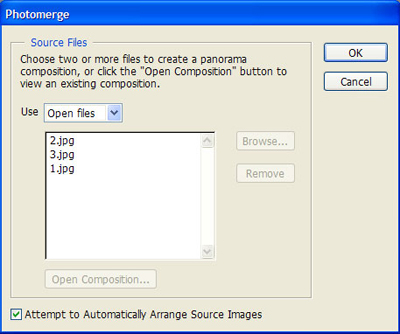
Open all your photos using this photos.
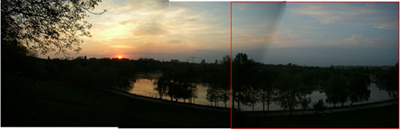
You have obtain this.
Click to enlarge
Now using the Rectangular Marquee tool try to make it look like this.
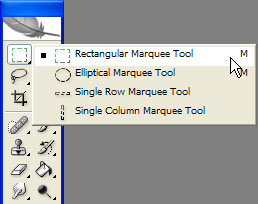
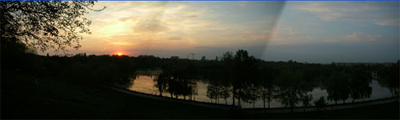
Click to enlarge
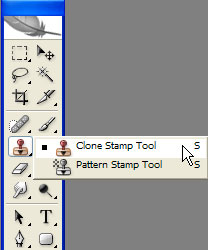
Now let's try to delete these marks. Select the Clone Stamp tool.
Try to select this area and press Alt key.
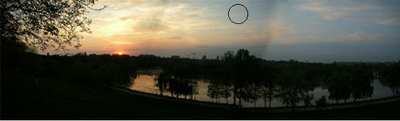
Click to enlarge
It will disappear a little bit.
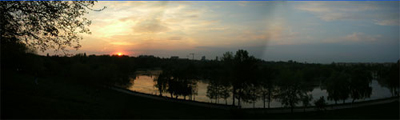
Click to enlarge
