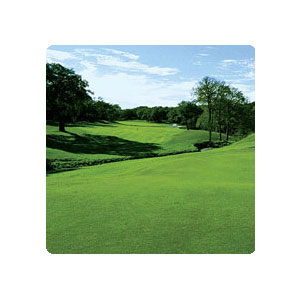
If you want tot use the sample picture you can use it from here.
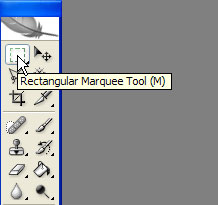
Start by selecting the Rectangular Marquee tool.Hold on Shift so that it selects a perfect square .
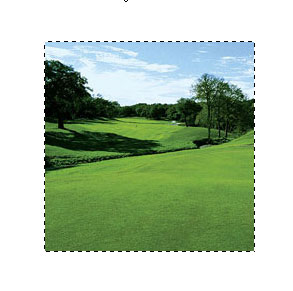
This should be the result.
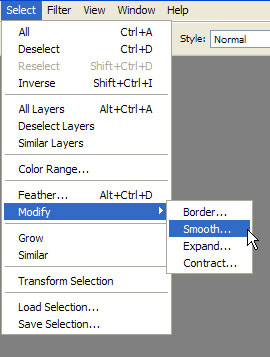
Go to Select>Modify>Smooth.
And the Select>Inverse.
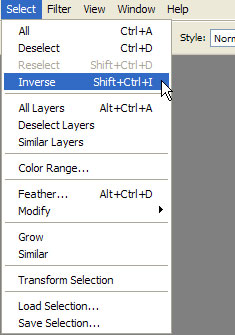
You should obtain this by now.
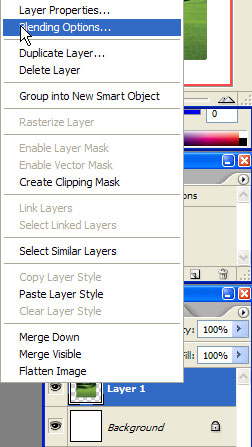
Right click the layer and select Blending options.
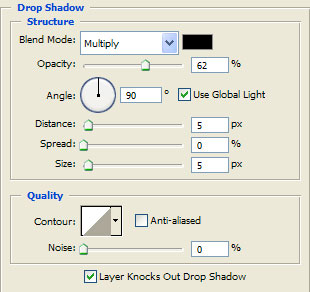
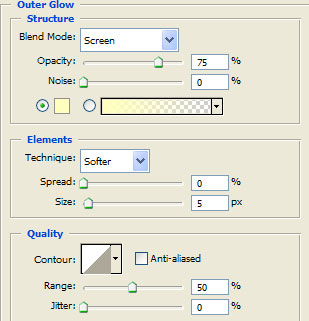
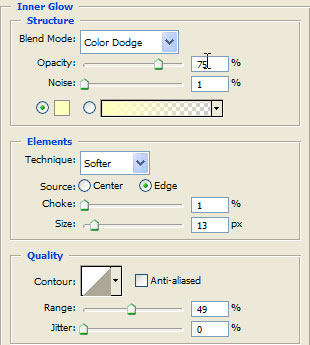
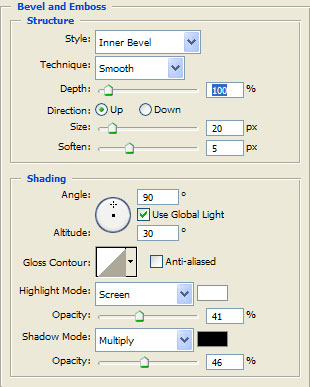
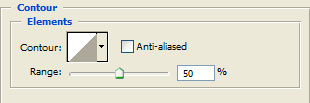
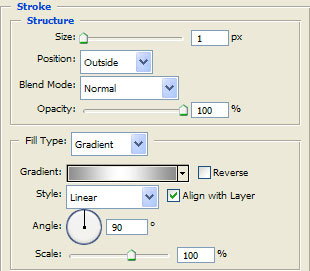
There make these settings.
The colour I use for the Inner glow and Outer glow is this one # ffffbf .
This should be your final result.Of course without the text .The text will be in a future tutorial.