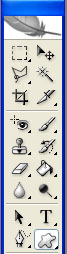
Start by creating a blank document with black background. Select the Custom shape tool like in the picture.
Now select the star from the list.
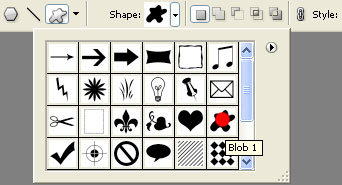
You should have something like this.

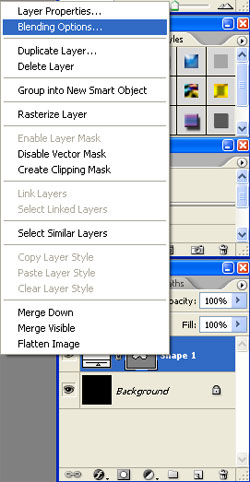
Now right click the layer and select Blending options.
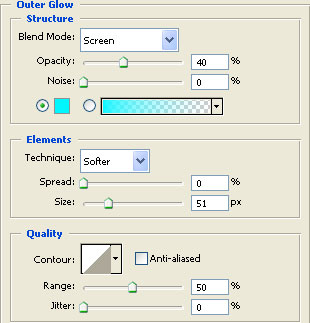
At the Outer glow make these settings.
And these for the Inner glow.
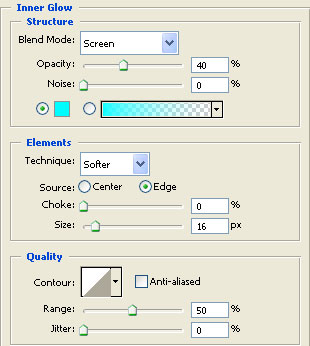
By now you should have this.

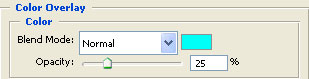
Let's go further.Set these values for the Color Overlay.
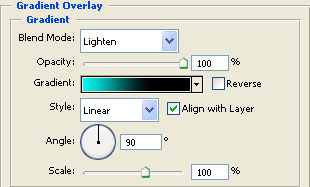
These for the Gradient overlay.
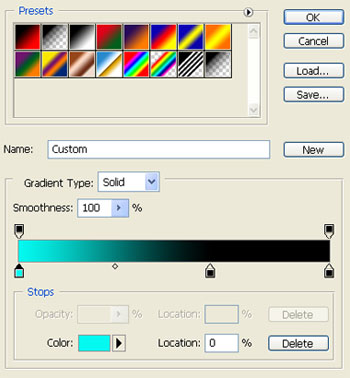
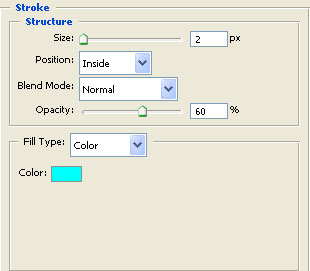
These for the Stroke.
You should have this by now. Create a black text like in the picture.

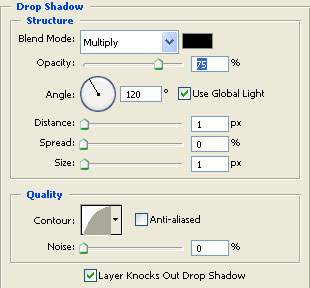
Right click the text layer and select Blending options. There make these settings.
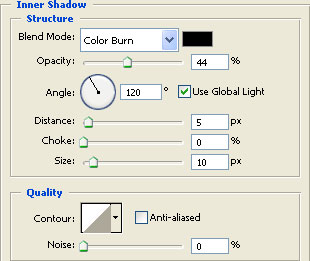
These settings for the Inner shadow.
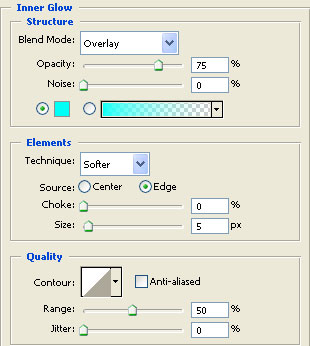
These for the Inner Glow.
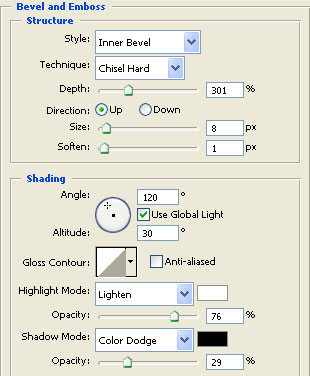
And these for the Bevel and Emboss.
This is the final result. I hope you like the result!