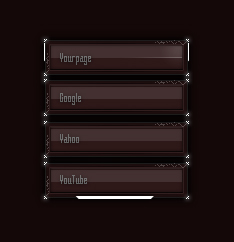
Create a new layer, fill it with dark color, create a new layer, use Rectangular Marquee Tool to make a selection and fill this selection with the color white:

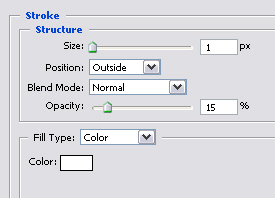
Blending Option this layer:
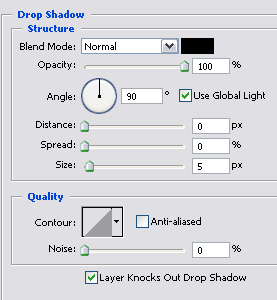
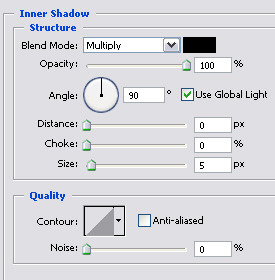
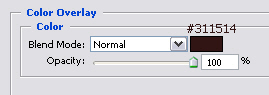
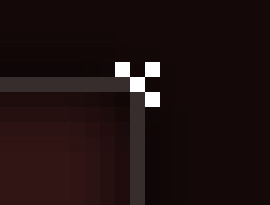
Create a new layer, use Rectangular Marquee to make a selection 1px and fill this selection with the color white like the picture below:
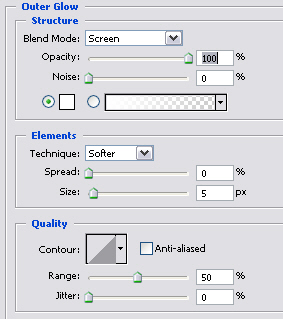
Blending Options this layer:
You will get the result like this:
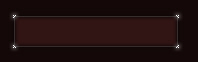
Create a new layer, make a selection and fill this with the color white:
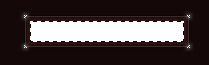
Blending Options this layer:
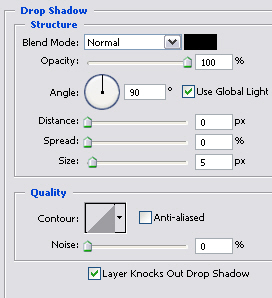
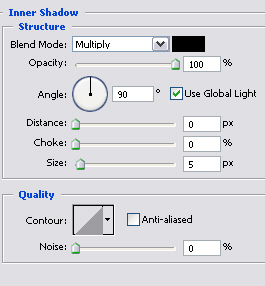
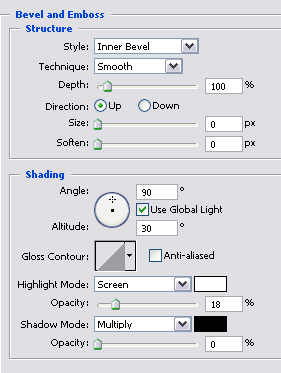
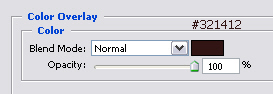
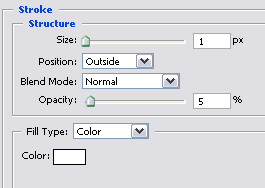
You will get the result like this:
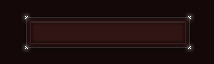
Create a new layer, make a selection 1px and fill this with color white at 4 angles:
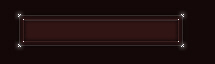
Create a new layer, make a selection 1px and fill this with color white then make some lines like the picture below:
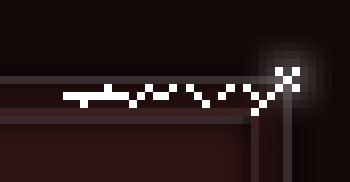
Adjust Opacity 50%:
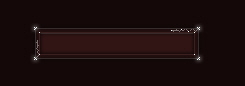
Duplicate the button and add some text to each button:
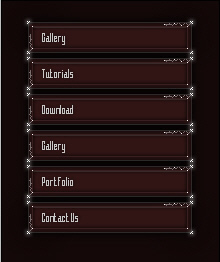
You've already finished this tut with sample details:
This is my final result with some other details :