

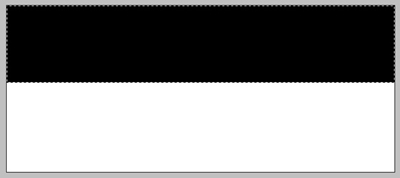
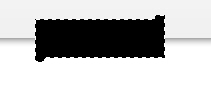
Create a new document, create a new layer, make a selection and fill color like the picture below:
Blending Options for this layer:
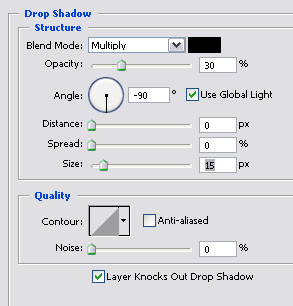
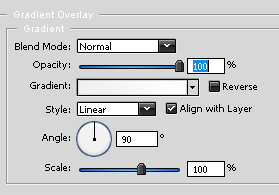

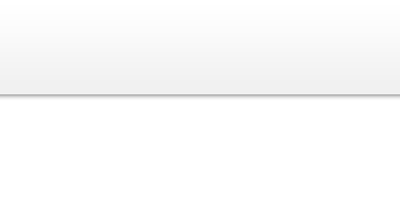
You will get the result:
Create a new layer and name it button, use Rectangular Marquee Tool to make a selection then fill color like this:
Blending Options for button layer:
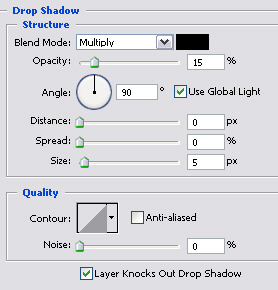
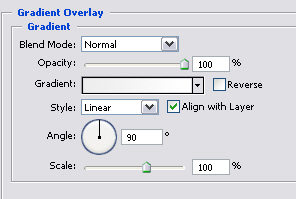
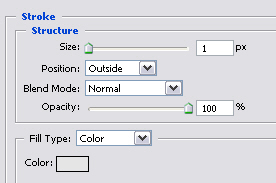
You will get:
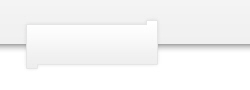
Create a new layer, use Rectangular Marquee Tool to make a selection and fill color like this:
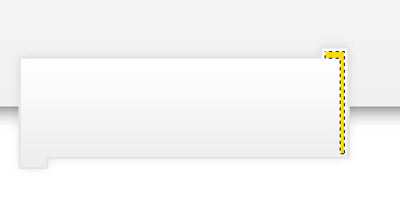
You will get:
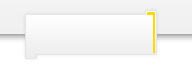
Create a new layer, use Polygonal Lasso Tool to make a selection, fill it with black color:
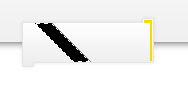
Decrease Opacity = 5%
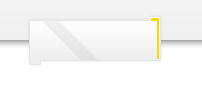
Create a new layer, press Ctrl + Click on layer button to make selection, fill selected part with white color:
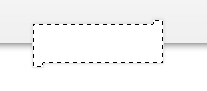
Use Rectangular Marquee Tool, hold Alt + drag mouse to make a selection like the picture below:
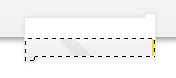
Decrease Opacity = 20%
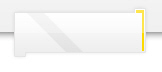
Now you will merge all layer then duplicate to make more buttons:

Add some text and icons to each button.
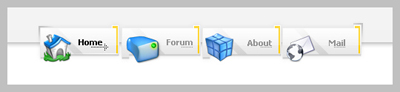
You've already finished this tutorial, good luck!
